Membership plans in Kuee used to do one thing: charge the card on the renewal day. Now each plan can also turn that fee into balance the member spends at your store, take a fixed amount off a category of services, give free add-ons on longer sessions, and hold a minimum term and a cancellation notice period. Every part is optional, so a plan you leave alone works exactly as before.
This release also adds an Unpaid tag and a Legend to the appointment calendar, brings the customer intake form back to a single page, and lets you add a short note to each pressure option, such as "+$10".
Membership plans with balance, discounts and free add-ons
Many spas sell a monthly membership as "pay $79, get $79 to spend". Until now Kuee could charge the $79, but the front desk had to track the credit somewhere else. Now the plan does it: each successful charge adds the balance to the member's card, and the front desk uses it at checkout.
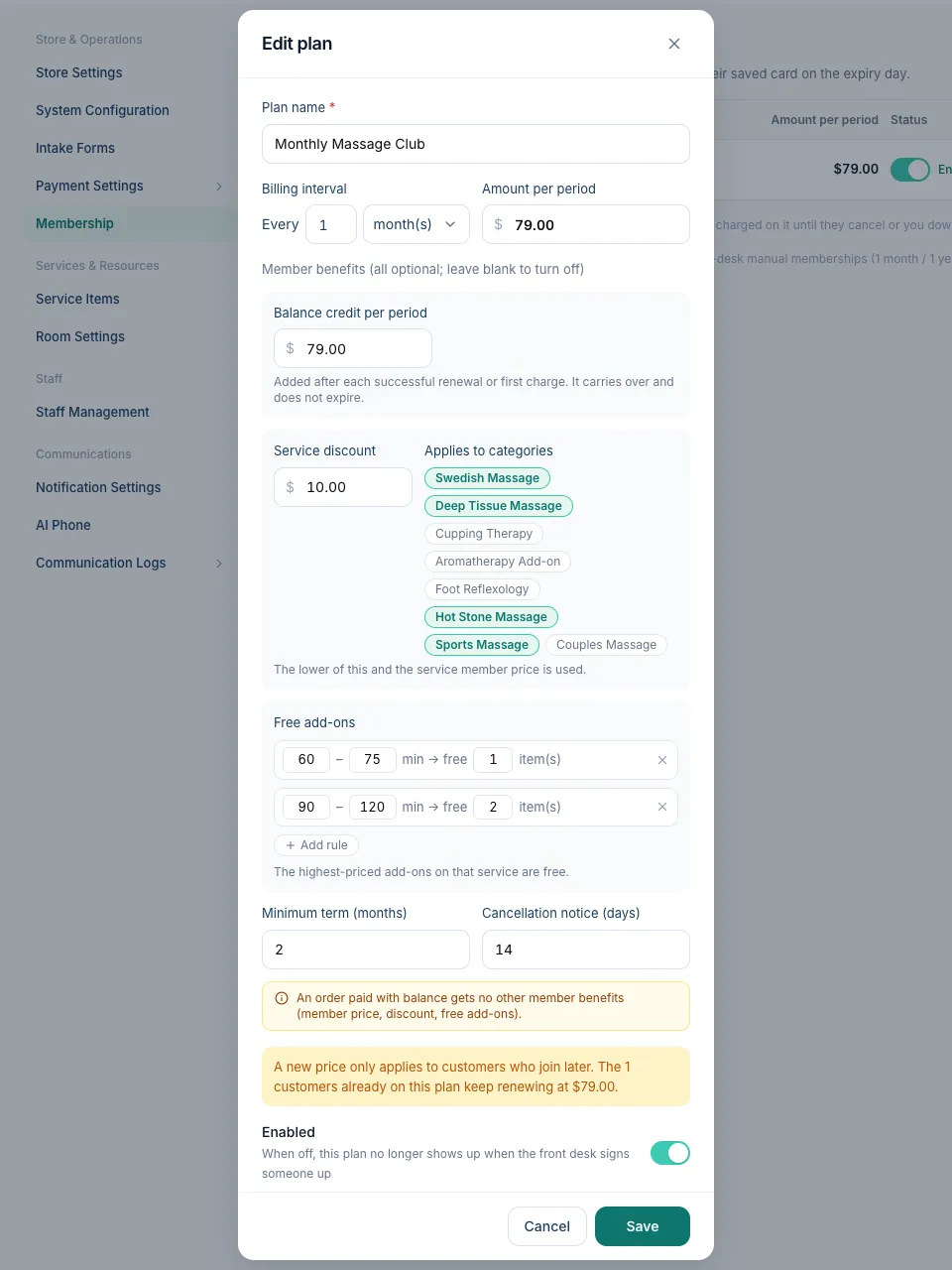
How to set it up
- Go to System Settings → Store & Operations → Membership.
- Click Add plan, or Edit on an existing plan.
- Under Member benefits (all optional; leave blank to turn off), fill in what your plan includes:
- Balance credit per period: the amount added after each successful renewal or first charge. It carries over and does not expire.
- Service discount and Applies to categories: a fixed amount off every service in the categories you pick, for example $10 off everything in Massage.
- Free add-ons: click Add rule and set a range of minutes and how many add-ons are free, for example 60–75 min → free 1, 90–120 min → free 2.
- Minimum term (months) and Cancellation notice (days): for example 2 months and 14 days.
- Click Save.
Owner and Admin can change plans. The benefits apply to customers enrolled in the plan, which happens when the front desk turns on auto-renew for them on that plan. A membership issued by hand without a plan (1 month, 1 year, lifetime) keeps using each service's member price only.
At checkout
When a member on a plan checks out, the bill already shows the member prices. A discounted service shows Member discount −$10.00, and a free add-on shows Free (was $20.00). If the service also has its own member price, Kuee uses whichever is lower for the client.
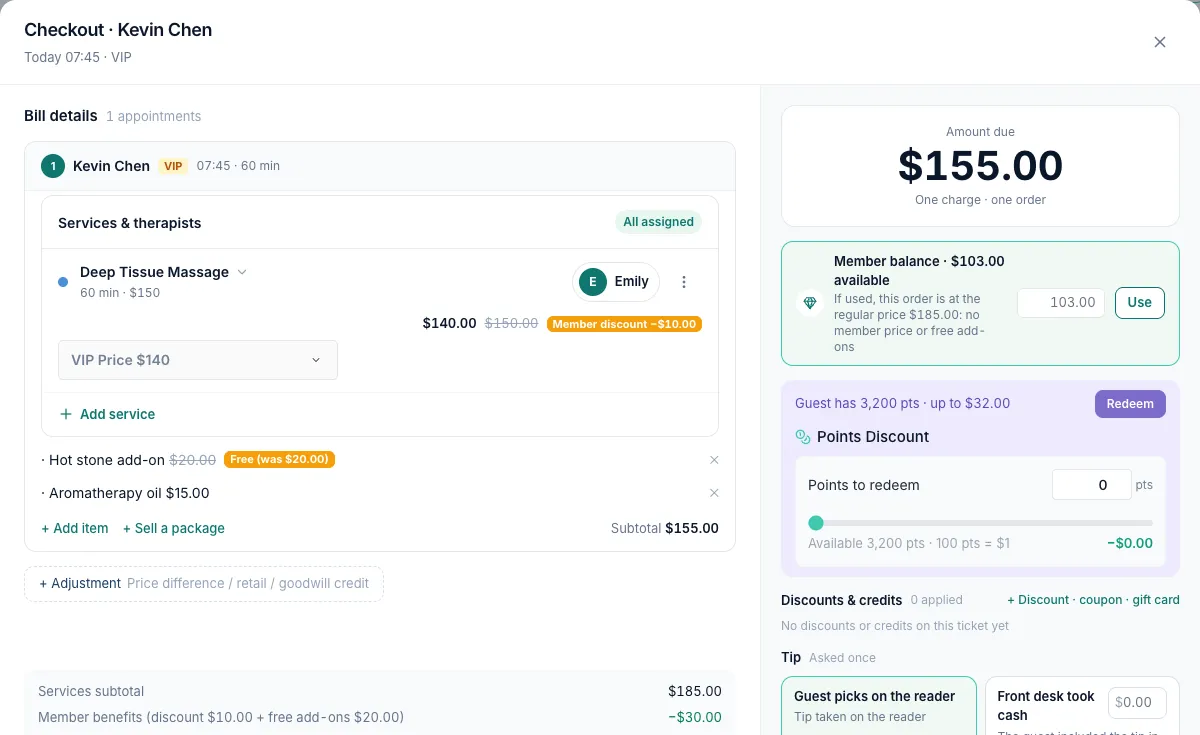
The balance is never applied by itself. The front desk sees Member balance · $103.00 available, enters the Amount to use and taps Use. It can be combined with card or cash for the rest.
Good to know: an order paid with any balance gets no other member benefits. The whole order goes back to the regular price, with no member price, discount or free add-ons. Checkout tells the front desk before they tap Use.
The member card and cancellations
Open the client in Customer, then click the VIP badge. The card shows the Member balance and its Balance history: renewal credits, checkout payments, money returned on void and manual adjustments.
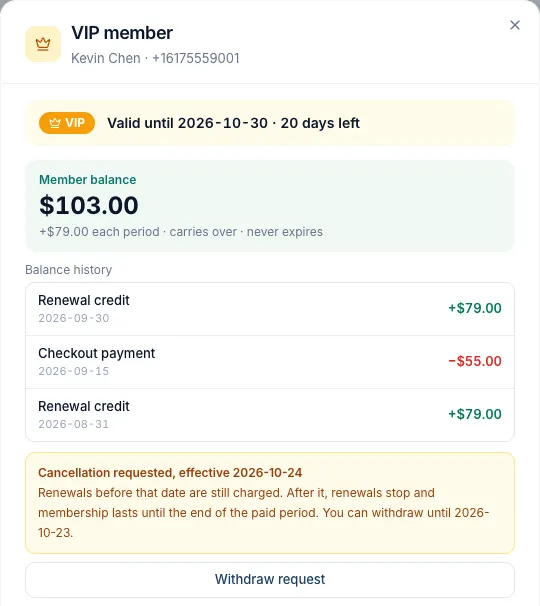
Cancel membership follows your plan's rules:
- Inside the minimum term, Kuee refuses and shows the earliest date a request is allowed.
- After it, the request takes effect after the notice period. Renewals that fall before that date are still charged, and the membership lasts until the end of the paid period.
- Until it takes effect, the front desk can tap Withdraw request.
- Owner and Admin also see Force-cancel…, which stops renewals now and asks for a reason that is kept for your records.
Getting the most out of it
- Put every rule from the membership sign at your desk into the plan: balance, discount, free add-ons, minimum term and notice. Then the front desk never has to work out an exception by hand.
- Set the categories for the discount carefully. A $10 discount on Massage does not touch facials on the same ticket.
- A balance-paid order cannot be refunded in part. To undo it, void the whole order; the balance goes back to the member's card.
Unpaid tag and legend on the appointment calendar
A finished visit that nobody has checked out is easy to miss on a busy afternoon. Before, the By staff view could show it with the same check mark as a paid visit, and the front desk thought the money was in. Now every card says where the visit is.
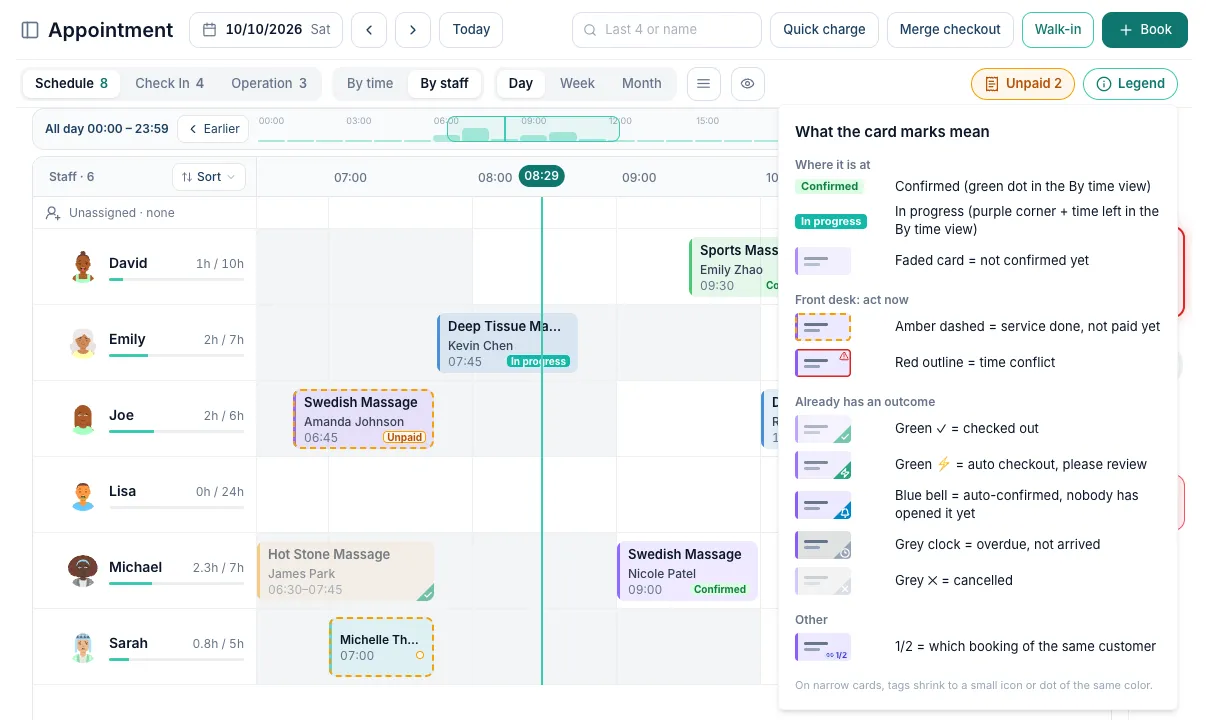
What changed on the cards
- In By staff, each card has three lines: service, client and time. The status sits next to the time: Confirmed, In progress or Unpaid.
- A visit is In progress as soon as the client is checked in.
- An Unpaid visit (service done, not paid yet) gets an amber dashed outline, in both By staff and By time.
- Narrow cards shrink the tag to a small icon of the same color instead of cutting the word off.
What the front desk does
- Look at the toolbar: Unpaid 2 tells you how many visits are waiting for payment.
- Click it to highlight those cards; click again to clear.
- Not sure what a mark means? Click Legend. It explains every mark, from the green ✓ for checked out to the grey clock for a client who is overdue and has not arrived.
There is nothing to turn on; every store has it.
A one-page intake form, with notes on pressure options
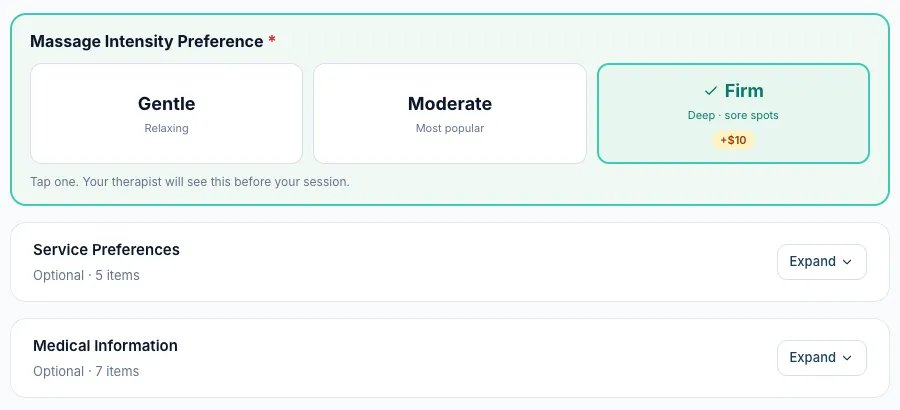
A recent update split the intake form into steps. After watching real clients fill it in on the kiosk, we went back to one page: no step bar and no Next button, just the form and Submit Form at the end. Pressure, the body diagram and the signature are open. The other sections fold into short rows that the client can open with Expand, and the consent text always stays open.
Add a note to a pressure option
Some stores charge more for deep pressure. You can now say so right where the client picks it.
- Go to System Settings → Store & Operations → Intake Forms and edit your form.
- Open the pressure field (Massage Intensity Preference in the default form). Each option has a Note (optional) box in Chinese and English, for example "+$10".
- Save the form.
The note shows under that option on the intake form and on the returning-client check-in prompt. It is display only: it does not change the price, so the front desk still adds the charge at checkout.
Getting the most out of it
- Keep notes short; they sit under the option, not in a pop-up.
- Fill in both languages. A client reading the form in another language sees the English note first, then the Chinese one.
Smaller improvements
- Walk-in services follow your service order. The service list in Walk-in now uses the same order as your service settings, so when you reorder services there, Walk-in follows.
- "Regular Member" is now "Regular customer". Customers who are not members are labeled Regular customer at checkout and in orders.
- Clearer messages when a booking already has an outcome. If you try to change a booking that someone else already checked out, cancelled or marked no-show, Kuee now says so in plain words and saves nothing.
Fixes you may notice
- Cancel works while the reader waits for a card. On Fiserv CardPointe, tapping Cancel during Quick charge, a combined checkout or the first VIP charge could stay on "Cancelling…" while the reader kept waiting. The reader now stops within a second or two. If it does not, Kuee asks you to cancel on the reader and keeps waiting for the result.
Questions about this update
Tell us what works for your store and what does not: contact us and we will walk you through any of these changes on your own store.