Group bookings now work on your online booking page. A client can book for up to four people in one visit: a mother and two daughters, three friends on a birthday, a couple who want different massages. Each guest picks their own service and length, and the page only shows times when every guest can start together. Your front desk gets the whole group on the calendar as one linked booking.
Therapists also get a New job button on the claim board. When a client walks straight up to a therapist, the therapist can open the job for themselves in a few taps, without walking to the front desk.
Online group bookings for up to four guests
Until now, a client who wanted to bring friends had to book one person at a time and hope the times lined up, or call you. Many simply called, and on a busy Saturday that call often went unanswered. Now the client books the whole group in one go, and the booking page does the hard part: it only offers a time when there are enough free therapists for everyone at once.
How to set it up
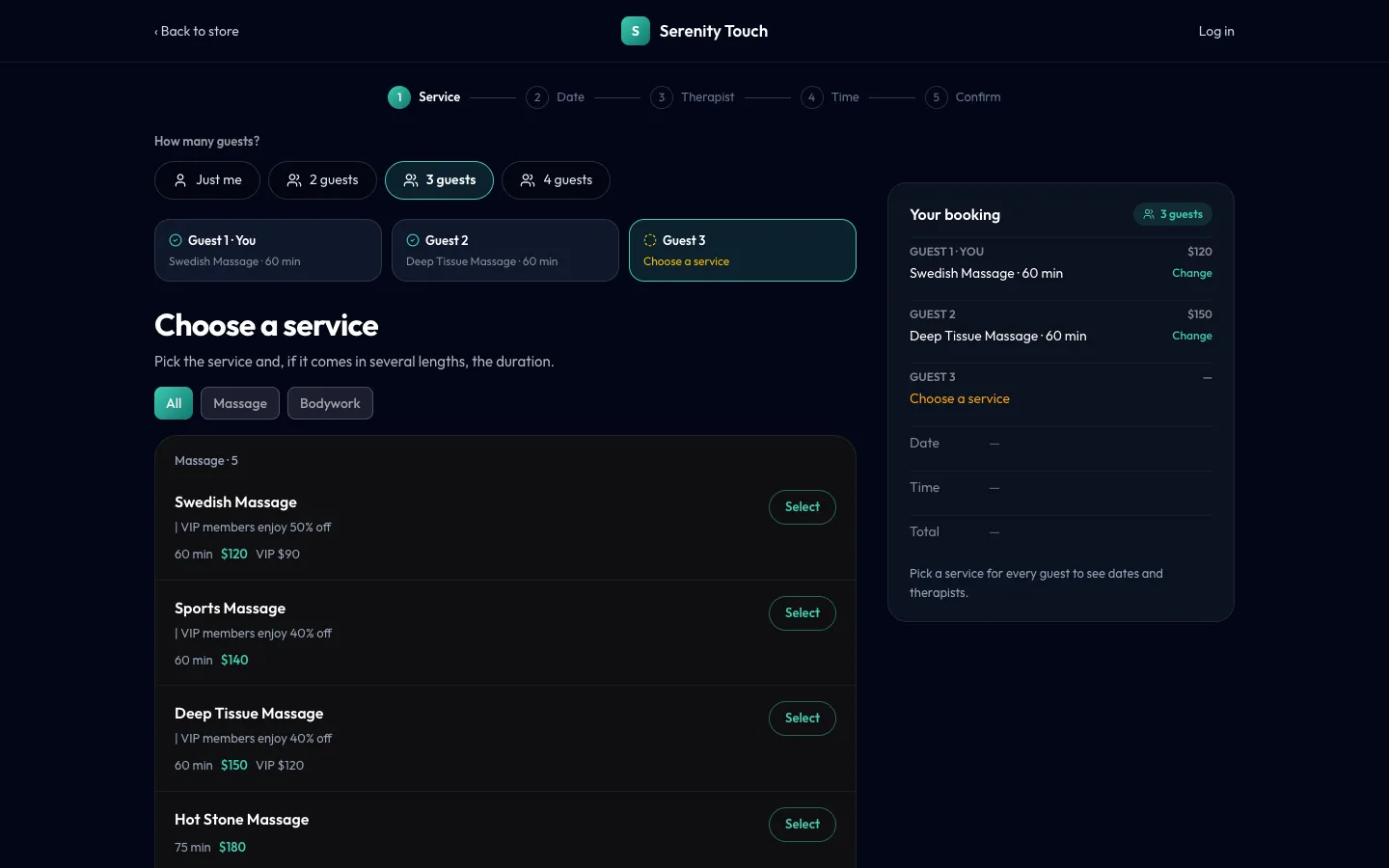
There is nothing to turn on. How many guests? appears at the top of the service step on your online booking page for every massage, beauty and nail store. A store that is set up only as a hair salon does not see it. If your store covers several industries, it appears when any of them is massage, beauty or nail.
It works the same on your Kuee booking page and on a custom store site that uses Kuee's booking. It does not appear on the kiosk, which checks in one client at a time.
What your client sees
- Under How many guests?, they pick Just me, 2 guests, 3 guests or 4 guests. Just me is the usual booking page, unchanged.
- A tab appears for each guest: Guest 1 · You, Guest 2 and so on. They pick a service, and a length if it has several, for each guest. Every guest can have a different service.
- They pick one date for the group.
- Under Choose therapists, each guest gets No preference by default, or a named therapist. A therapist picked for one guest is greyed out for the others, so two guests never get the same person.
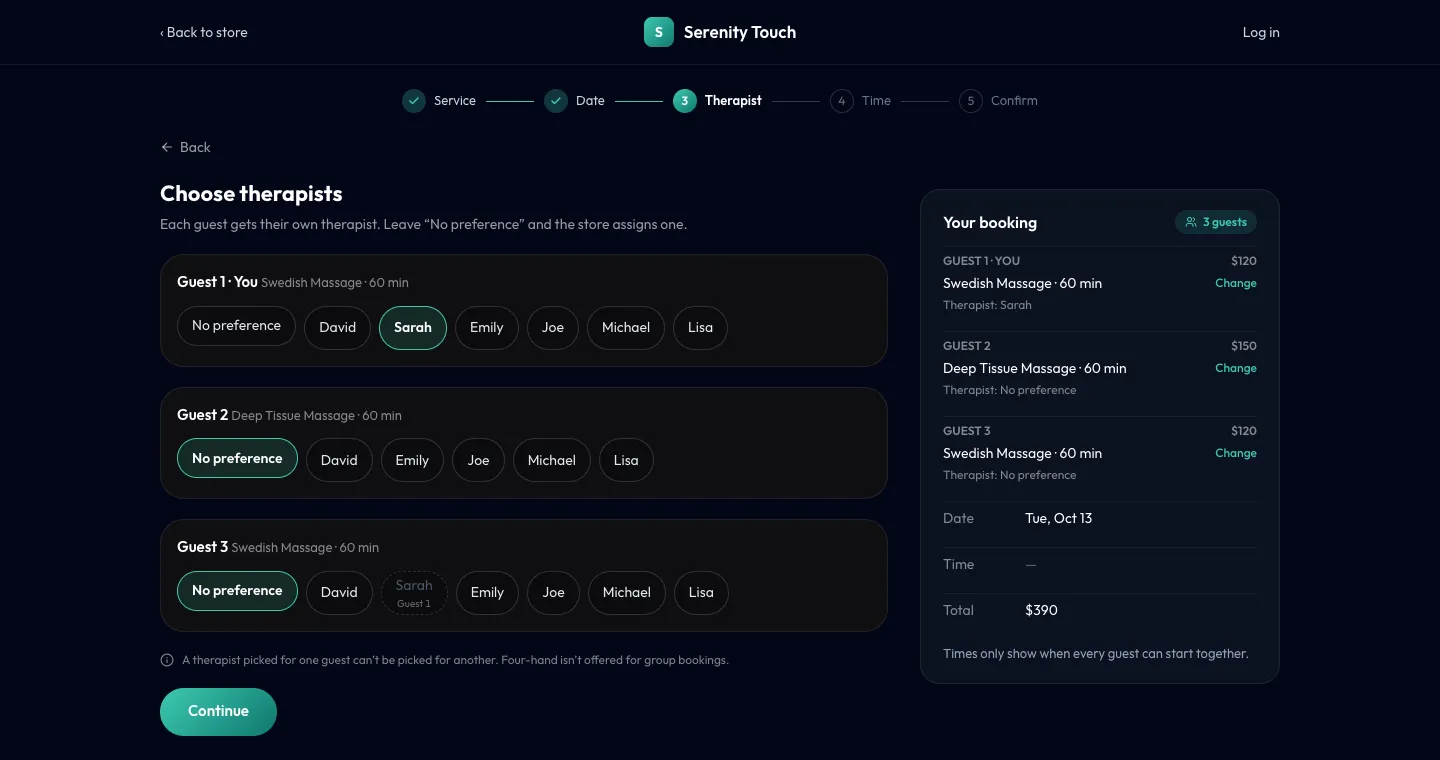
- They pick a time. The summary on the right says it plainly: "Times only show when every guest can start together."
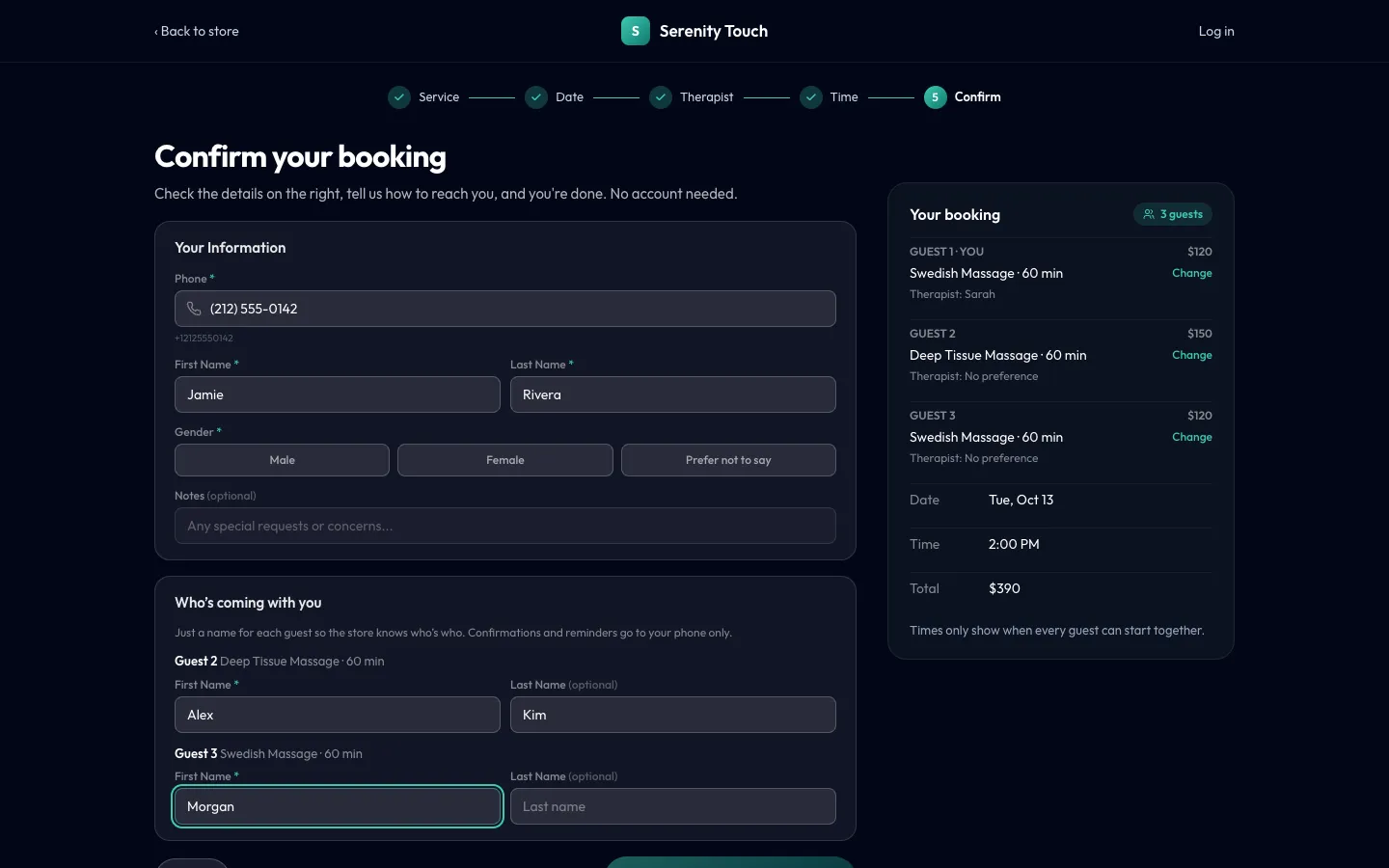
- On the last step, the person booking fills in their own details once. Under Who's coming with you, they add a first name for each guest; the last name is optional. They tap Confirm booking for 3 guests (the number matches the group).
The success page lists every guest with their service and therapist. Confirmations and reminders go only to the phone of the person who booked.
What the front desk sees
Each guest becomes their own appointment, all at the same start time, linked as one group. In By time, each card carries a small link mark with its place in the group (1/3, 2/3, 3/3). Open any of them in Appointment Details and the Group booking · 3 guests panel lists everyone, with a link to each guest's appointment.
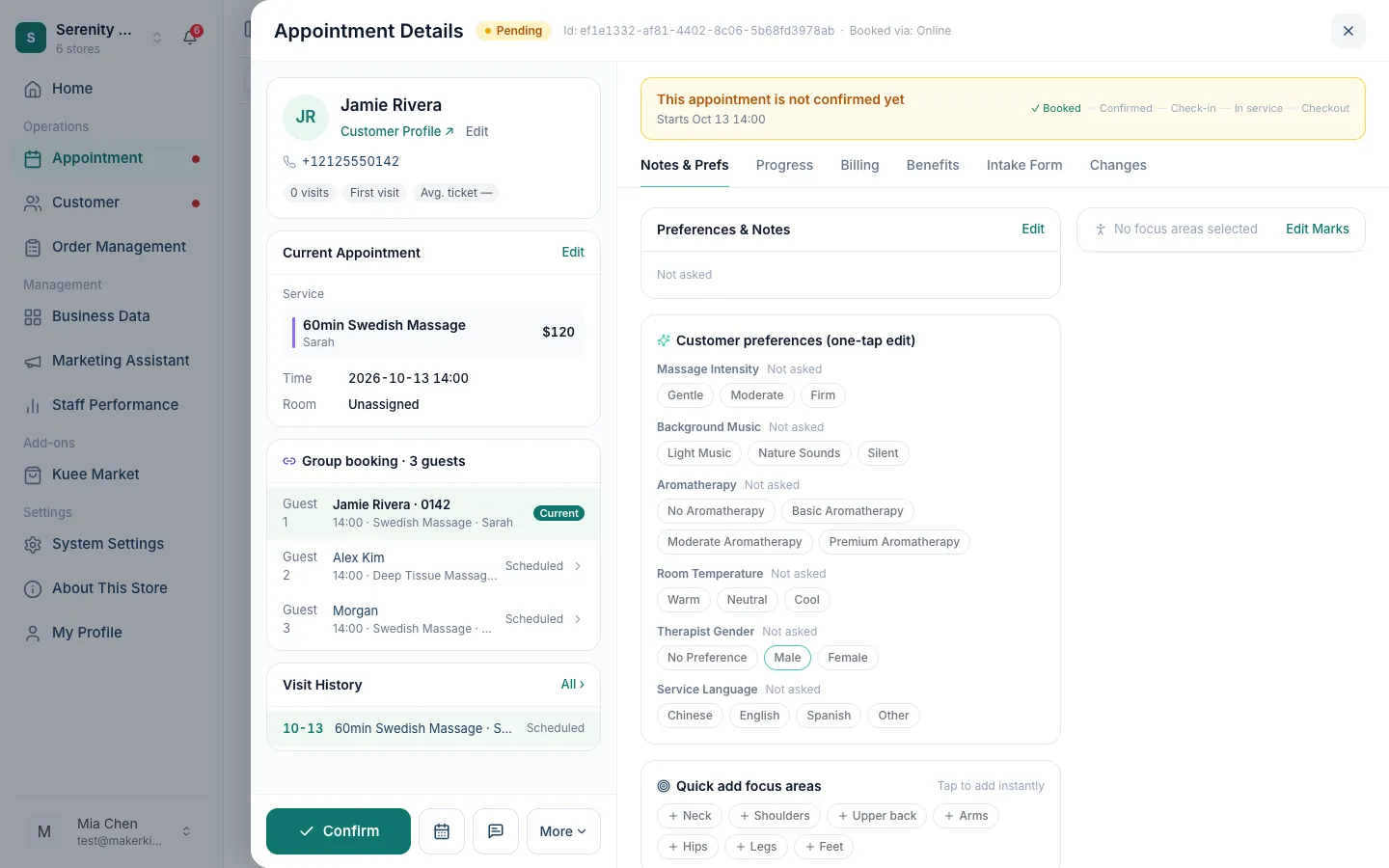
Online group bookings follow the same rules as your other online bookings. If your store confirms online bookings by hand, the group arrives as Pending and the front desk confirms it as usual.
Getting the most out of it
- Check each therapist's services in their staff profile. The booking page only offers a therapist for services they can do, so a service only two therapists can do will never show a time for three guests.
- If you use rooms and have Check room capacity when booking switched on, times also need enough room space for the whole group at once.
- Couples and four-hand services still show in the list, but a group booking gives every guest one therapist of their own. For a true couples massage in one room, the front desk or the AI phone is still the better route.
Good to know: each guest gets a client profile under their name, without a phone number. If your store asks for a card to hold online bookings, the no-show fee applies to the booking of the person who booked, not to each guest. If your store hides therapist names online, guests see Your therapists and the store assigns them before they arrive.
Therapists can open a job on the claim board
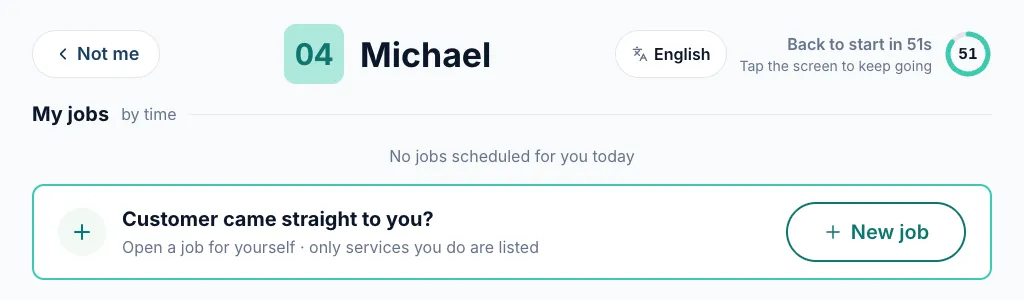
A regular walks in and goes straight to her favorite therapist. Before, the therapist had to send her back to the front desk, or find someone to put the job in. Now the therapist opens the job right there, on the claim board in the staff area.
How therapists use it
- On the claim board, they tap their own tile (and enter the PIN, if your store asks for one).
- In My jobs, under Customer came straight to you?, they tap New job.
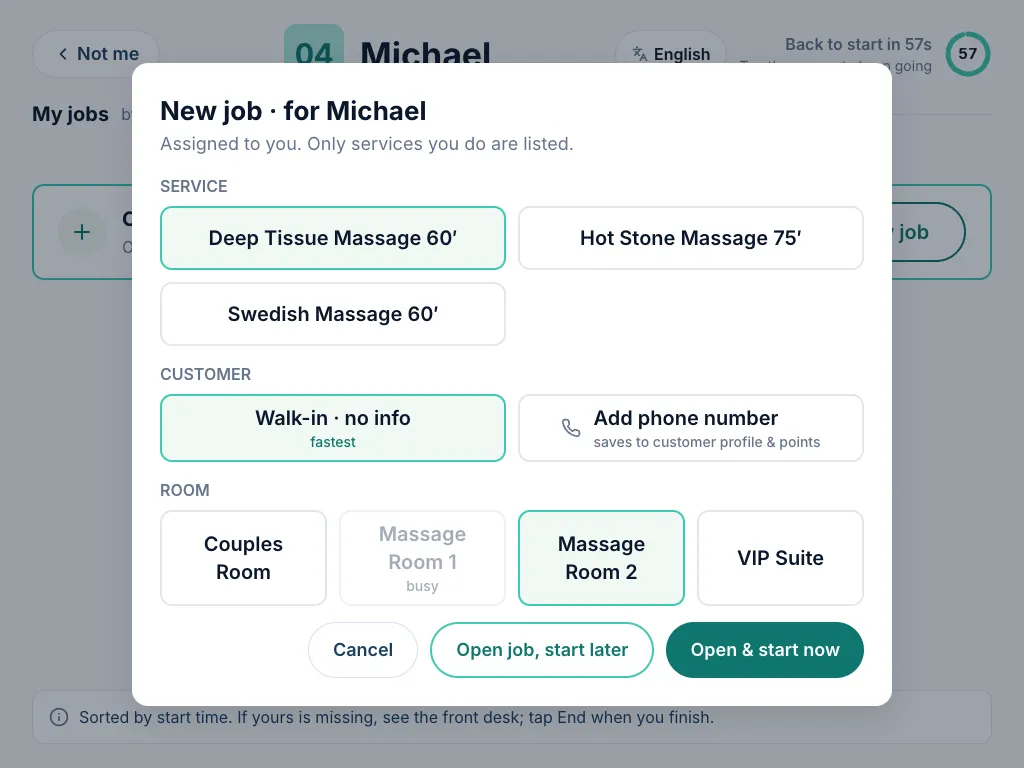
- They pick the service. Only the services they do are listed, with no prices.
- Under Customer, they leave Walk-in · no info (the fastest), or tap Add phone number. A known number shows the client's name, partly hidden, and cannot be changed there. A number several clients share asks which one. For a new number, they can add a first and last name, so the front desk knows who it is.
- They pick a room. A room that is in use shows busy and cannot be picked.
- They tap Open & start now, or Open job, start later if the client needs a few minutes first.
The job lands on the front desk calendar under that therapist, like any other booking, and is checked out at the front desk as usual.
Built-in checks
- One job at a time. While a therapist has a job running, New job stays locked until they tap End.
- Another job coming up. If the new job would run into a booking the therapist already has, the board says so, with the time and the client. They must tap I understand, open anyway to go ahead; the default is Go back.
- Off the schedule. A therapist who is not on today's schedule, on time off, or working while the store is closed cannot open a job. The board shows their shift or the store hours and asks them to see the front desk.
Where to find it
The claim board is at About This Store → Therapist Claim Board → Open Claim Board. There is nothing new to turn on. Its language button in the top right now switches between English and Chinese, and the board remembers the choice on that iPad.
Good to know: if the connection drops at the moment a therapist taps, the board may say it could not confirm the job. It refreshes the list; check it before trying again, so the job is not opened twice.
Smaller improvements
- Intake forms waiting for review come first. In Customer → Intake Forms, when the badge shows forms waiting, the list now opens filtered to Pending Review. Tap the chip again to see every form.
- A cleaner customer page header. Customer Management no longer appears twice at the top of a client's page.
Fixes you may notice
- Claiming a walk-in on the claim board. Taking an unassigned walk-in or front desk booking with I'll take it could fail with "Someone else just claimed this one", even though nobody had. It now works.
- Signed-in clients booking online. A client signed in to your booking page could get an error when booking, in some cases where their profile at your store already existed. The booking now goes through on that profile.
- Surcharge on partial refunds. On Fiserv CardPointe, a partial refund of one order from a combined checkout returned slightly too little of the credit-card surcharge, because the tip was counted in. It now returns the surcharge in proportion to the service amount, without the tip.
Questions about this update
Tell us what works for your store and what does not: contact us and we will walk you through any of these changes on your own store.