A client who books a massage and then a facial, or a body treatment followed by a foot session, now pays once. When the front desk taps Checkout on any of that client's appointments, Kuee brings in their other checked-in, unpaid appointments from the same day by itself. There is nothing to search for and nothing to turn on.
This update also makes card problems at checkout easier to read: a swipe the card reader could not read now says so plainly, and a card entry form that fails to load shows a code and a refresh button.
Check out a client's appointments together
On a busy afternoon a regular comes in for two services back to back, often with two therapists. Before, the front desk checked out the first appointment, took the card, and then had to remember the second one. Some clients left with one appointment still unpaid, and the store found it at the end of the day. Others swiped twice and asked why.
Kuee already had Merge checkout for paying several appointments in one go, but the front desk had to pick them by hand. Now, for the same client on the same day, Kuee picks them for you.
How to set it up
There is nothing to set up. It works for every store on the web app, for anyone on your team who checks out appointments. It starts wherever the front desk already taps Checkout: the calendar in By time or By staff, or the Check In tab.
What the front desk sees
- Open any checked-in appointment of the client. When they have more open appointments today, a line above the buttons names them, for example "Robert Taylor has 1 more open today (Hot Stone Massage 14:00) — checked out together".
- The button now reads Check out · 2 together (the number is the count of appointments).
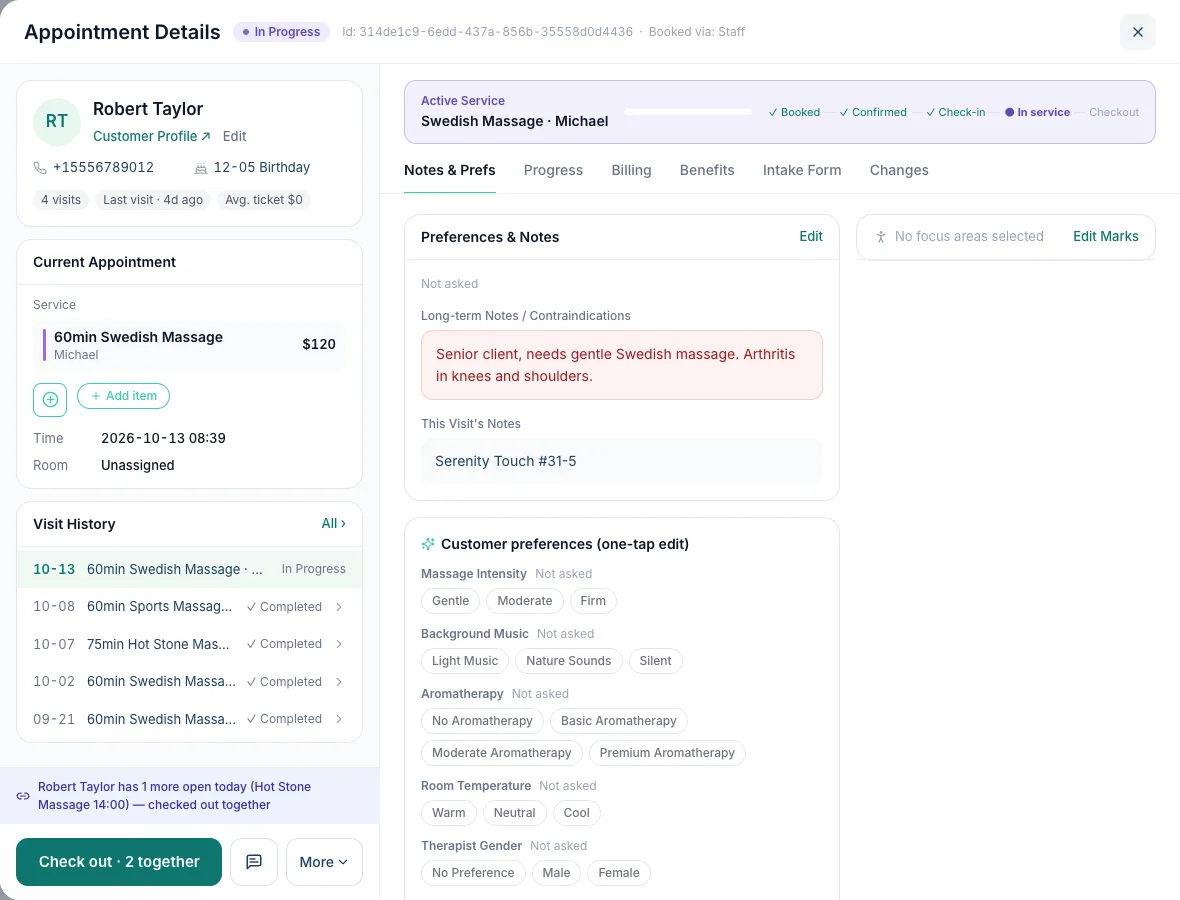
- Tap it. If a service is still running, Kuee first asks to Complete & Checkout, as it does for a single appointment.
- The checkout opens as Merged Checkout · 2 Appointments, marked Same guest · auto-selected. Every appointment is listed with its services, therapists and prices, already selected.
- Do not want one of them in this payment? Tap Remove next to it. Remove all but one and it is an ordinary single checkout.
- Take the payment once, by card or cash. Each appointment still gets its own order, so your orders and reports stay per appointment.
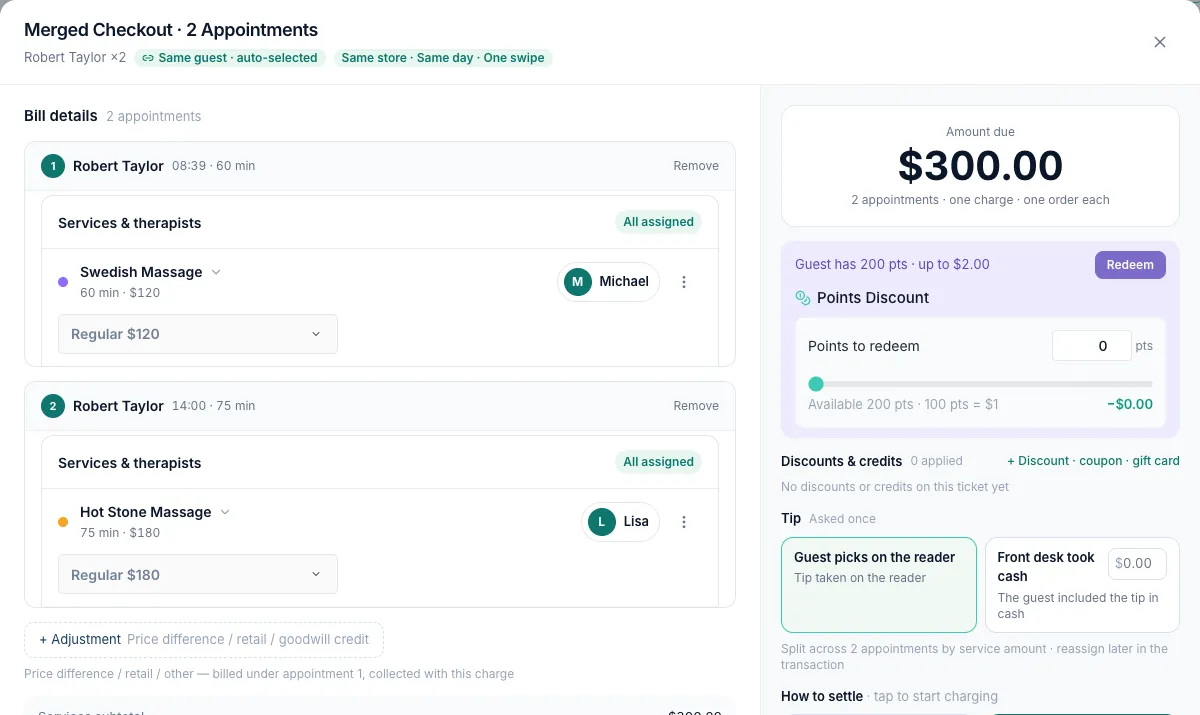
Because it is one client, the merged checkout works like that client's single checkout: their points show at the top, and they can redeem them on the whole total. Tips are split across the appointments by service amount. The success screen shows their upcoming appointments and lets you book their next visit.
What it will not pick up
- Appointments that are not checked in yet. A service that has not happened is never charged in advance. The line in the details says, for example, "1 more not checked in yet (…), not included", so the client does not leave without their later appointment being noticed.
- Other clients. Two friends who want to pay together still go through Merge checkout by hand. Who pays for whom is the front desk's call, not Kuee's.
- Walk-ins with no client profile. They are not treated as the same person.
- More than five appointments. One payment covers up to five appointments. When a client has more, Kuee selects none and asks you to select them in the Check In tab.
- A card pre-authorized at check-in. That appointment is checked out on its own, and the details say so. Check out the others separately.
Getting the most out of it
- Check clients in under their client profile, not as a nameless walk-in. That is what lets Kuee know the appointments belong together.
- Check in every service the client is having today. Only checked-in appointments are picked up.
- If a client wants to pay for one service now and one later, tap Remove before you take the payment.
Good to know: this is on the web app. The iPad front desk does not pick up a client's other appointments by itself in this update. When different clients pay together, points are not offered.
Smaller improvements
- Clearer refund message for member balance orders. When an order was paid with member balance, the refund dialog now says right away that it cannot be refunded and that you should void the whole order instead (the balance is returned automatically). Before, the message only appeared after you tried to refund. The iPad front desk shows the same message in the next app update.
- Card entry problems show a code. If the form for typing in a card number does not load on Fiserv CardPointe, the message now ends with a short error code, so our support team can tell you why. If the page is out of date after an update, it says "The system has been updated. Please refresh the page." with a Refresh button.
- Locked refund amount looks locked on the iPad. When a refund can only be for the full amount, the amount box on the iPad turns grey, so it is clear it cannot be changed. This comes in the next app update.
Fixes you may notice
- A card swipe the reader could not read. On Fiserv CardPointe, a swipe that did not send all of the card's data could leave the payment in an unclear state and block a new try on that appointment for up to half an hour. Kuee now checks that no money was taken and says "Card read failed — no charge was made. Swipe again, or use chip / tap instead.", so the client can pay again at once.
- Self check-in on the iPad home screen. Adding the Self Check-in page to an iPad's home screen created an icon that opened the Kuee sign-in page instead of the kiosk. The icon now opens the check-in screen. If you added it before this update, delete the old icon and add it again from the check-in page.
- Two services on one calendar card. On the web calendar, a booking with two services lost its two service colors once the client was checked in, so it looked like one service. The color bar now keeps both colors, and the purple corner still shows it is in progress.
- Creating a package on the iPad. Creating a new package on the iPad front desk failed with an error. This is fixed in the next app update.
Questions about this update
Tell us what works for your store and what does not: contact us and we will walk you through any of these changes on your own store.