Friends who book together online now pick a service first and add each other with one tap, and their names are optional. At the desk, you can refund part of an order today and more of it next week. A client who arrives 20 minutes late is checked in at the time the massage really starts, and the calendar moves the booking for you.
You also get revenue numbers that match across pages, front-desk bookings after closing time, a way to merge duplicate clients, a simpler walk-in flow on self check-in, and short animated tutorials inside Kuee.
Group bookings online with less typing
Before, a client who wanted to bring a friend had to say how many people were coming first, then fill in a name for every guest. Many gave up and called instead. Now the booking page starts like a normal booking, and adding people is one tap.
How it works for your clients
- The client picks a service and its length as usual.
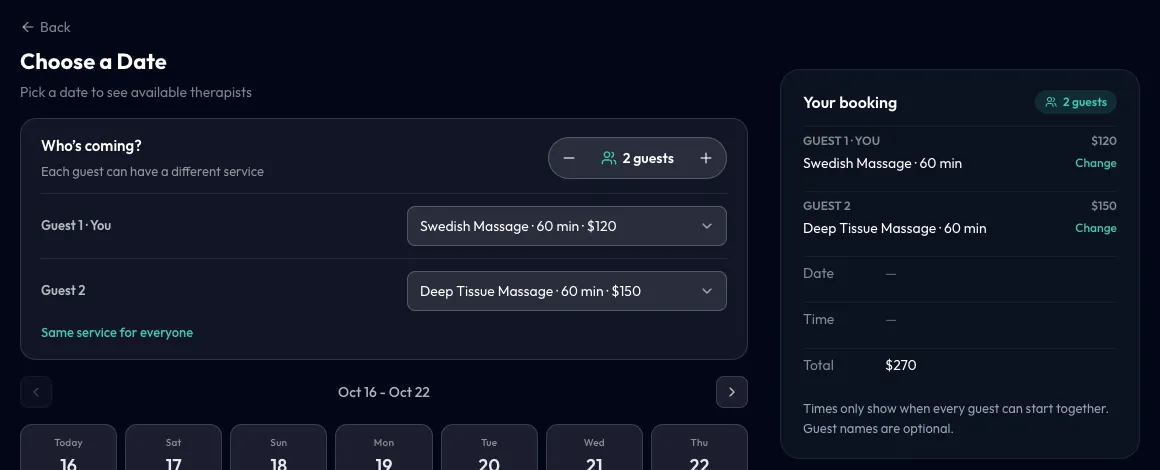
- On the date step, under Who's coming?, they tap + to add up to three more guests. Everyone gets the same service by default.
- To give someone a different service, they tap Different service for someone? Change per guest. Same service for everyone switches back.
- Kuee only shows times when every guest can start together, and each guest gets their own therapist.
- On the confirm step, Guest names (optional) is closed by default, so the client can book without typing names.
What the front desk sees
A guest booked without a name shows on the calendar and in the appointment details as the booker's guest, for example "Amy's guest". Kuee does not create an empty client profile for them. A Couples service is still one booking for two people at the couples price: the page shows 2 guests · Couples and hides the + button, so nobody pays for the couple twice.
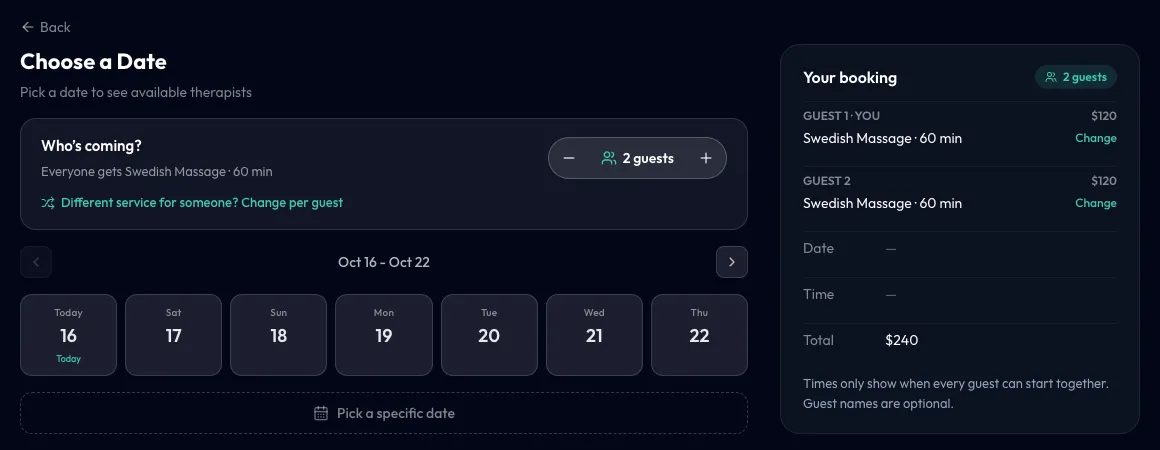
Good to know: group booking works for massage, beauty and nail stores, up to four people, on the online booking page (not the kiosk). The client booking page is in English only, so these pictures are in English in every language of this post.
Refund an order in several parts
A client is unhappy with one part of a visit, and you refund $50 of a $150 order. A week later you agree to refund another $30. Before, Kuee allowed one refund per order. Now you can refund the same order as many times as you need, until nothing is left.
How to refund part of an order
- Open Order Management, find the order and tap Details.
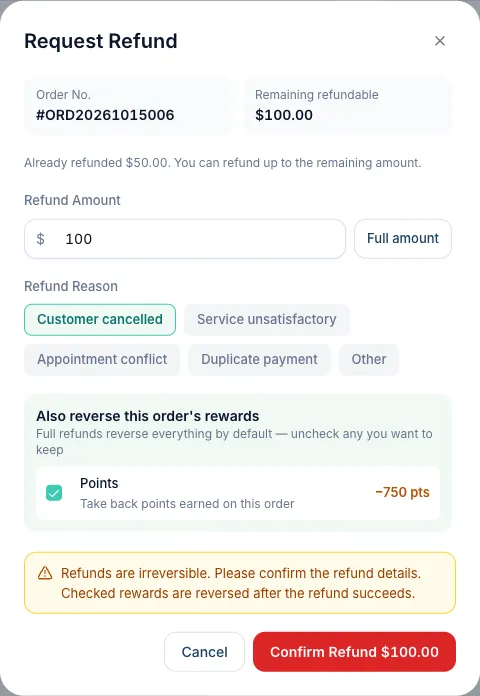
- Tap Refund. The Refund Amount starts at what is still left. Type a smaller amount, or tap Full amount.
- Pick a Refund Reason and tap Confirm Refund.
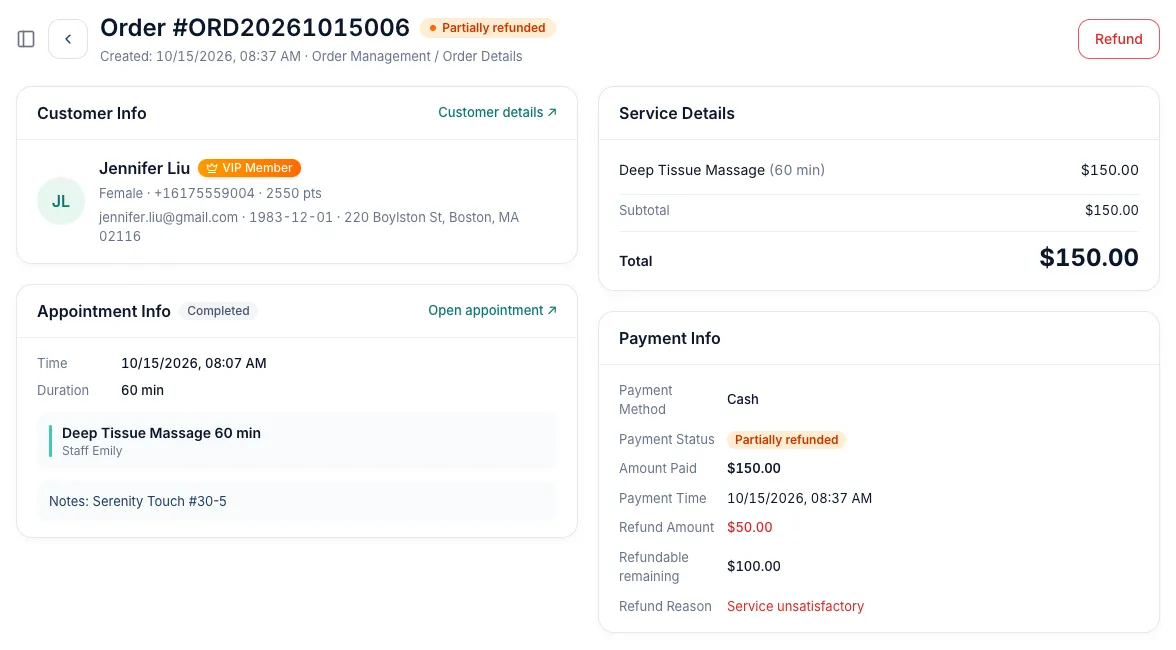
- The order now shows Partially refunded, the Refund Amount so far and the Refundable remaining. Tap Refund again later for the next part.
The next refund dialog says how much was already refunded and does not let you go over what is left.
Good to know
- The Refunds quick filter and the export include partially refunded orders.
- On Fiserv CardPointe, a card payment can be refunded in parts only after it settles; before that, only a full refund is possible. Elavon does not support partial refunds yet.
- A gift card sale or reload can be refunded once. An order paid with member balance is still reversed from the appointment with Repay / Refund.
Check in at the time the service starts
A client booked for 10:00 walks in at 10:25. Before, check-in kept the booking at 10:00 to 11:00, so the calendar showed the therapist free at 11:00 when they were not. Now check-in records the real start and moves the booking to match.
How to use it
- Open the appointment and tap Check In & Start.
- Scheduled shows the booked time. Actual start time is set to now; tap Now to reset it, or type an earlier time if the service started a few minutes ago.
- A line explains the result, for example "25 min late · appointment will move to 10:25 – 11:25". Tap Check-in.
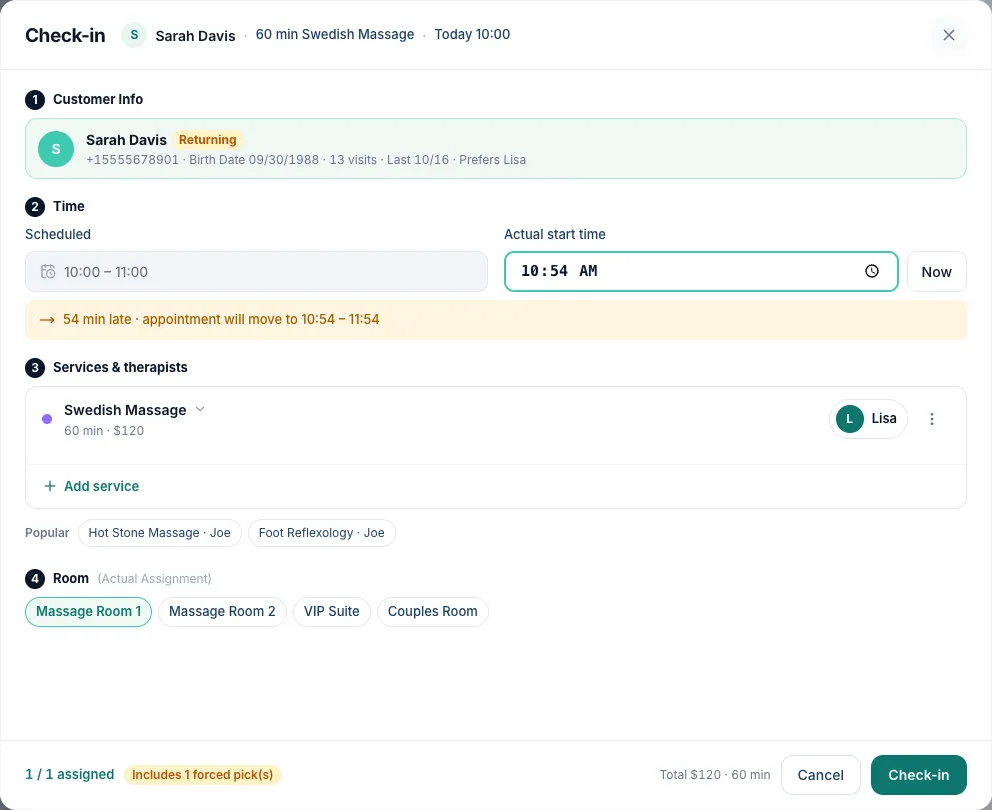
If the new time overlaps the therapist's or the room's next booking, Kuee shows This may affect other bookings and lists them. Tap Change time, or Check in anyway; the overlap is recorded. Early arrivals work the same way. The calendar card then reads "Late 25m · was 10:00" or "Early · was 10:00".
Good to know: the actual start cannot be later than now, and only today's bookings can be checked in. Self check-in always uses the moment the client checks in. The iPad front desk gets the same field in the next app update.
Revenue now matches on every page
Owners told us the total on Order Management did not match Business Data. Each page added things up its own way. Now both pages, and the data tab on the owner home, use one calculation.
What counts as revenue
- Counted: everything you collected (services, retail and other charges, package sales), minus refunds.
- Refunds come off on the day of the refund, not the day of the sale. A partial refund takes off only what was refunded.
- Not counted: failed and pending payments.
- Shown separately: gift card sales and reloads (paid in advance, counted when the card is used) and orders put on account (still to be received). When there are any, a line under the total shows them.
- Sales count on the store's local day. Stores on Accrual Basis (System Settings → Finance → Accounting Method) count sales on the service day, as before.
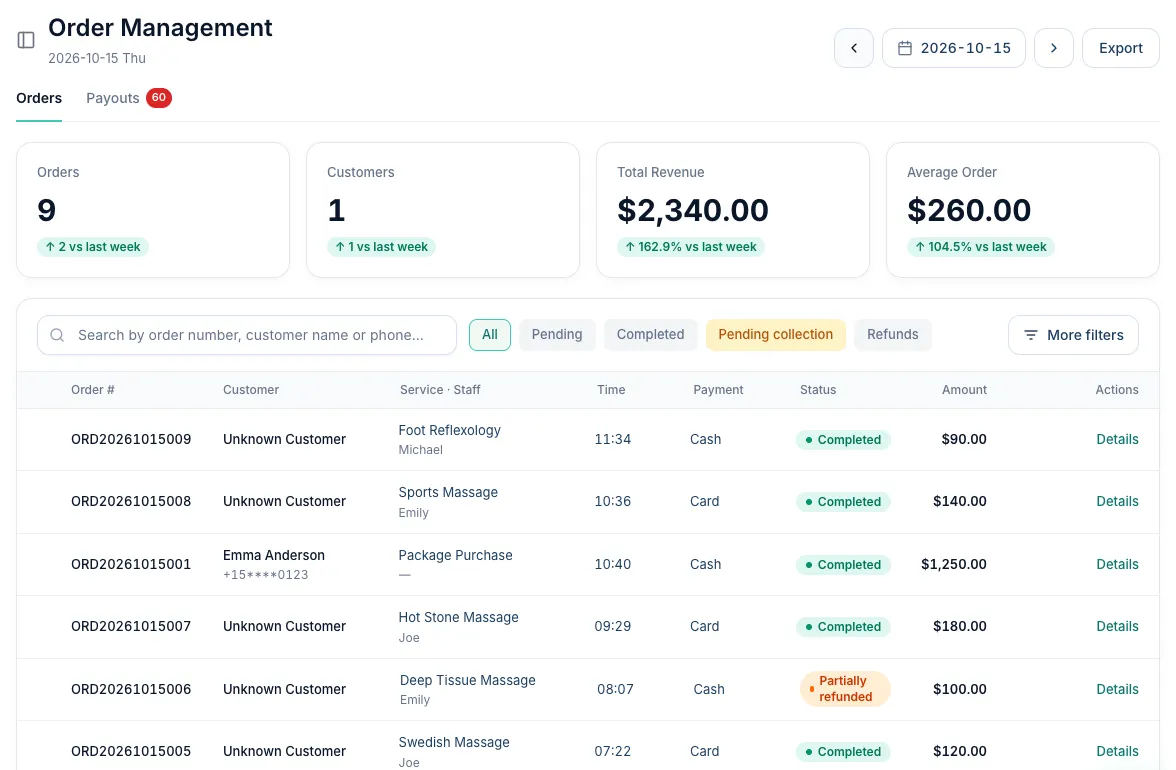
The Amount column now shows each order after refunds, so some totals will differ from older screenshots. Business Data is clearer too: the revenue trend adds up to the big number, the no-show rate leaves out cancellations, and the revenue details include retail, package sales and refunds.
More new features
Front-desk bookings after closing time
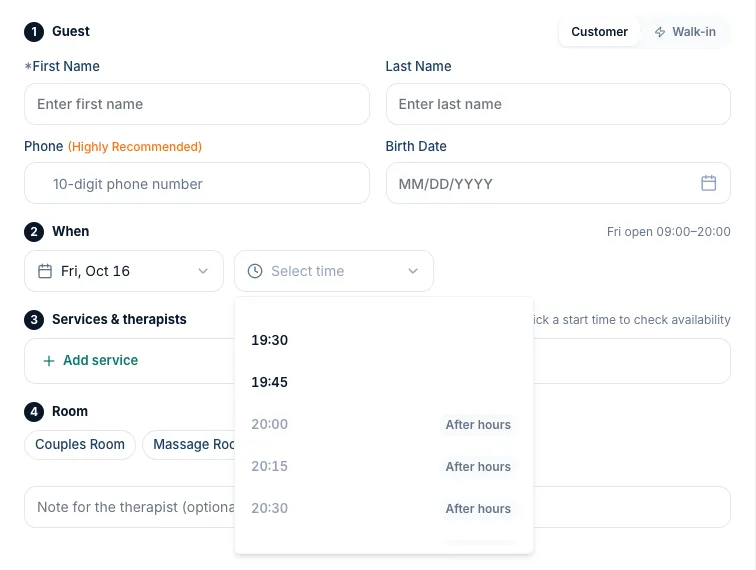
A regular asks for 9:15 PM and you close at 9:00. Online booking still follows your opening hours, but the front desk can now book outside them. In Appointment → Book, the time list continues after closing, marked After hours. Therapists whose shift has ended appear in their own After hours group with the time their shift ended, and can still be picked; therapists on leave or off that day cannot. Kuee asks you to confirm before it creates the booking.
Merge duplicate clients
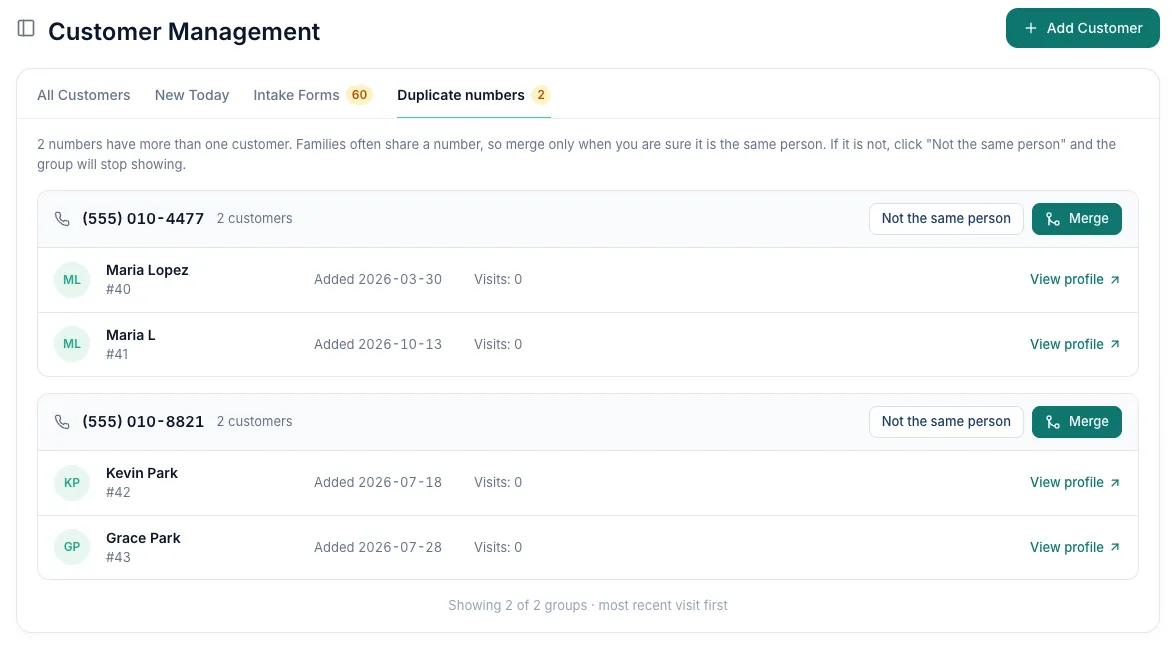
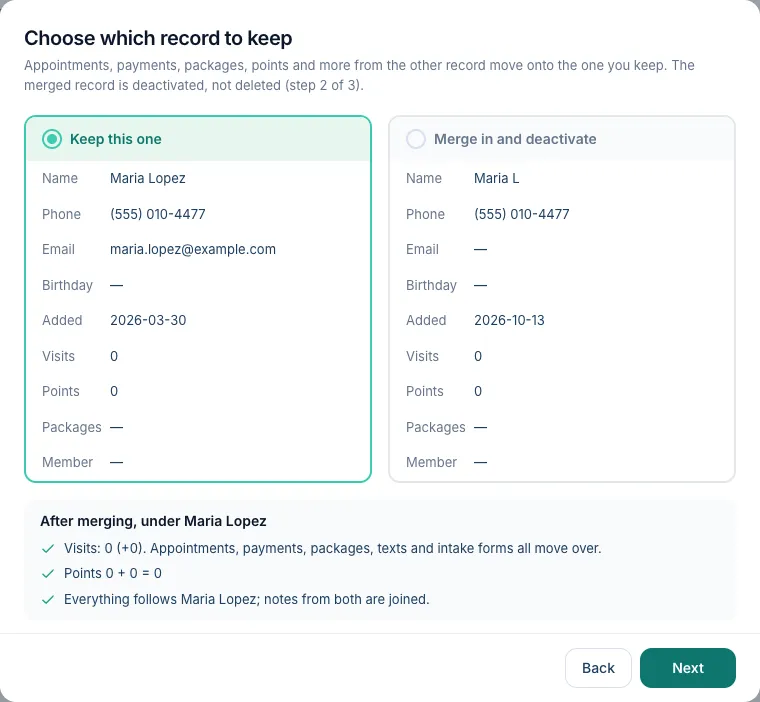
Customer → Duplicate numbers lists every phone number that has more than one client. Families often share a number, so nothing merges by itself. Tap Merge (or the merge icon on a client profile), pick the other record and choose which one to keep. Appointments, payments, packages, points, texts and intake forms move onto it, and the other record is deactivated, not deleted. Different people? Tap Not the same person and the group goes away. An active VIP member is always the record that stays. Owners, admins and the front desk can merge.
Walk-ins on self check-in, one step at a time
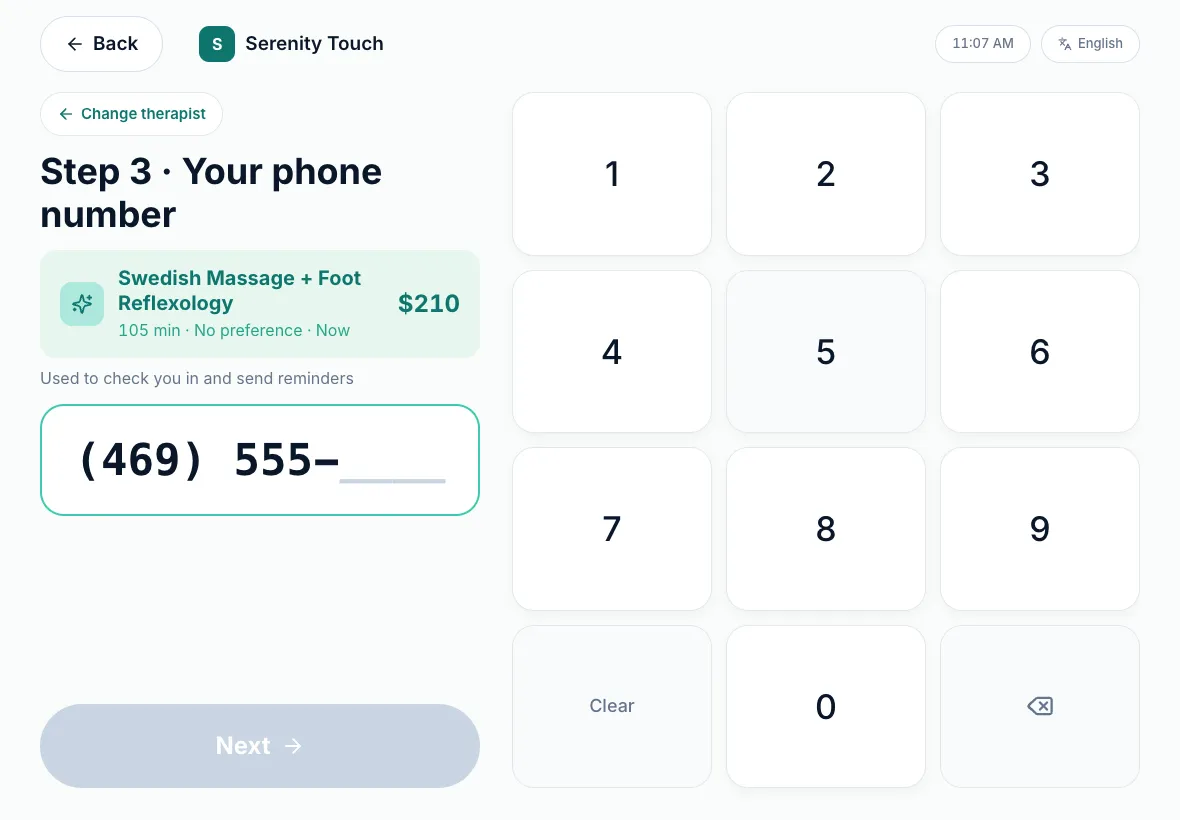
With Allow walk-in booking on (About This Store), a client without an appointment books in short steps: Step 1 · Choose a service (up to three), Step 2 · Choose a therapist, then Step 3 · Your phone number on a large keypad. A returning client is recognised by their number. A new client can add a name and birthday, or tap Skip, book now. When a client picks No preference, Kuee no longer assigns a therapist at random: the booking waits for a therapist to take it on the staff claim screen.
Texts from clients: Y and N replies, and cancel requests
These two changes are for stores that text clients from their own Kuee store number. If Messages shows Set up a store number, your store does not have one yet: an owner or admin taps Set up store number (it opens System Settings → Communications → AI Phone), and texting starts once the number is approved. Other team members see "Ask a store owner to set up a dedicated number."
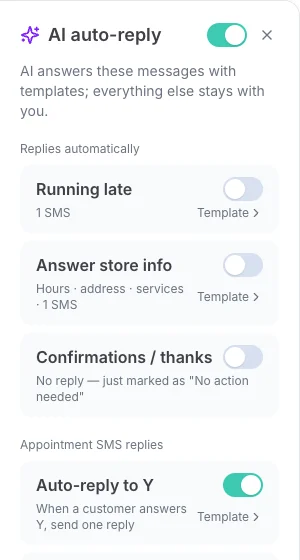
Reply Y and reply N now have their own switches. Before, one switch answered both. Now a store can, for example, thank clients who reply Y automatically and leave every N to the front desk.
- Open Messages and tap AI auto-reply at the top. Its master switch must be on.
- Under Appointment SMS replies, turn on Auto-reply to Y, Auto-reply to N, or both. Both are off until you turn them on. Tap Template to see or edit the text.
- Only the owner or an admin can change these switches; others can view them.
When either switch is on, confirmation and reminder texts get one extra line asking for Y or N. The reply never changes the appointment itself. With Auto-reply to N off, an N still reaches the front desk to handle.
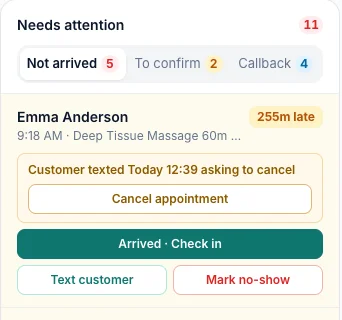
A client's cancel request no longer gets lost. Before, if staff answered "No problem" to a client who texted to cancel, the Cancellation request card in Messages disappeared and the appointment stayed booked. Now the card stays until you tap Cancel & fill reply or Dismiss. If the client is then late, their card under Appointment → Operation → Needs attention → Not arrived says when they texted to cancel, with a Cancel appointment button. Mark no-show and Text customer warn you first, so you do not ask someone who cancelled whether they are on the way.
Help & tutorials inside Kuee
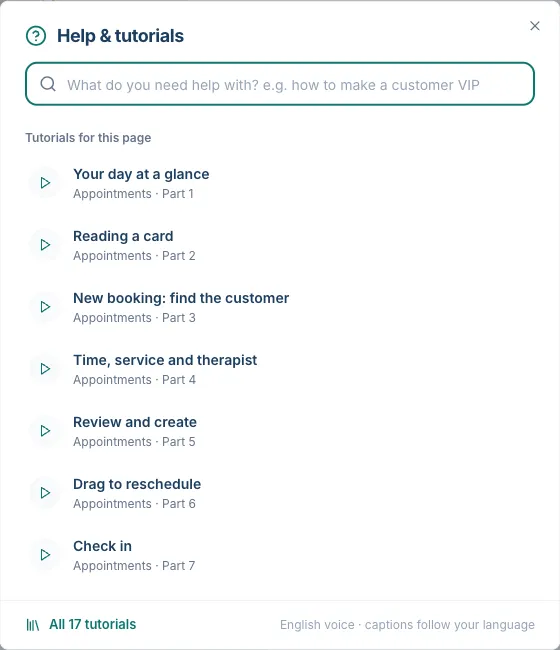
Tap Help & tutorials at the bottom of the menu to see short animated tutorials for the page you are on, or describe what you need to find the right one. Voiceover is in English and Chinese, with captions in all four languages. The same tutorials are on the public Help Center at kuee.io/docs, handy for training new staff.
Smaller improvements
- Closed days are greyed out in the online booking date picker.
- Online booking off means off: the booking page shows the store's phone number instead of taking a booking.
- Win-back by days away: the Customer Win-back Care rule sends after 7 to 365 days since the last visit (30 by default).
- Your email text is sent: an appointment notification with its own email message now sends that text by email.
- Communications: Communication Logs says Sent rather than promising delivery, and AI Phone shows the last 30 days, Goal achieved labels and Show more.
- Memberships: selling a plan at the desk applies its discounts, free add-ons and first-period balance; a manual renewal extends from the current expiry and moves the next automatic charge with it.
- Gift cards: the refund-to-card limit shows the amount, and a client's gift card link shows only their cards.
- Team invites no longer need a confirmed email, and the confirm-email banner is gone.
- Words: Chinese says 理疗师 everywhere, English says Staff Performance, and more screens are translated.
- Self check-in: times follow your 12 or 24-hour setting, and the home-screen icon carries your store name.
- On the iPad in the next app update: owners and admins edit store hours and each team member's schedule and time off; coupon campaigns can be edited, duplicated and deleted, with spending conditions; the front desk can sell, reload and search gift cards and change the gift card amount at checkout; unnamed group guests show as "Amy's guest".
- Security improvements.
Fixes you may notice
- Online gift cards bought for someone else now go to that person by email or text; the buyer gets a confirmation.
- The AI phone offered a free time, then could not book it. It now checks times the same way the booking does.
- Appointment texts stopped for stores with two active rules for the same notification. Kuee now uses the newest one.
- Switching a new booking to Walk-in and back no longer erases the name and phone you typed.
- + Add item in checkout is no longer cut off.
- Order details: refund errors show in your language, and orders still waiting for payment cannot be refunded.
- New store setup no longer skips steps when you go back, and keeps added services.
Questions about this update
Tell us what works for your store and what does not: contact us and we will walk you through any of these changes on your own store.