A client texts a photo of a sore spot and asks if a deep tissue session will help. You can now see the photo in Messages, reply with one of your own, and keep real conversations apart from automated reminders. A client with a gift card from your store can add it to Apple Wallet, and the balance on the card updates by itself after every visit.
This release also holds client texts until your texting hours, lets a couple pay for one booking in two payments, adds a "book again" link to review requests, and brings the full Messages inbox to the iPad front desk in the next app update.
Photos, Focused and All in Messages
Messages is the two-way texting inbox for stores with their own approved Kuee store number. If Messages shows Set up a store number, an owner or admin taps Set up store number (it opens System Settings → Communications → AI Phone), and texting starts once the number is approved.
Focused and All
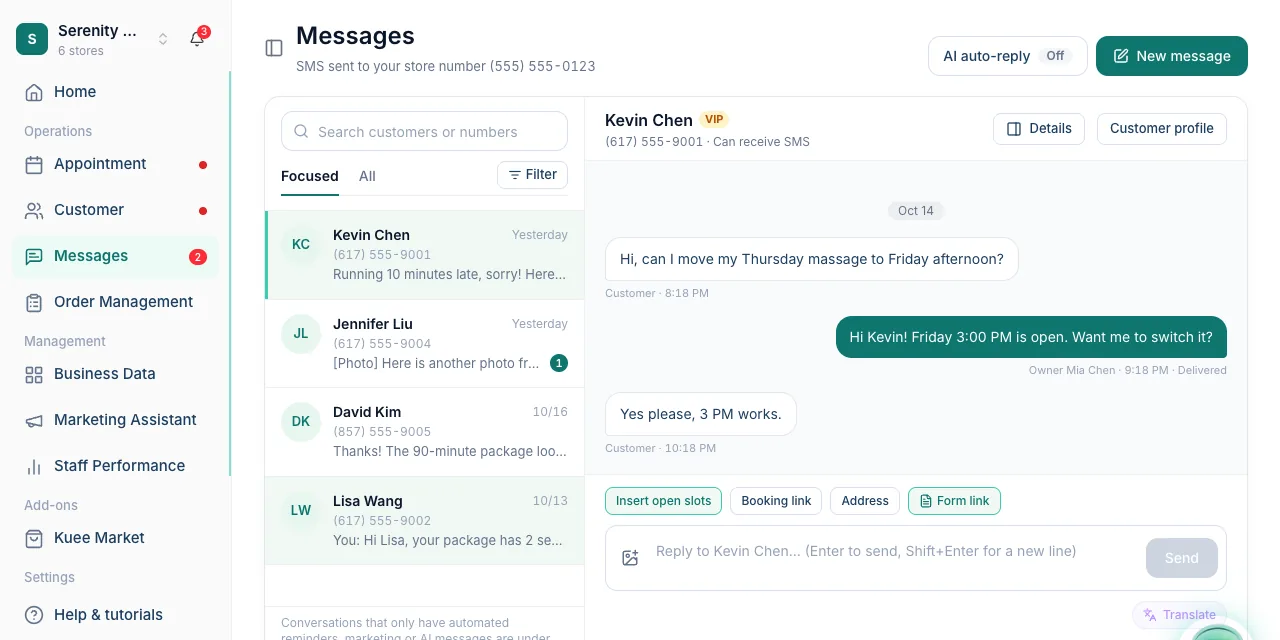
The conversation list now has two tabs. Focused shows conversations where a client or someone on your team has written. Conversations that only have automated reminders, marketing or AI messages are under All. Filter still narrows the list to Unread or Opted out.
Send and receive photos
- Open a conversation and tap the image icon (Add image) next to the reply box, or paste a picture straight into it.
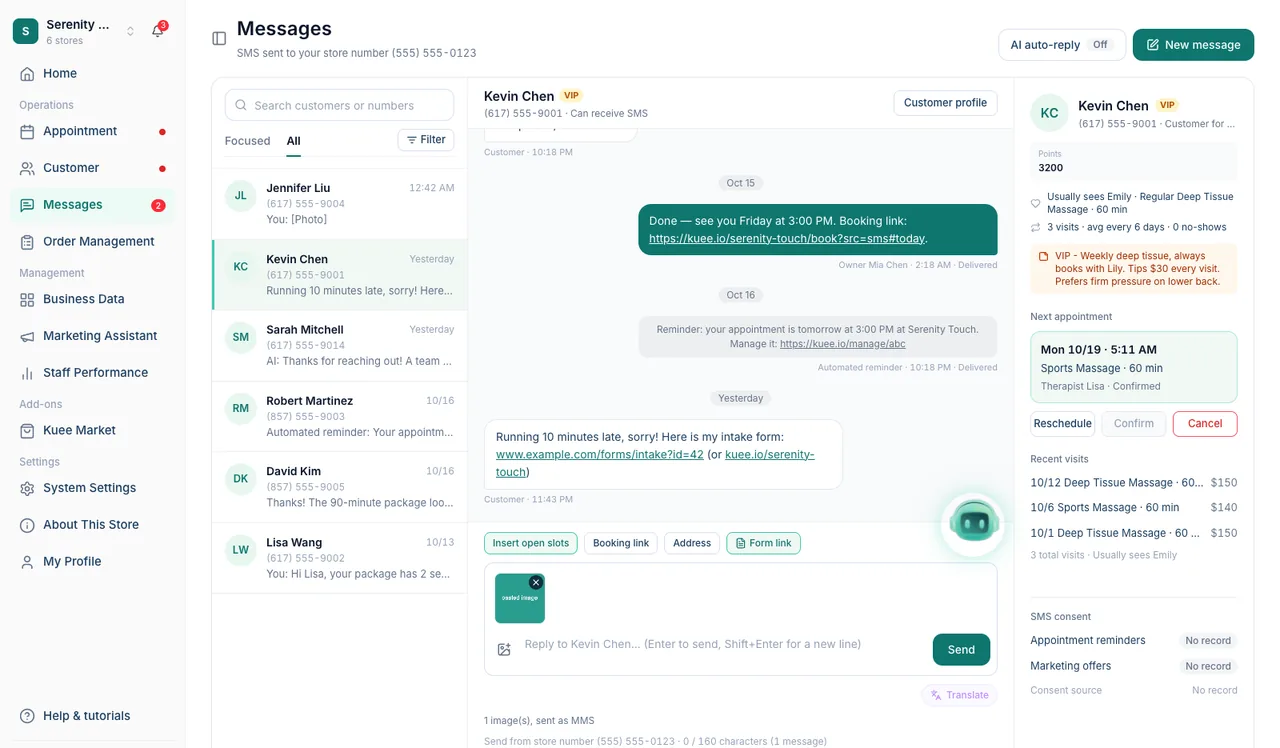
- A preview appears with an × to remove it. The line under the box says, for example, "1 image(s), sent as MMS".
- Type a message if you like and tap Send.
Photos that clients send show inside the conversation; tap one to View full size. In the list, a photo shows as [Photo].
Good to know
- A text with a photo counts as 3 segments toward your text allowance, whatever its length. A text without a photo counts as before.
- JPG, PNG, GIF and WebP work, up to 10 images and 5 MB per message. Kuee shrinks large photos for you. iPhone HEIC photos are not supported yet: save them as JPG first.
- Links in messages are now clickable, both in what you send and in what clients send.
- A new quick button, Form link, sits next to Insert open slots, Booking link and Address. It inserts the link to your intake form; turn a form on in your form settings first.
- Front desk logins now see Messages in the menu, like owners and admins.
- The pictures in this post show the English app.
On the iPad front desk (next app update)
The iPad gets Messages in the sidebar and a message icon at the top, each with an unread count. The front desk reads and answers texts, starts a New message, opens the client's details, and creates a client for an unknown number, without leaving the page. From a conversation they can reschedule, confirm, cancel or book an appointment; when the booking is saved, a confirmation sentence is added to the reply draft for them to check and send. Insert open slots, Booking link and Address work as on the web. Translation, AI suggestion cards and the AI auto-reply settings come too; only the owner or an admin can change those settings. On the owner's phone app, Text in an appointment's details opens the conversation.
Gift cards in Apple Wallet
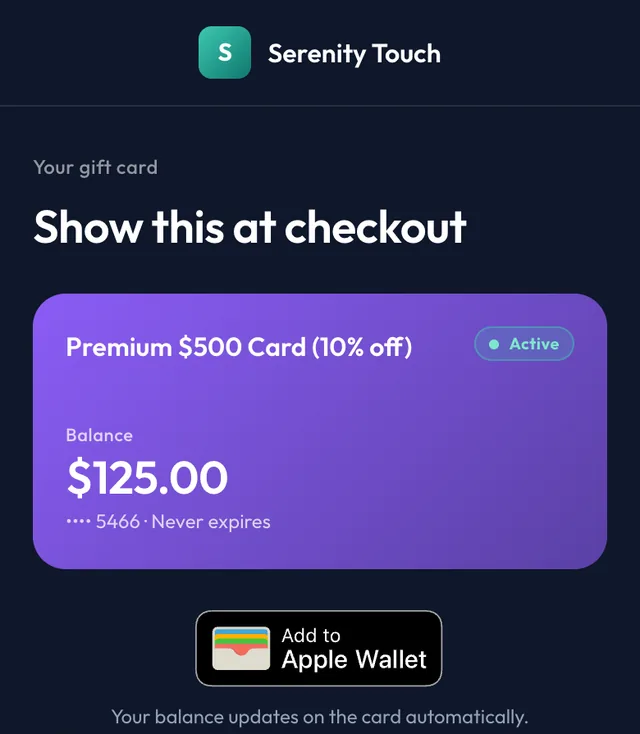
Clients who carry their gift card in Apple Wallet find it in seconds at the desk and see the balance without asking. Each gift card already comes with a link the client opens on their phone. On an iPhone, that page now shows Add to Apple Wallet.
How it works for your clients
- The client opens their gift card link and taps Add to Apple Wallet.
- The card in Wallet shows your store name, the card name, the balance and your gift card design.
- When the card is used at checkout or reloaded, the balance in Wallet updates by itself within a few minutes. "Your balance updates on the card automatically."
Good to know
- There is nothing to set up. Your gift card design and the card name come from your gift card templates.
- Staff still scan the code on the gift card page at checkout. The PIN is never shown on the page or in Wallet.
- If the client opens the link inside another app (Gmail, Instagram and others), the page asks them to open it in Safari first and offers Copy link.
- Google Wallet for Android phones follows soon. On a computer, the page has no Wallet button.
More new features
Texts to clients only during your texting hours
A gift card notice used to go out at 3 AM because that is when it was created. Now client texts go out only during your store's texting hours, 9:00 AM to 10:00 PM store time by default. A text created outside them waits until the next start time.
- Go to System Settings → Communications → Notification Settings and find Customer SMS hours.
- Under Allowed sending hours, pick a Start time (7 AM to 12 PM) and an End time (6 PM to 11 PM). It saves right away.
- Only the owner or an admin can change it.
Confirmations for something the client just did (booking online, buying a gift card, a checkout receipt) still go out right away. If a held reminder would only go out once the appointment has started, it is not sent. Marketing texts keep their own 9:00 AM to 8:00 PM limit. AI bulk texts and coupon texts are not sent outside these hours, and Kuee tells you when you can send them. Email and staff notifications are not affected.
Couples can pay separately
Two friends book a Couples massage and each wants to pay for themselves. It is still one booking, now paid in two payments.
- Open checkout for the Couples appointment. Under Payment, pick Pay separately.
- The Companion pays the Service amount the companion pays, half the service price by default; you can change it. Discounts, points and packages stay on the booking guest's payment.
- Take the first payment. The screen shows, for example, "1 of 2 paid · $65 + tip still due". Close and reopen checkout at any time to collect the second payment.
- The ticket closes once both payments are in. Each payment gets its own tip; enter tips at the front desk, not on the card reader.
Paying separately is not available when the store uses cash discount pricing, when the guest has member pricing or a membership plan, when the ticket was pre-authorized at check-in, or when the ticket has more than two services. Checkout says which one applies.
A "book again" link in review requests
The text that asks a client for a Google review now ends with a short link to book their next visit, with the same therapist and service filled in. In English it reads "Book again: …". Kuee adds the link only if it does not make the text longer by a segment, and only when online booking is on.
No-preference online bookings wait for the front desk
When a client books online with No preference, Kuee no longer picks a therapist at random. The booking shows as unassigned on the calendar for the front desk to assign, and it is confirmed right away so the client gets the confirmation text. Online booking, the AI phone and the website chat also offer a time only when a therapist who does that service is really free, counting the unassigned bookings already there.
Picking services and therapists, full screen
In Add Appointments, check-in and checkout, Add service now opens a full-screen picker in two steps: Services (service cards by category) and then therapists, grouped by who is free, busy, outside hours or off. Tap a therapist to assign; 2nd (four hands) adds a second one. Extend time and add-ons open full screen too: "Each tap saves right away", and Done only closes the screen. The iPad gets the same pickers in the next app update.
Self check-in: no-preference walk-ins check in right away
A client who walks in and picks No preference on the self check-in screen is now checked in right away and fills in your intake form, like any other client. Therapists take the job themselves:
- On the self check-in screen, tap Staff. Under the list, No therapist yet · tap to take this job shows today's checked-in jobs with no therapist.
- Tap the job. Which therapist are you? lists only therapists on shift today who do the service.
- Enter your PIN if your store uses one, then tap Take job and start, then sign.
On the staff claim screen, these jobs stay under the jobs to take, marked Checked in · waiting. After taking one, the therapist sees Client needs: the areas the client marked on the body map and their intake answers. Signing is optional and does not hold up the service.
Auto checkout can count as revenue
For stores that do not take payment in Kuee and use auto checkout only for bookkeeping. In System Settings → Store & Operations → Payment Settings → Advanced Settings → Auto checkout, turn on Count auto-checkout orders as revenue. Orders closed by auto checkout are then no longer marked pending collection. It applies to new orders only; it is off by default.
iPad bookings after closing time (next app update)
Like the web app since 4.41, the iPad front desk can book and edit appointments after closing. Later times are marked After hours, a therapist whose shift has ended shows "Shift ended" with an Override option, and Kuee asks you to confirm "Outside business hours" before saving. Therapists on leave or off that day still cannot be picked.
Smaller improvements
- Notification switches cover more: gift card texts and emails now follow their switch in Notification Settings (a gift card notice that is switched off is no longer sent), and turning a notification off also stops messages already waiting to go out.
- Notification templates can use Store Name, Store Address and Reply Y/N Hint.
- Team invites: when you invite someone who already has a Kuee account, they get a link and join after they accept.
- Quick charges on Fiserv CardPointe: a charge with a different card for the same amount as the last one is no longer blocked. When a charge went through but its order is still syncing, Kuee says so and asks you not to charge again.
- Security improvements.
Fixes you may notice
- Editing a coupon campaign only renaming it no longer moved its end date by a day. Dates now follow your store's time zone.
- The subscription page showed "Limit reached" when the limit could not be read, and counted stores you only work at. It now counts only stores you own and says Unavailable instead.
- A text from an unknown number now shows the client's name in the list after you create the client.
- Gift cards with a package in the same order: the most a gift card could pay included the package. It now does not, on the web and on the iPad.
- On the iPad in the next app update: checkout no longer waits for minutes when the tip settings are slow to load, and reopening the app no longer sometimes sends you back to the sign-in screen.
Questions about this update
Tell us what works for your store and what does not: contact us and we will walk you through any of these changes on your own store.