A 60-minute massage runs to 3:05 and the next client of the same therapist starts at 3:00. Until now the By staff board turned that row red and called it a conflict, every day, for five minutes nobody worries about. In Kuee 4.48 you choose how much overlap is normal for your store, and only real double-bookings stay red.
The same release makes price adjustments say what they are for on every receipt, shows each client's coupons on their profile, and brings a new look to the iPad and phone apps.
Short overlaps no longer count as conflicts
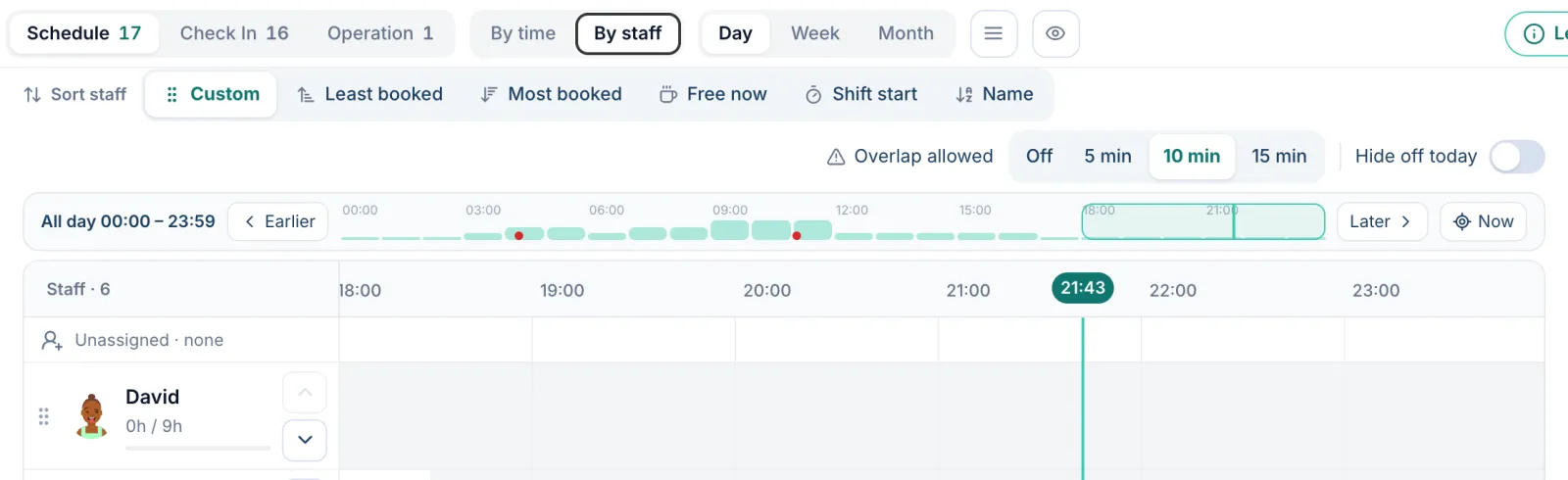
On the Appointment page in By staff view, a new setting sits in the sort bar, left of Hide off today: Overlap allowed, with Off, 5 min, 10 min and 15 min.
How it works
- When two bookings of the same staff member overlap by no more than the time you pick, Kuee does not flag them: no red row, no conflict banner, no split card.
- A booking that sits completely inside another one is still a conflict, whatever you pick.
- Pick Off to see every overlap, as before.
The default is 10 min. Anyone using the board can change it, and the choice is saved on that computer or browser, so the front desk and the owner can each keep their own.
Getting the most out of it
- Match it to your real turnover. If your therapists often run five minutes over, 5 min or 10 min keeps the board calm without hiding problems.
- Use Off when you plan the week and want to see every tight spot.
Price adjustments now show what they are for
A client stays 10 minutes longer and you add $3. Before, the receipt only said "Adjustment", and some clients asked what it was. Now every price adjustment has a purpose, and clients see it.
How to set it up
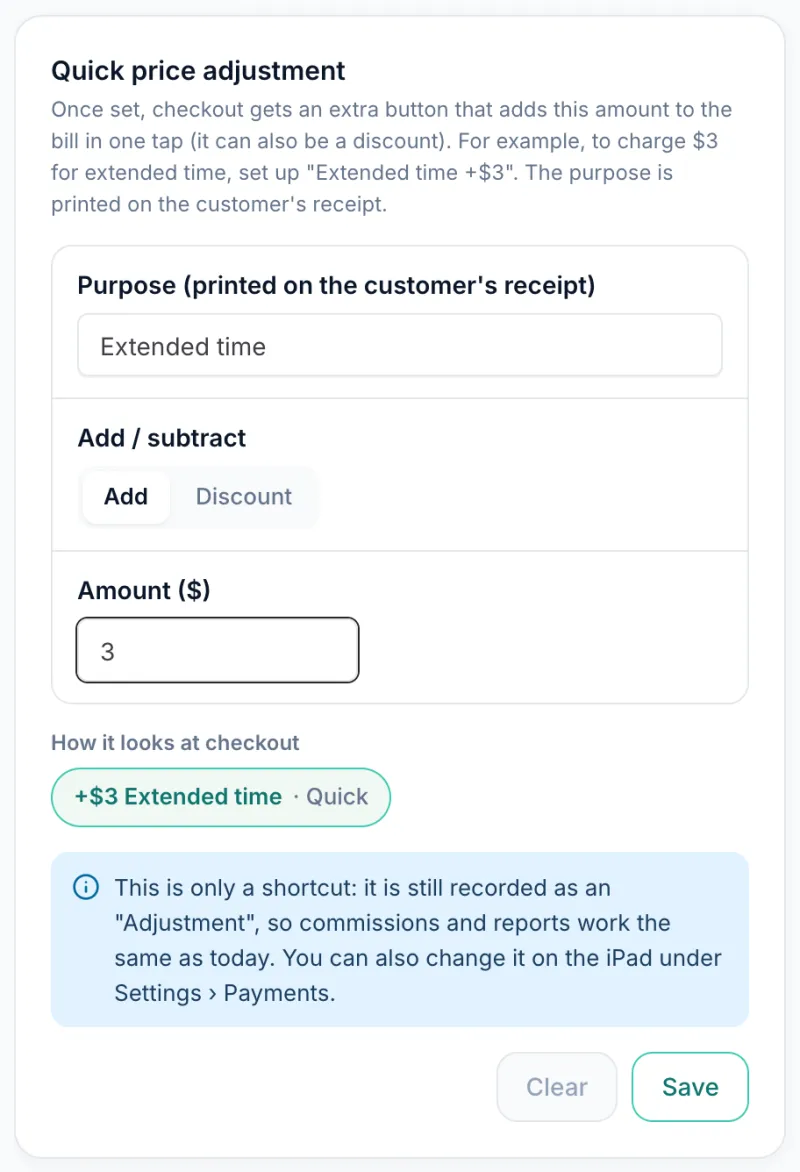
- Open System Settings → Payment Settings → Tips & more (on some stores this tab is called Advanced Settings).
- In Quick price adjustment, fill in Purpose (printed on the customer's receipt), for example "Extended time", then choose Add or Discount and the amount.
- Check the preview under How it looks at checkout, then save.
The purpose is now required. Owners and admins can change it.
What clients see
The purpose and amount appear as their own line, for example "Extended time +$3.00" (a discount shows as -$3.00), on the text receipt, the printed receipt, and on Fiserv stores also the email receipt and the card reader receipt. Older adjustments without a name show as "Adjustment".
Good to know
- If the purpose mentions a card fee, Kuee suggests turning on the card surcharge in payment settings instead. It does not stop you from saving.
- On the iPad, the purpose also shows on the client's tip and signature screens, and a custom amount needs a purpose. That part comes with the next app update.
See a client's coupons on their profile
When a client asks "do I still have that coupon?", you no longer need to search the marketing pages. Open the client in Customer and look at Assets & Benefits: there is now a Coupons group below gift cards.
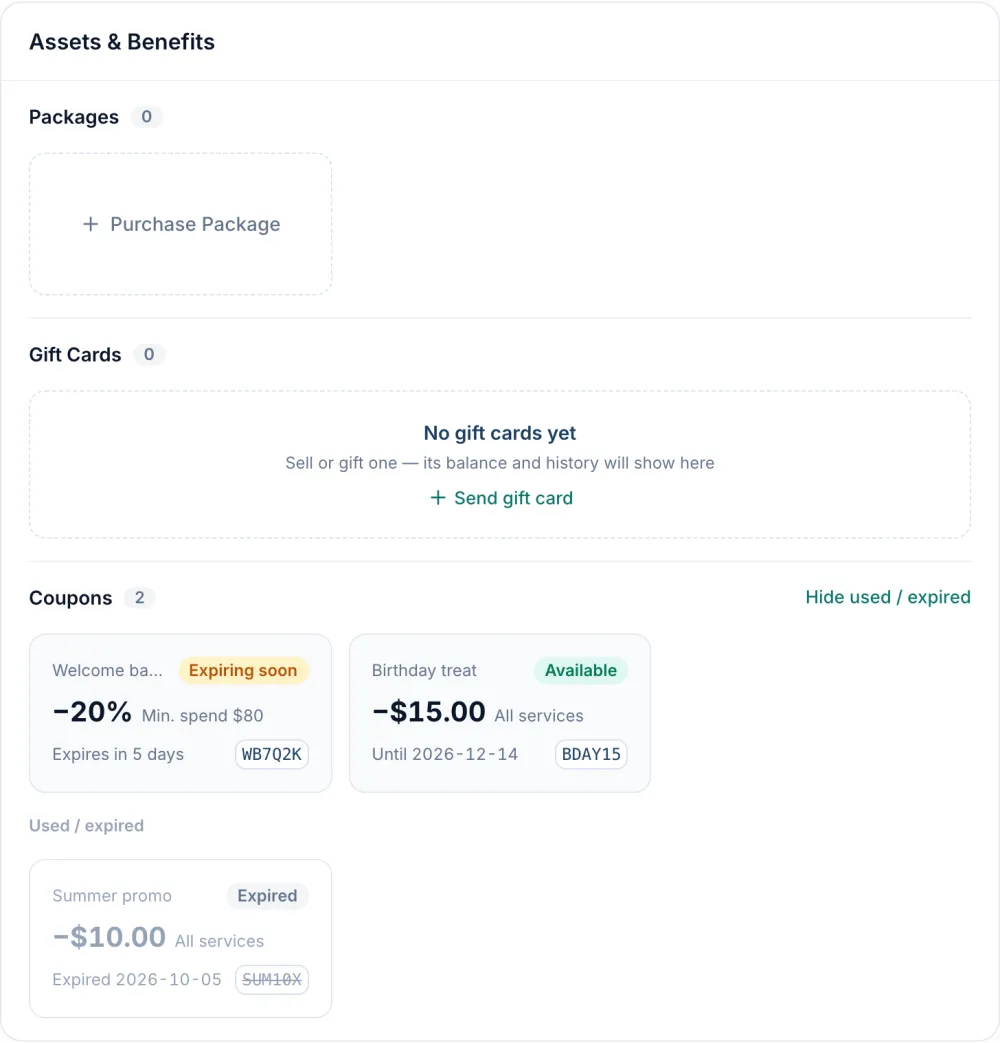
Each coupon shows the discount, its conditions (minimum spend, maximum discount or selected services), until when it is valid, and its code. Coupons that expire within 7 days are marked Expiring soon and listed first. Used and expired coupons are folded away under Show used / expired. The list is read-only; you still apply a coupon at checkout.
More new features
See what happened to a review request
After checkout, Kuee texts the client a review request. Now owners and admins can see what happened next. In an appointment's Billing tab, a Review request card shows Text sent, whether the client Opened the review link, the star rating left on the review page and any Private note to the store. In Visit Records on the client's profile, each visit has a tag such as Review text sent · opened.
When a client gives 1 to 3 stars or leaves a private note on the review page, owners and admins get one push notification on the phone app or iPad. It uses the existing Low-star review alert notification setting, which is on by default.
A clearer subscription page for owners
On Home → Platform Subscription, owners with a paid plan now see everything on one page: the plan with its renewal date and this period's total, Stores & tiers, and for each store the billable therapists, Usage this period (text segments and AI call minutes) and Add-on packs & other billed items. Change tier, Payment method & invoices and Stop renewal are at the top.
Choose where a commission backfill starts
If commission rules changed and older services were never paid out, the owner can backfill them in Staff Performance: open a team member and tap Recalculate next to Total Commission. You now must pick Backfill from (required), and only services from that day on are counted. Records imported from your previous software are never backfilled. Rows with a zero price or older than 12 months are left unticked for you to check. Only the owner can do this.
Auto-checkout orders count as revenue right away
Count auto-checkout orders as revenue (System Settings → Payment Settings → Tips & more → Auto checkout) is now on by default. Auto-checkout orders that were still waiting as pending collection were moved into revenue in this update, so if your store uses auto checkout, your reports for past days may go up. They are not marked as confirmed by the front desk. Owners and admins can turn it off; that only affects new orders.
Gift card pages for your clients
- If your store does not sell gift cards online, tapping a card now opens Buy this card at the front desk with your phone number, address, Call and Directions.
- On Fiserv stores with a card surcharge, the online gift card checkout lists the gift card amount, the surcharge, the credit card total and the debit card total before the client pays (Debit cards are not surcharged.).
- A frozen card now shows On hold with a line asking the client to contact your store, instead of a raw status.
- On stores with a custom website, the gift card pages use your site's colors.
- After an online purchase, the QR code and full card number show only in the browser that paid. Gift card emails are now designed emails with a QR code, wallet buttons, the card number and PIN.
Fixes you may notice
- Self check-in after the booking was already checked in said the phone number did not match. It now says Your appointment is already checked in — please wait a moment.
- Group bookings made by the AI phone for several people at the same start time were saved as separate bookings, so companions could not check in with the booker's phone number. They are now linked as one group.
A new look on the iPad and phone in the next app update
The iPad front desk, the owner phone app and the therapist app move to the same design as the web app: cooler greys, dark teal main buttons and larger tap targets. Nothing moves and every flow stays the same. The update also brings:
- Front desk sidebar on one screen: Kuee and the card reader status share one row, and a small iPad shows "more" when items are below the fold.
- Settle 2 to 5 appointments in one payment at the checkout counter, for checked-in visits of the same store day. Tapping one client's ticket adds their other open tickets as Together; Select picks tickets of different clients. The tip is asked once and split by service amount.
- Tip in cash on the client's tip screen. The result screen then reminds the front desk to record the cash tip.
- Fiserv cash + card payments go to the client for tip, card, signature and rating. If the card fails, the cash already taken stays on screen until you try another card or refund the cash.
- No double signature on Fiserv: when the client signs on the iPad, the card reader no longer asks again, and those iPad signatures are now saved with the payment.
- Overlap allowed on the iPad staff board, and the price adjustment purpose on the tip and signature screens.
- Settings › Usage for owners and admins: plan, billed therapists, this period's usage and add-ons.
- Cancel confirmed appointments from the owner phone app, with a reason, and the client is notified.
- Review requests on the client's Visits tab.
- Today's Business counts sales by your store's date, so evening checkouts no longer land on the next day.
- Therapists' focus areas on a task now save, and the duplicate-client box on the owner phone is no longer hidden behind the keyboard.
Questions about this update
Tell us what works for your store and what does not: contact us and we will walk you through any of these changes on your own store.