Kuee 4.32 is about the first five minutes of a visit. A couples massage no longer means two guests queueing at the same iPad to fill in the same form twice: one form, one body diagram, two pens, two signatures. Massage pressure, the answer your therapist most wants before the session, is now a one-tap choice instead of a dropdown hidden in a folded row.
On the front desk side, the By staff board now shows which cards are the same client's services, so you stop moving one of them by accident. A few fixes close out the release.
One check-in form for couples massage
Two guests arrive for a 60-minute couples massage. Before, each of them filled in the full form from the top and drew their own body diagram, one after the other. Now the service itself tells Kuee it is a couples service, and check-in opens one form for both.
How to set it up
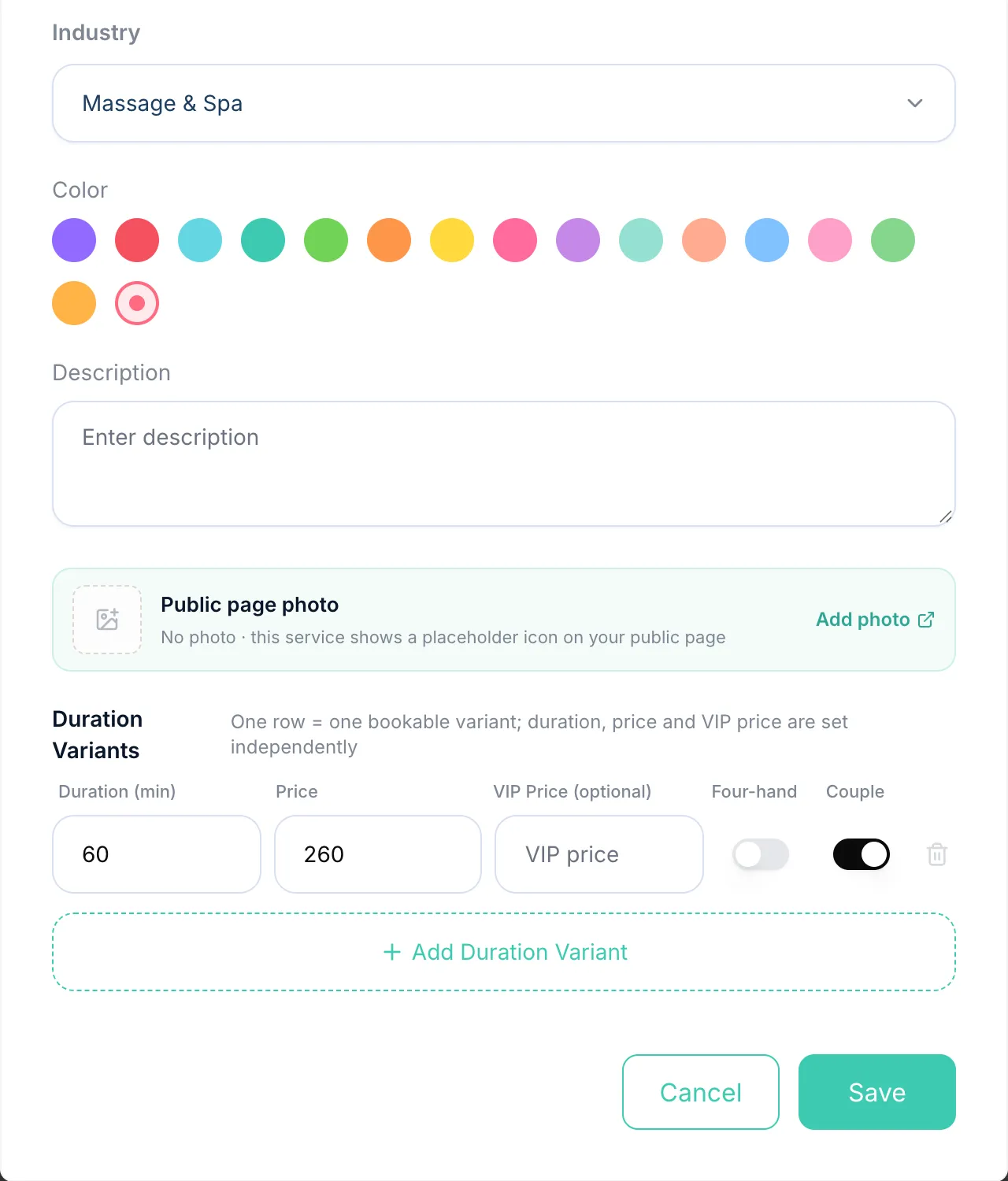
- Go to System Settings → Services & Resources → Service Items and open the service, for example Couples Massage.
- In the Duration Variants table, switch on the Couple column for each duration that is booked by two guests. It is off by default, and it is saved per duration, like the four-hands column next to it.
- Save. In the iPad app's service editor the same setting is called Couple service (2 guests); that switch arrives with the next app update.
What your guests do
When a booking for a couple service is checked in, the form opens as Couple check-in · one form for two guests.
- The health questions are answered once and saved to both guests.
- The body diagram has two pens: blue is Guest 1, orange is Guest 2. Each guest marks their own areas on the same picture.
- Every required signature is signed twice, once per guest. The form cannot be submitted until both have signed, so a missing consent shows up at the front desk, not after the session.
- Guest 2 enters name & phone on the form. Kuee matches an existing client by phone and name, and creates a new client if there is no match.
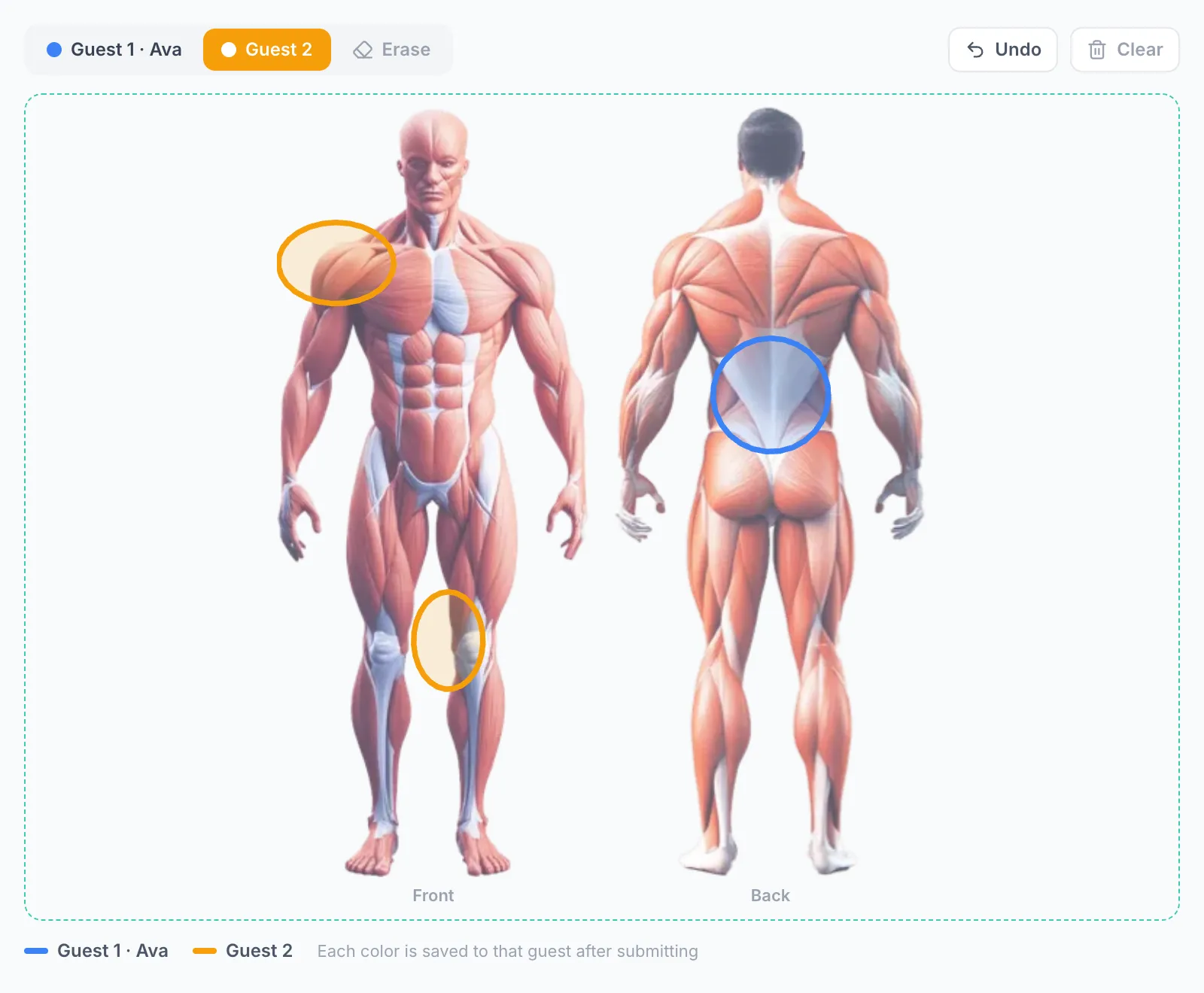
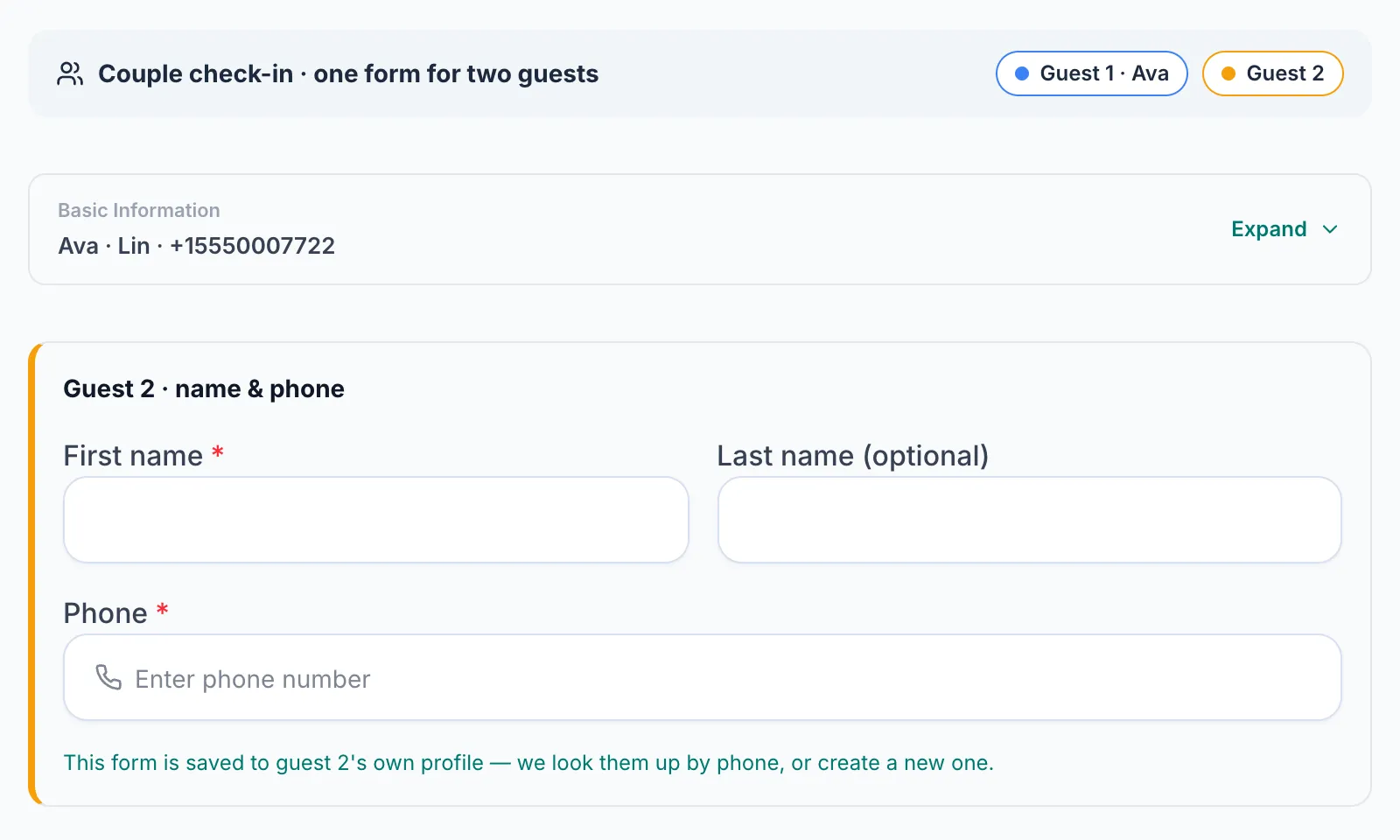
After submitting, each guest ends up with their own form record: the blue marks and signatures go to Guest 1, the orange ones to Guest 2, each with its own snapshot of the body diagram. Guest 1's date of birth, gender, address and email are never copied to Guest 2.
Getting the most out of it
- If the two guests booked as two separate appointments at the same time, Kuee finds the other booking and fills in Guest 2 for you; each booking gets its own form.
- Hand the iPad to Guest 1 first, then to Guest 2 for the name, phone and signature. Nobody has to start over.
- Leave the switch off for services that are not really for two people. The single-guest form does not change.
Good to know: this relies on the service being marked as a couple service. A couples booking made on a service without the switch still shows the one-guest form.
Massage pressure in one tap
Pressure used to sit in a folded "service preferences" row with five other dropdowns, and most clients never opened it. Therapists then saw "not asked" right when they needed the answer.
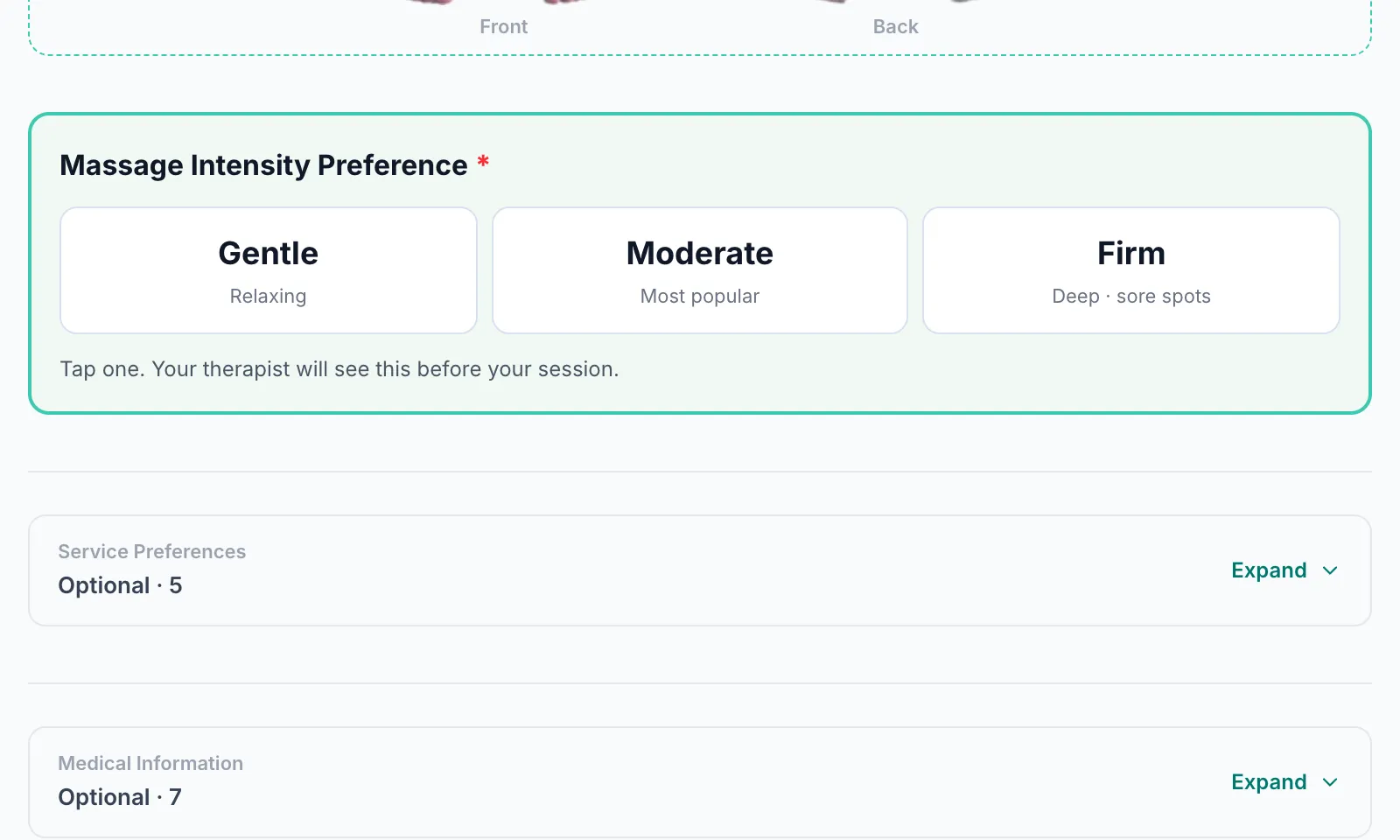
Now Massage Intensity Preference sits right under the body diagram, always open, as three large buttons: Gentle (relaxing), Moderate (most popular) and Firm (deep, sore spots). It is required, so every new client answers it, and your therapist sees it before the session. The other preferences stay in the folded row, which now counts five items instead of six.
Returning clients can change it at check-in
Returning clients used to see a "keep your form?" prompt that continued by itself after 15 seconds, with no way to say that today they want it firmer. The prompt now asks Massage pressure with the three choices, and the one they picked Last time is already selected.
- Tap a different level if today is different. Every tap restarts the 15-second countdown.
- Tap Confirm, continue check-in, or do nothing and it continues by itself.
- Tap Update full form (body areas / health) only if more than pressure has changed.
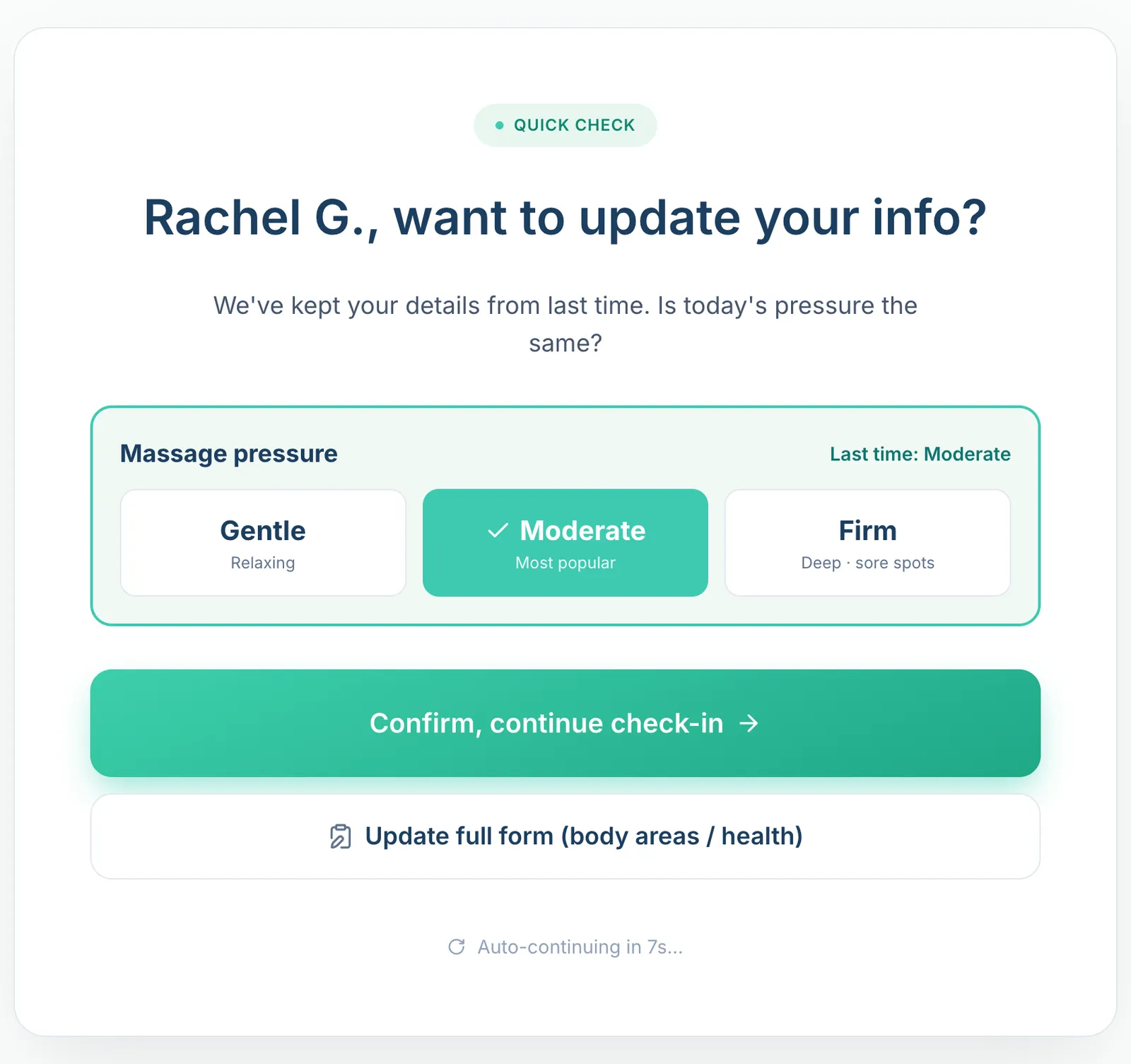
Confirming updates only the pressure on the client's profile, so the new level is what the therapist sees on their task page. Their earlier signed form is left as it was; the client is not asked to sign again.
Good to know: your form template's pressure field is moved under the body diagram automatically, so you do not need to edit the template. Pressure is required in every form.
Spot one client's services on the By staff board
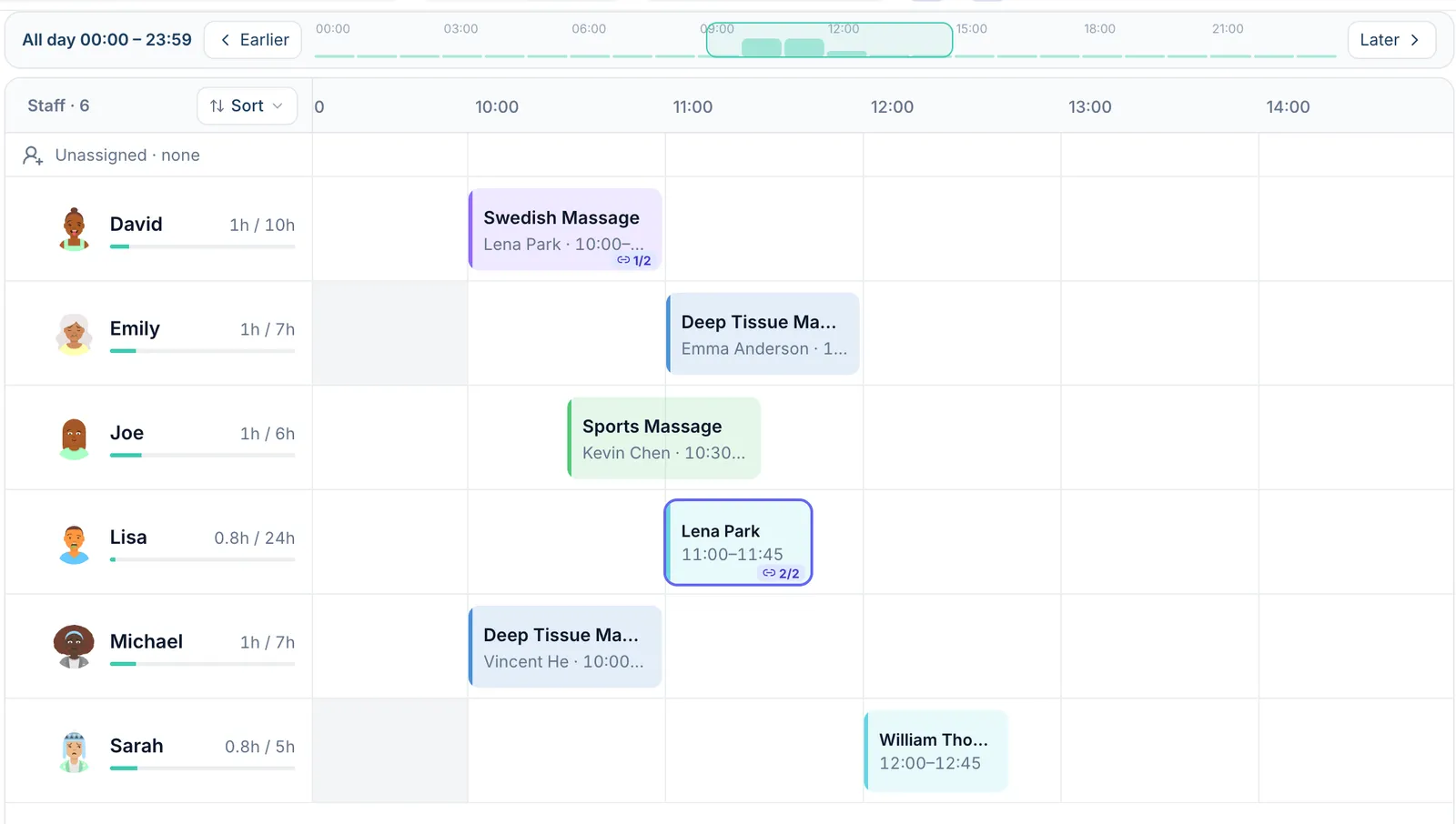
The By staff board draws each service as its own card. That is right for scheduling, but nothing said that two cards belong to the same client who pays once. Moving one by mistake quietly moved the whole booking.
On Appointment, switch to By staff. Nothing to turn on:
- Cards that belong to the same client today carry a small badge such as 1/2 and 2/2. It counts the client's services across all of that day's bookings, and a four-hands service is counted once.
- Hover or focus a card and the same client's other cards get a highlight ring. The tooltip reads, for example, "Lena Park · 2 services today · paid together".
Moving a booking
Dragging a card sideways changes the time of the whole booking. The board now shows it before you let go: the other services appear as a lighter preview, shifted by the same amount, and the confirmation bar adds a line, "All 2 services in this booking move together", with the new times. Dragging a card up or down only changes the therapist, and does not add that line.
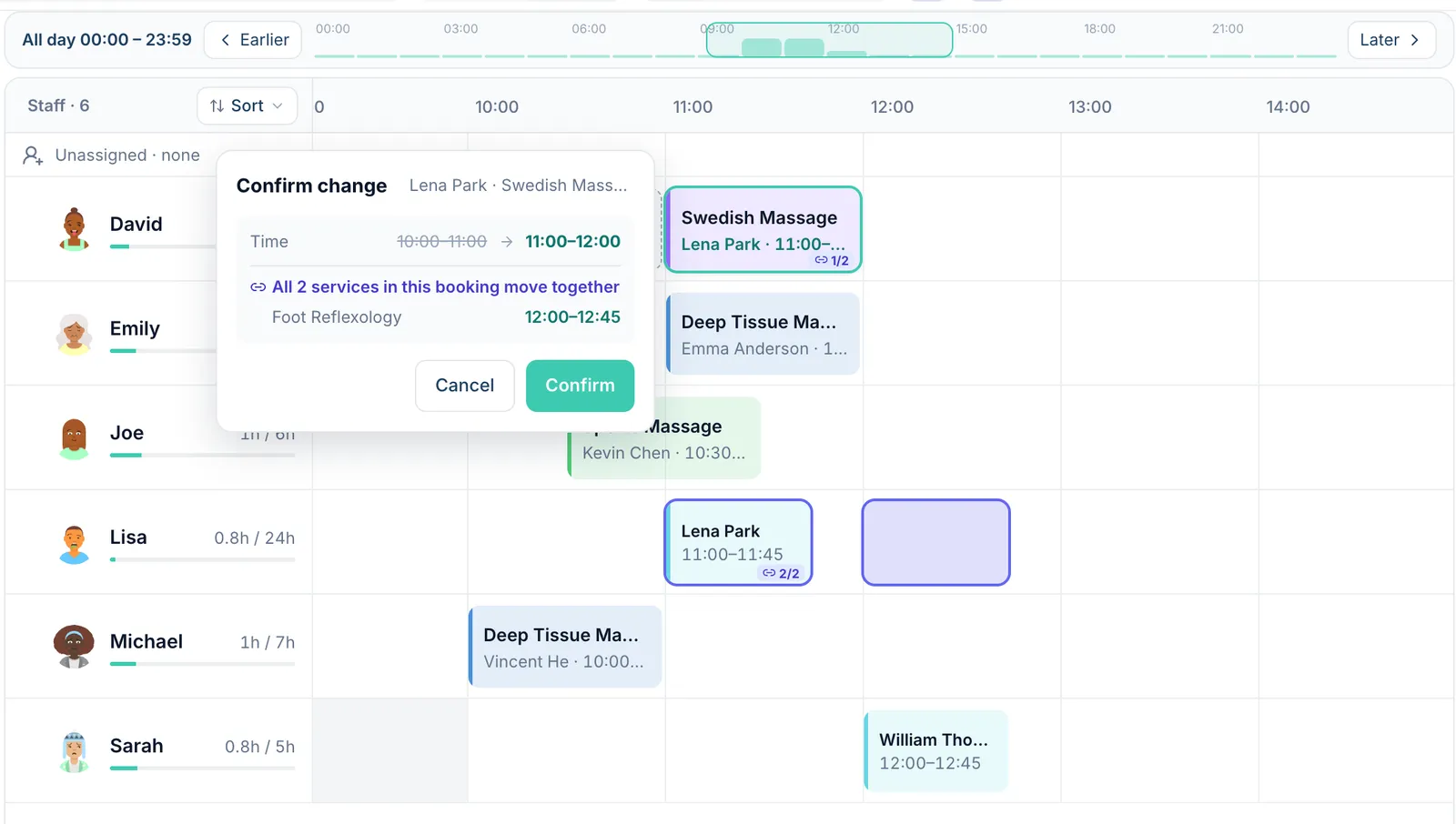
Good to know: the badge does not draw lines between cards, and a booking made together with other people's bookings is not grouped; only one client's own services are. On the iPad, the badge comes with the later app update; hover and drag preview are web only.
Fixes you may notice
- Owners who are also therapists lost the By time / By staff switch. It flashed on the Appointment page and disappeared. Owners, admins and front desk now always see it.
- Fixed commission is earned when the service is completed. A therapist's fixed per-service commission used to stay at 0 until the client was checked out. It now counts when the service is marked completed, whether or not the client has paid. Cancelled and no-show bookings earn nothing, and a service is counted once. Services completed before this update are not recalculated.
- Collapsed preferences showed raw values. The summary line in the check-in form could show a stored value such as "none"; it now shows the option's label.
- Many small clean-ups from a full walkthrough of the web app: clearer wording and more consistent labels.
Questions about this update
Tell us what works for your store and what does not: contact us and we will walk you through any of these changes on your own store.