A guest who wants a 90-minute Swedish Massage used to pick a date first and only then discover that length was gone. Public booking now asks for the service, then the length, then the date, so the times they see already match the session they want.
You can also hide therapist names on that public page when you would rather assign who is on shift. A few quieter fixes land with the same release.
Choose the length before you pick a date
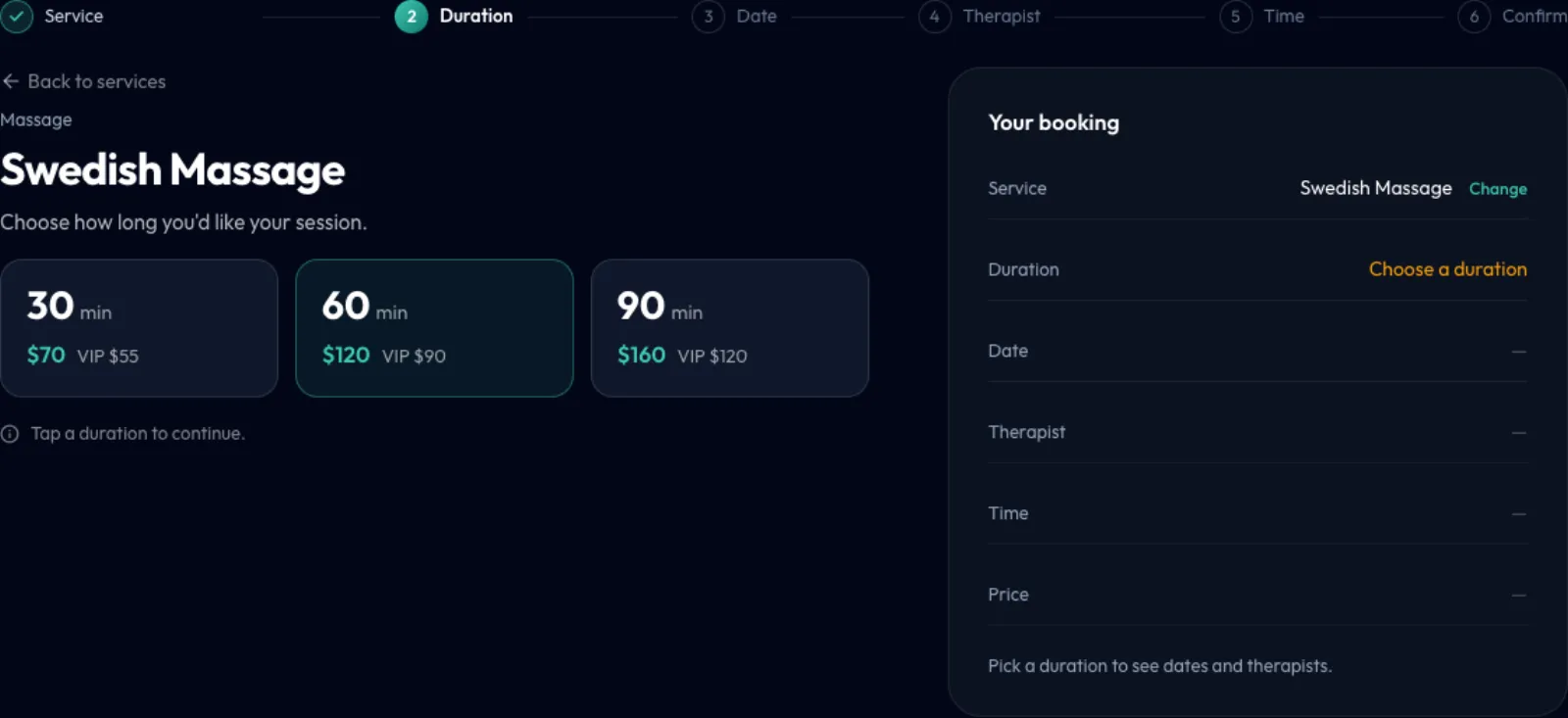
Saturday morning, a guest opens your public page for a 90-minute massage. Before, they picked a date, then a therapist, and only then found that 90 minutes was full. Now the length comes first: 30, 60 or 90, each with its price (and member price when you have one). The dates and times that follow are only the ones that still fit that length.
The duration step appears when a service has more than one length. A service with a single length still goes straight to the date.
How to set it up
- Go to System Settings → Services & Resources → Service Items and open the service, for example Swedish Massage.
- In the Duration Variants table, add every length you actually sell, each with its price and VIP price. One row is one bookable length.
- Save. A newly added length keeps the same therapist assignments as the other rows, so you do not re-tick who can do it.
Guests only see this step when there is more than one row. A 60-minute-only service stays a two-step book: service, then date.
What your guests do
- They tap Book Now on your public page.
- They pick a service. If that service has several lengths, they see Choose how long you'd like your session. and tap one card. The summary stays on Choose a duration until they do.
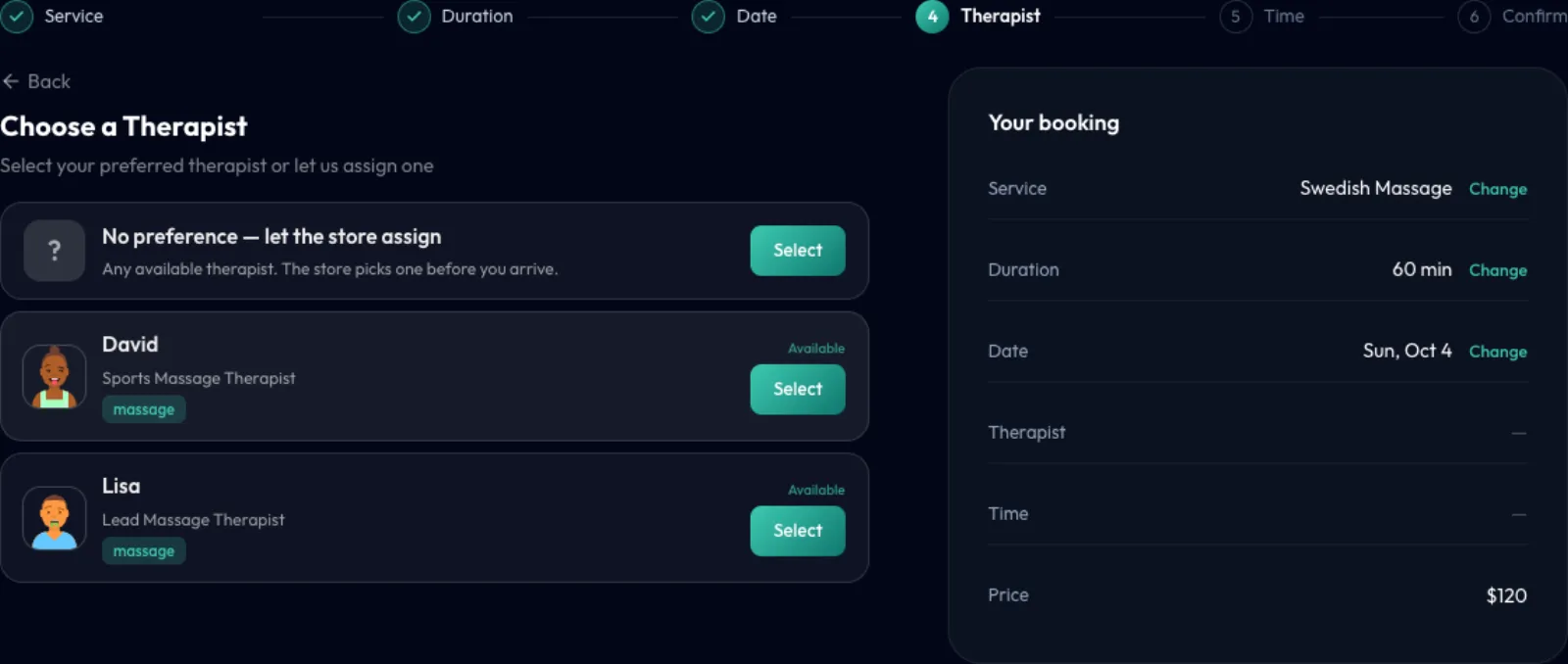
- They pick a date, then a therapist (or No preference — let the store assign), then a time, then confirm. No guest account is needed.
The therapist list no longer marks anyone as recommended. Every therapist card looks the same; No preference — let the store assign sits at the top.
How to hide therapist names
Some stores would rather not show names and photos on the public page, and let the front desk assign who is on duty.
- Go to System Settings → Store & Operations → System Configuration.
- Open the Customer Permissions card.
- Switch on Hide therapist names on the public page. It is off by default. Owner and Admin can change it; Front Desk cannot.
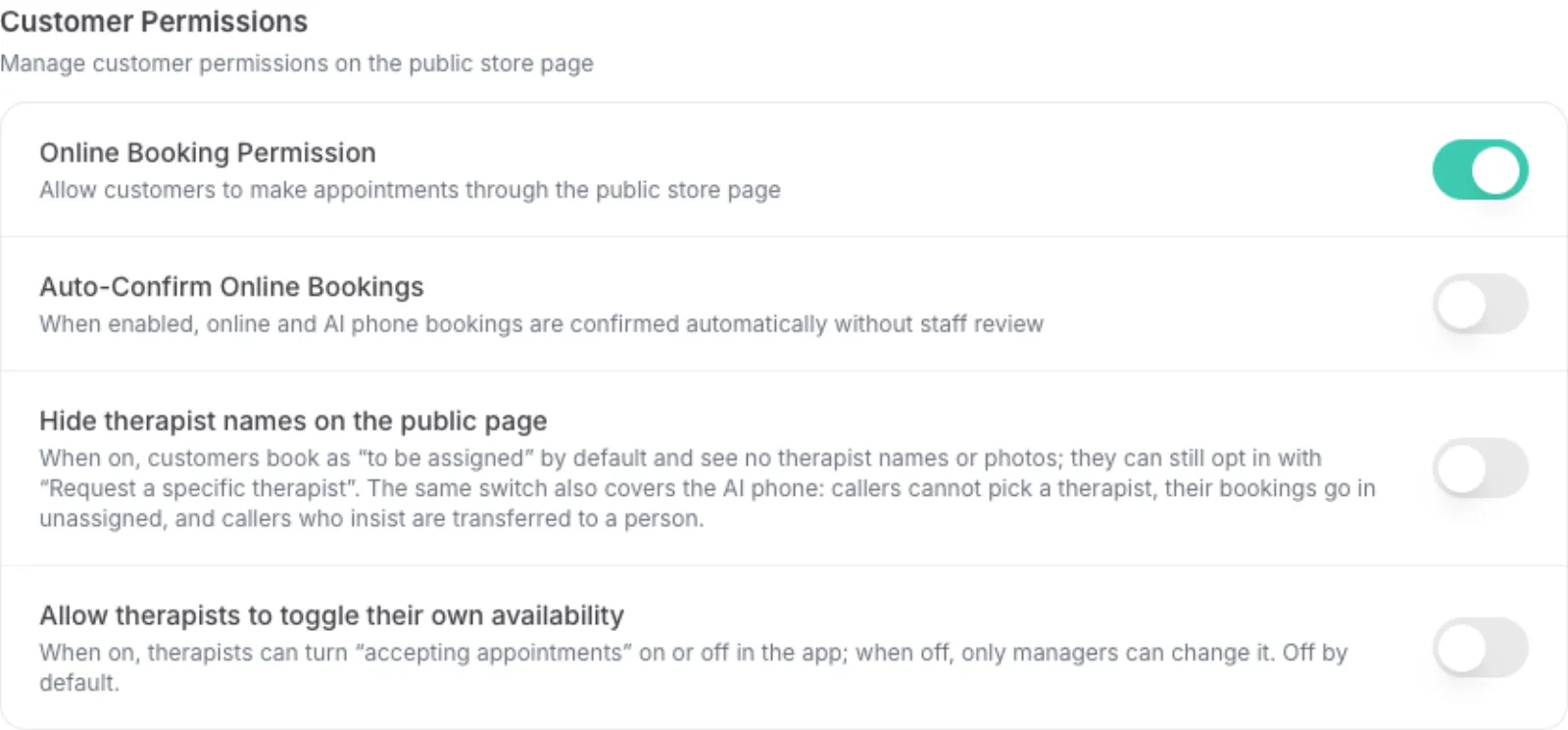
When the switch is on, guests book as “to be assigned” by default and see no names or photos. They can still tap Request a specific therapist, then call the store so you can note it. The same switch covers the AI phone: callers cannot pick a therapist, those bookings go in unassigned, and callers who insist are transferred to a person.
Getting the most out of it
- Put every length you actually sell on the service. Guests only see this step when there is a choice.
- Leave the hide-names switch off if regulars book a favorite therapist online. Turn it on if you rotate who is on shift and names on the public page create extra calls.
- No preference — let the store assign is the fastest path for a guest who does not mind who they see.
Good to know: public booking is still one guest per booking. Couples are booked by the front desk or the phone. The public page is in English, including Book Now, Choose how long you'd like your session. and Choose a Therapist.
Smaller improvements
- External POS / other on the reconciliation bridge. Cash or another terminal that never hits a Stripe payout now shows as External POS / other, so the bridge no longer looks short against the payout.
- Lifetime spend skips pending collection. A client's lifetime total Excludes pending collection, so an auto-checkout that you have not confirmed as paid does not inflate what they have spent.
Fixes you may notice
- Staff-sent texts count against your comms package. Manual texts you send from the store now use the same text-segment allowance as the rest of your package, so usage matches what you actually sent.
- A cancelled website booking can fill the open slot. Guests who booked on the public page now join the same waitlist as everyone else, and cancelling that booking no longer drops the fill because no therapist was assigned yet.
- Marketing texts stay at one per local day. A busy send no longer lets the same client get two promotional texts on the same store-local day.
- Security improvements.
Questions about this update
Tell us what works for your store and what does not: contact us and we will walk you through any of these changes on your own store.