A walk-in who wants a massage and then reflexology used to pick one service at the kiosk, then wait for the front desk to add the second. They can now tap up to three services in the order they want them, and the same therapist does them in that order.
Stores that take cards on their own POS can record those sales as Card in Kuee with one tap. Auto-confirmed online bookings keep a sky-blue corner until someone on the front desk opens them.
Book several services at the kiosk
Saturday afternoon, a guest walks in for a 60-minute Swedish Massage and a 45-minute Foot Reflexology. Before, they booked one service on the kiosk and the front desk added the rest. Now they tap both, in the order they want them done, and one therapist takes the whole visit.
They can pick up to three services. The same therapist does them in the order the guest tapped. Add-ons and a front-desk-only “I'll choose at the front desk” row still sit at the top.
How to turn it on
- Go to About This Store.
- In the Self Check-in card, switch on Allow walk-in booking. It is off by default.
- Open the kiosk from Open Kiosk, or from the QR you already have on the iPad.
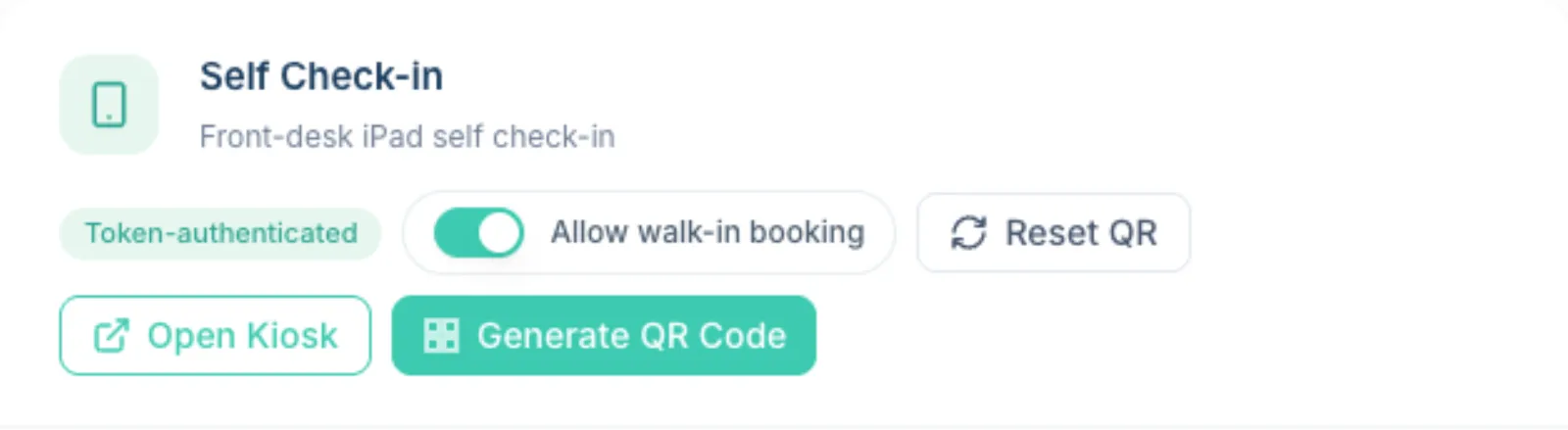
Walk-in booking is the kiosk path for a guest who does not already have an appointment. Self check-in for a booking they already have stays as it was.
What guests do
- On the kiosk home they choose walk-in booking.
- They see Choose a service — Pick one or more — the same therapist does them in the order you tap.
- They tap services on the left. The first shows First, the next Then. The Booking summary on the right lists them in that order, with a total time and price.
- They keep Auto-match (the default) or tap Choose therapist, pick a time, enter a phone number, and tap Confirm booking.
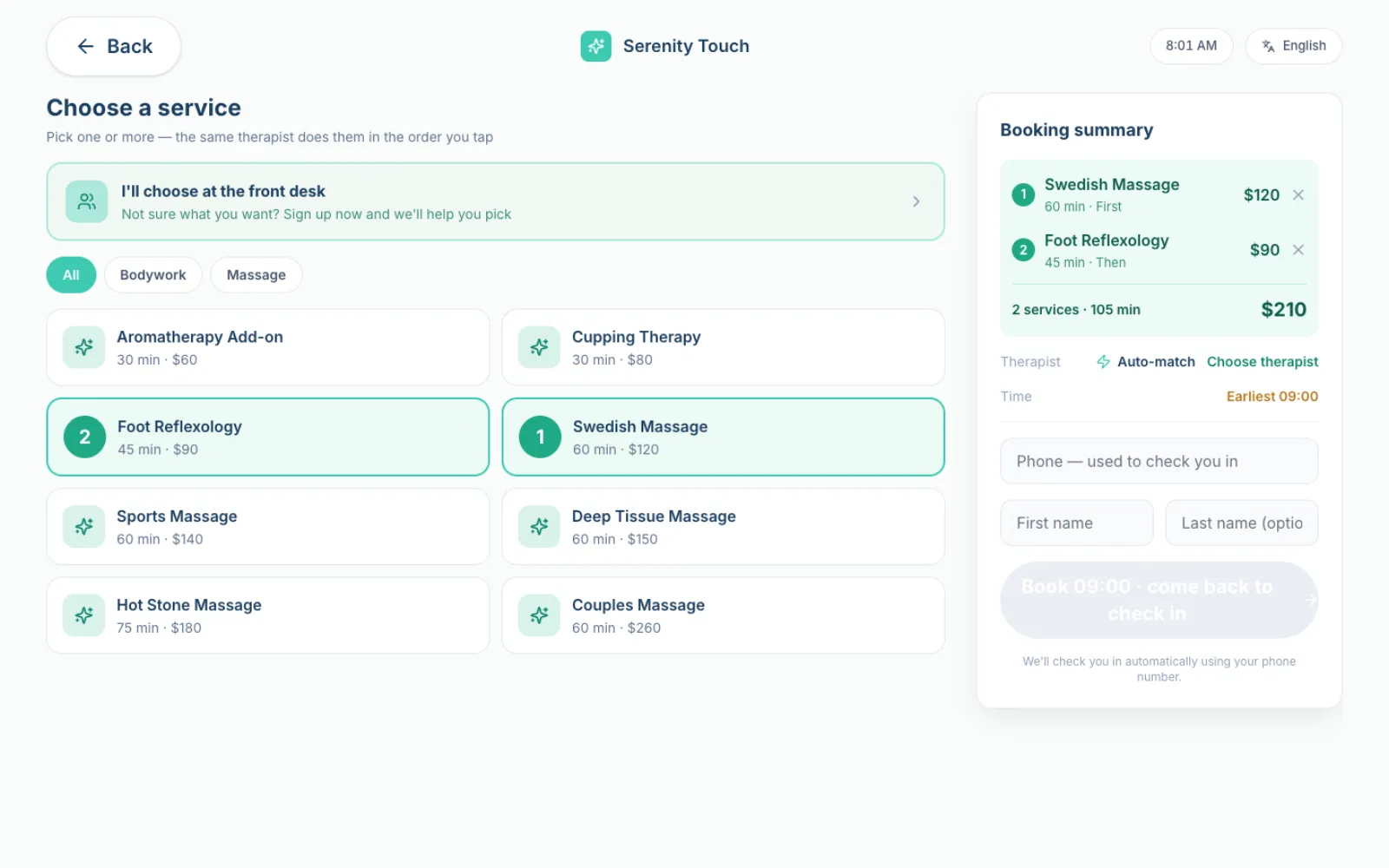
If they try a fourth service, the kiosk tells them they are at the limit and they can tap a selected one to remove it. Couples and mixed-therapist visits still go through the front desk.
Getting the most out of it
- Leave Allow walk-in booking off if you only want the kiosk for check-in. Turn it on when the front desk is busy and walk-ins can pick for themselves.
- Put the services guests actually combine on the kiosk. Three is the cap; a longer add-on stack is still a front-desk booking.
- Auto-match is the fastest path. Guests who want a named therapist can still choose one.
Good to know: all selected services must fit the same therapist. If no one can do the combination, the kiosk will not offer a time — send that guest to the front desk.
Record sales on your own card terminal
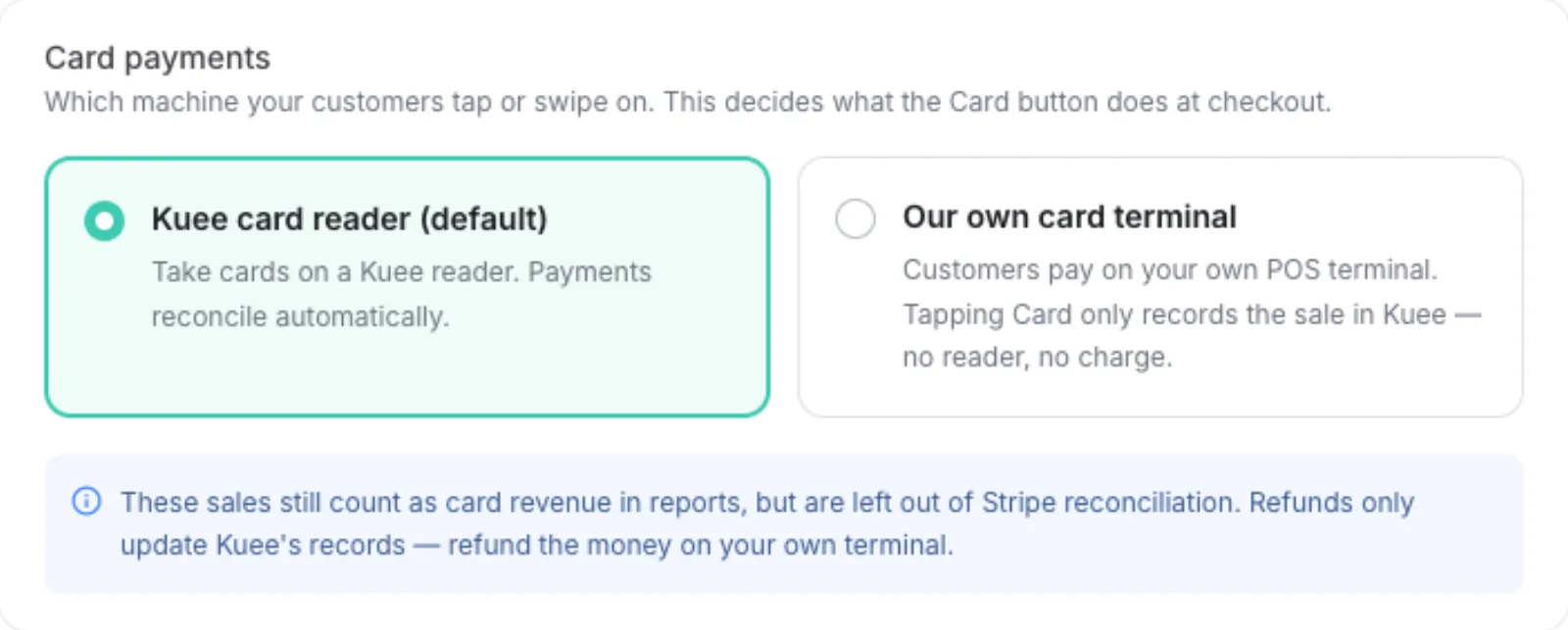
Some stores already have a card machine they like, and they do not want a second reader on the desk. Checkout used to treat Card as a Kuee reader charge. You can now tell Kuee that Card only records the sale, while the guest pays on your own terminal.
The default stays Kuee card reader. Reports still count these sales as card revenue. They are left out of Stripe reconciliation, and a refund in Kuee only updates Kuee's records — you refund the money on your own terminal.
How to set it up
- Go to System Settings → Store & Operations → System Configuration.
- Open the Card payments card.
- Choose Our own card terminal. The default is Kuee card reader (default).
- Owner and Admin can change this. Front Desk cannot.
What the front desk sees
At checkout, Card becomes Own terminal · Tap to record. One tap writes the sale in Kuee. Nothing is sent to a Kuee reader, and the guest's card is not charged by Kuee.
Keep Kuee card reader if you take cards on a Kuee reader. Those payments still reconcile automatically.
Getting the most out of it
- Use Our own card terminal only when every card at the desk goes through your own POS. Mixing a Kuee reader and an external terminal on the same store will make the books hard to follow.
- Refunds are two steps: refund in Kuee so the visit is closed, and refund on your own terminal so the money comes back.
- The iPad front desk follows the same setting in the next app update.
Good to know: this does not connect Kuee to your POS. It only changes what the Card button records.
See auto-confirmed bookings you haven't opened
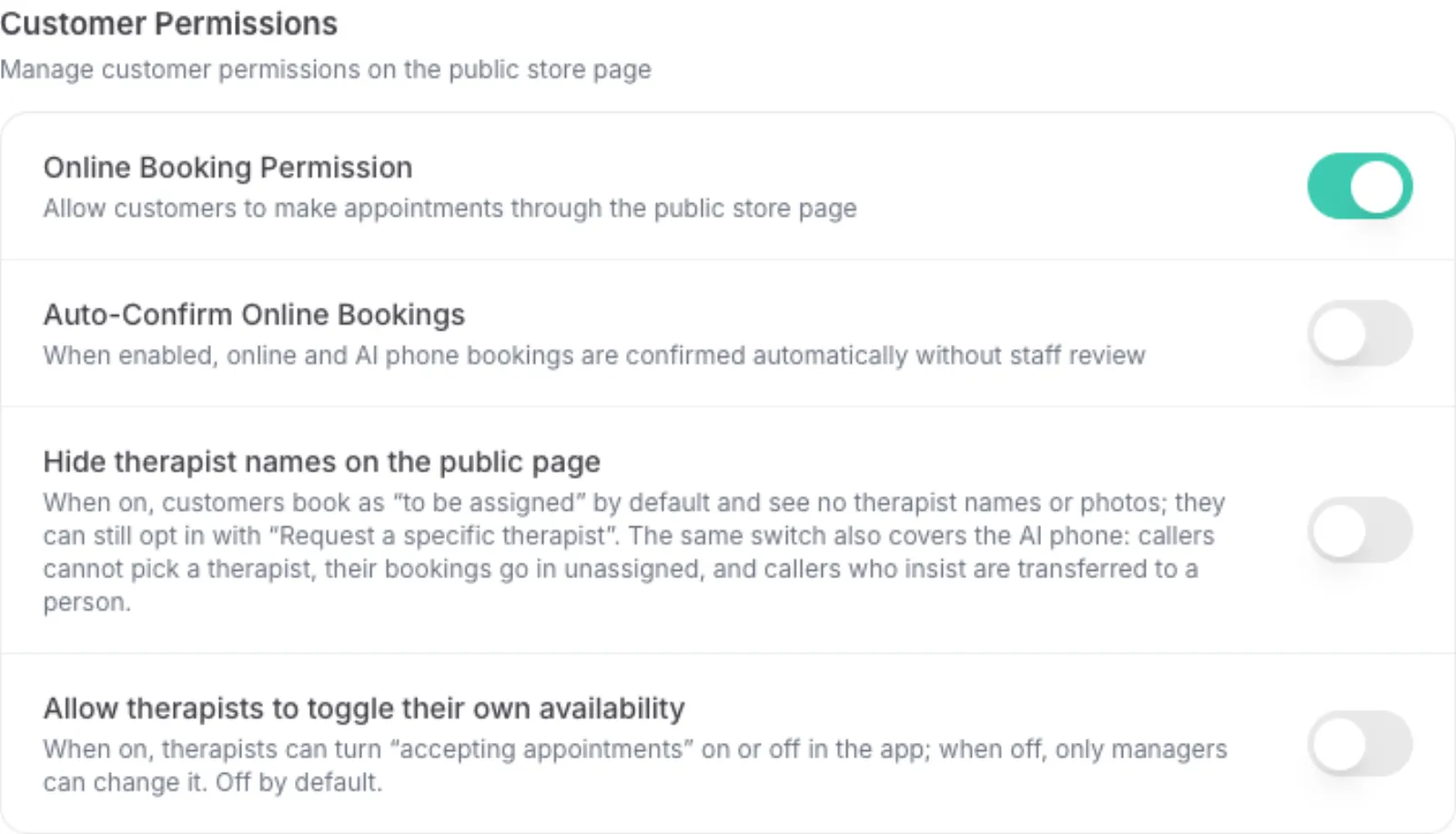
When Auto-Confirm Online Bookings is on, a public-page or AI-phone booking lands as confirmed, with no one at the desk reviewing it. Those visits used to look like any other confirmed booking, so a busy Saturday could hide a name the front desk had never seen.
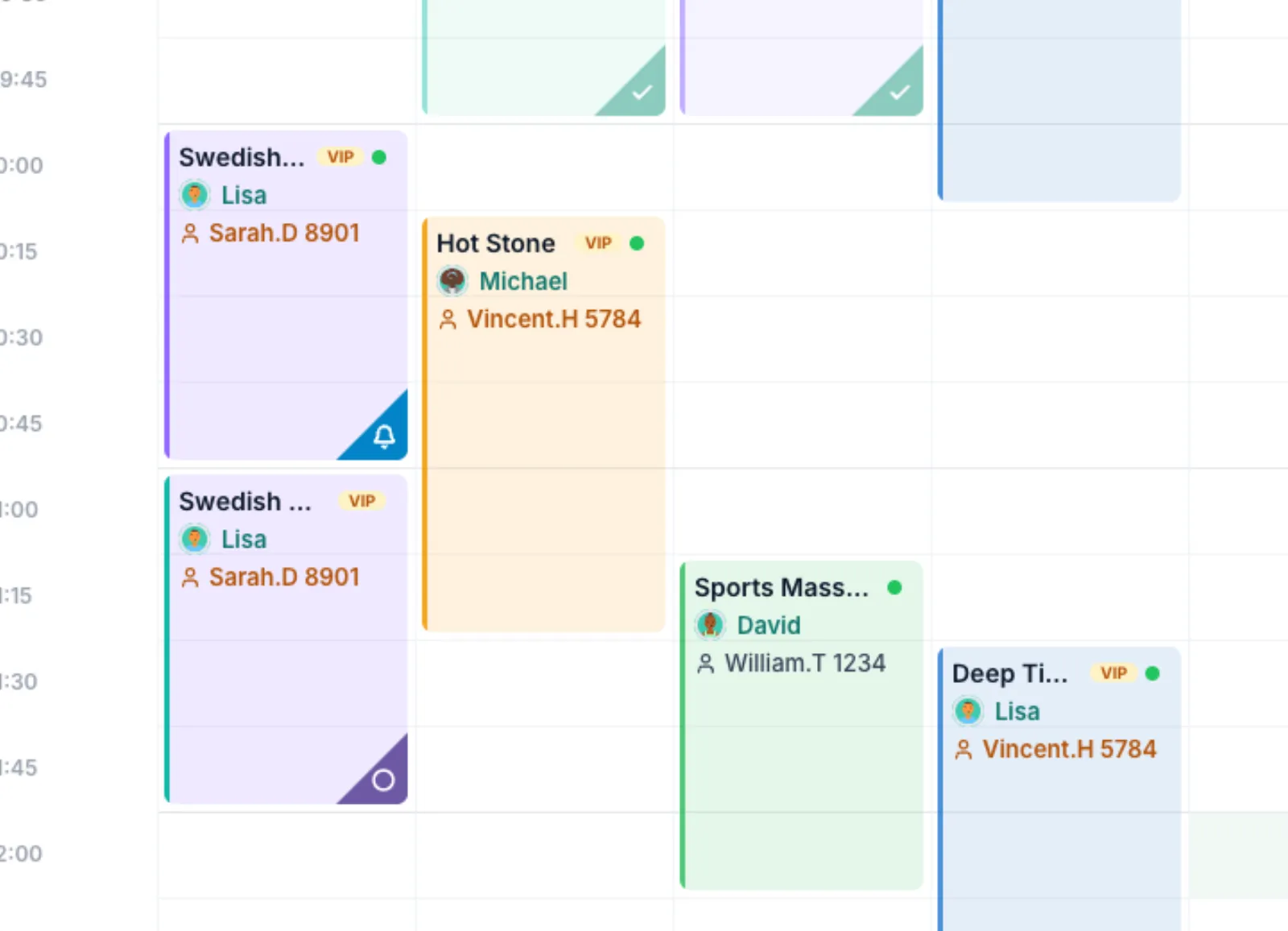
They now keep a sky-blue triangle with a bell in the corner of the calendar card until someone opens the appointment. Opening it clears the mark. A booking you confirmed by hand never gets the triangle.
How to turn auto-confirm on
- Go to System Settings → Store & Operations → System Configuration.
- Open the Customer Permissions card.
- Switch on Auto-Confirm Online Bookings. It is off by default. Owner and Admin can change it; Front Desk cannot.
What the front desk sees
On Appointment, a booking that auto-confirmed and has not been opened yet shows the sky-blue corner. Open the appointment to read it; the corner then goes away. The iPad timeline gets the same mark in the next app update.
Getting the most out of it
- Leave auto-confirm off if the front desk still calls every new online booking. Turn it on if you trust the public page and want fewer pending cards.
- Scan the calendar for sky-blue corners at the start of the shift. That is the list of names the desk has not looked at yet.
- Do not open the appointment only to “click through” it if you still need the mark as a reminder.
Good to know: the triangle is only for bookings Kuee confirmed on its own. A front-desk confirm, a walk-in, or a booking you already opened will not show it.
Smaller improvements
- Gift card texts name the store. The SMS a recipient gets now includes your store name, so they know which shop the card is from.
- Waitlist reasons on a one-visit fill. When you offer an open slot, candidates can show a short tag such as Often books mornings or Often books Lisa, so you can see why they were picked.
- An opening you can fill, on iPad. After a cancellation, the iPad front desk will show an Open slot to fill card in the next app update, with the same tags.
Fixes you may notice
- A teammate who has left the store sees a clear screen on iPad. Opening the app now shows You've left this store, instead of a home screen that no longer belongs to them.
- Public booking times follow the store timezone. Availability is computed in the store's timezone, so a guest in another zone is not offered the wrong clock hour.
- Only Owner and Admin can bind or replace Stripe. Connecting, disconnecting or swapping the store's Stripe account is limited to Owner and Admin.
- Gift card notices reach the recipient. A gift card notification now includes the recipient's contact, so the message can actually be delivered.
- The kiosk recovers if a language pack fails to load. Switching language on the kiosk no longer leaves the screen stuck; it loads the pack again on its own.
Questions about this update
Tell us what works for your store and what does not: contact us and we will walk you through any of these changes on your own store.