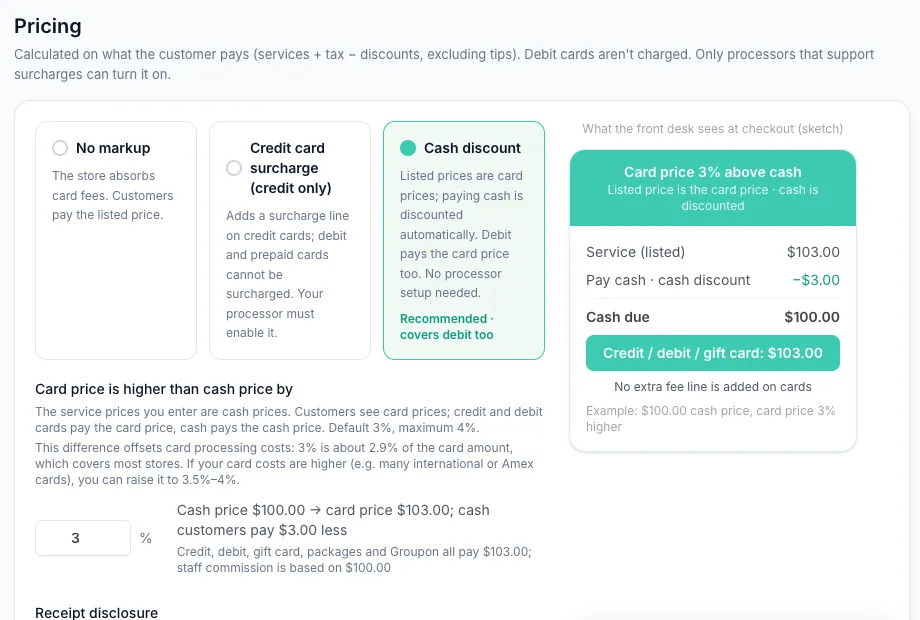
Stores that pay card processing costs can now run a cash discount: prices show the card price, and a guest who pays cash pays the lower cash price. It works on debit cards too, and it needs no setup with your card processor.
Therapists get a reworked claim board. They enter the PIN once, see the jobs nobody has taken yet, and can claim a walk-in themselves. Owners and front desk staff can also make the back office larger on one device, and the back office has a cleaner, more consistent look.
Run a cash discount on your prices
Card processing takes a share of every card sale. Many stores want to pass that cost on, but a credit card surcharge cannot be added to debit or prepaid cards, and your processor has to enable it. A cash discount works the other way round: the price you show is the card price, and cash is the cheaper way to pay.
You enter your services at the cash price, as you do today. Kuee shows guests the card price, which is the cash price plus your rate. With the default 3%, a $100.00 service shows as $103.00. Credit and debit cards, gift cards and packages pay $103.00. A guest who pays cash pays $100.00. Staff commission is still based on the cash price.
How to turn it on
- Go to System Settings → Store & Operations → Payment Settings.
- Open Pricing. (On the older payment settings layout, it is under Advanced Settings.)
- Choose Cash discount. The default is No markup.
- Under Card price is higher than cash price by, keep 3% or set your own rate, up to 4%.
- Read Before you turn it on and save. Owner and Admin can change this; Front Desk cannot.
Cash discount and a credit card surcharge cannot both be on. If your store has a surcharge on, switching to cash discount turns the surcharge off, and Kuee asks you to confirm first.
What changes for guests and the front desk
- Your booking page, store website and AI booking show the card price.
- At checkout on the web, paying cash takes the cash discount off automatically. In a split payment, only the cash part is discounted.
- Receipts for cash payments show the cash discount line and the text you set under Receipt disclosure.
- Owner revenue reports take the cash discount into account.
Getting the most out of it
- Put up a cash discount notice in two places: the store entrance and the checkout counter. Kuee reminds you of this before you turn it on.
- Start with the default 3%. Raise it only if your card costs are higher, for example many international or Amex cards.
- To turn it off, choose No markup again. Every public price goes straight back to the service price.
Good to know: never call the difference a fee when you talk to guests. Say "cash price" and "card price". The iPad front desk does not take cash discount payments yet, so check out those visits on the web.
A faster claim board for therapists
On a busy evening, a walk-in arrives and nobody is assigned. Before, the therapist had to find the front desk to take the job. Now the claim board shows every job that is Up for grabs, and a free therapist can take it in two taps.
What therapists see
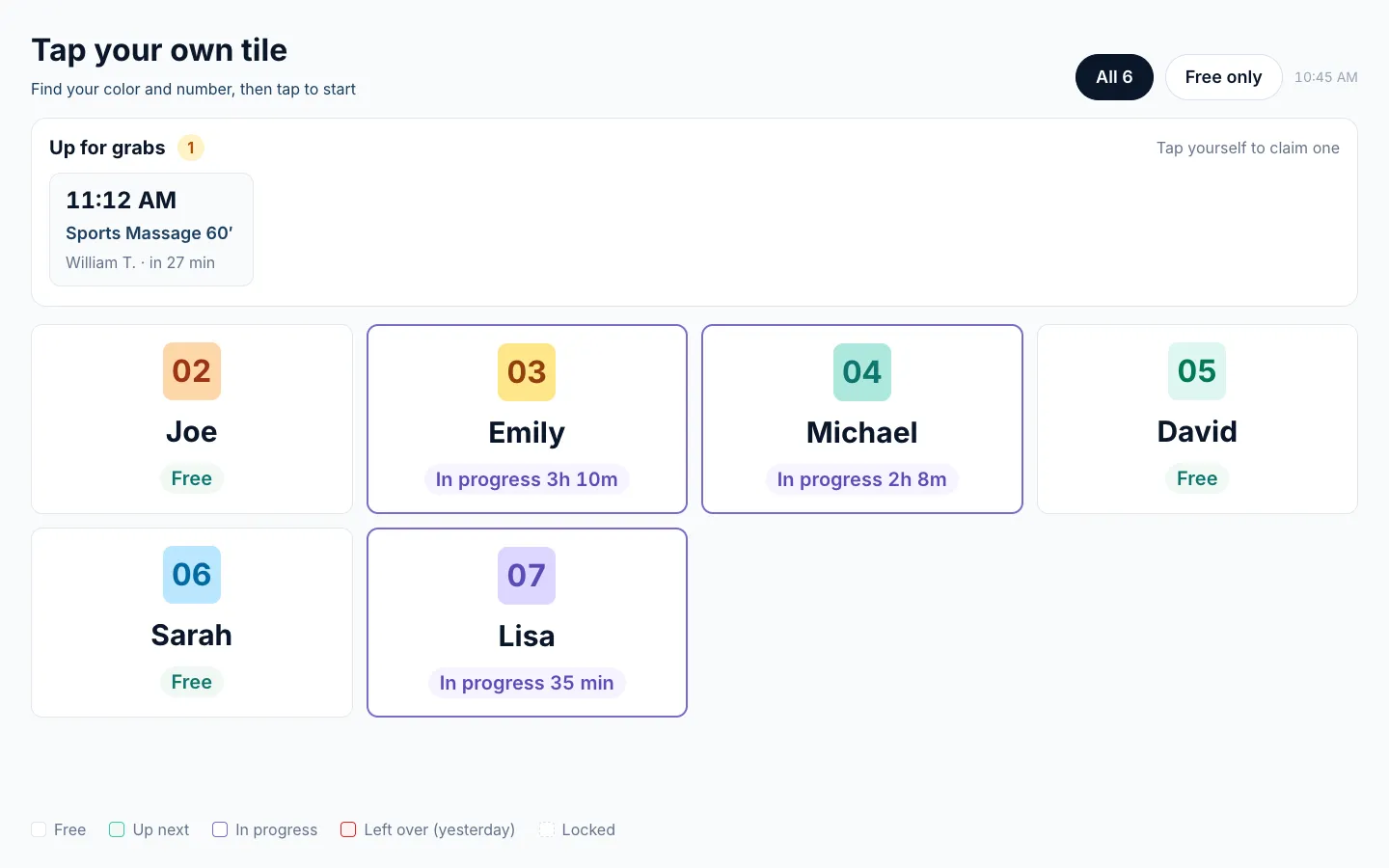
- They open the board and tap their own tile. Tiles show who is Free, Up next, In progress, Left over (yesterday) or Locked. Free only hides everyone else.
- If your store asks for a PIN, they enter it once. The board then remembers them while they keep using it.
- My jobs lists their own jobs by start time. Below it, Up for grabs · you can do lists unassigned jobs, including walk-ins, for services they are set up to do.
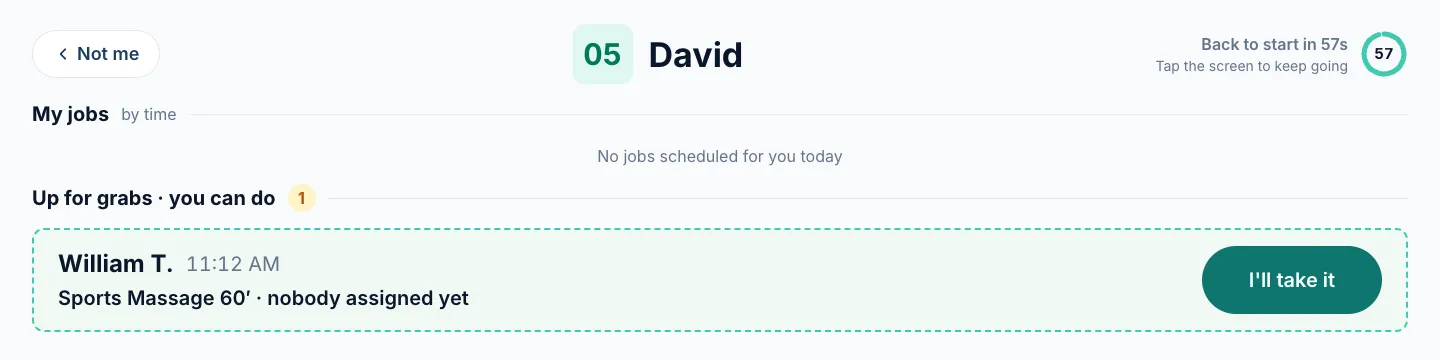
- They tap I'll take it, then start the job right away or later. They tap End when they finish; the board asks once more before it ends the job.
After 60 seconds without a tap, the board asks Still there? and goes back to the start screen. Not me goes back at once.
Where to find it and set it up
- Go to About This Store and use Open Claim Board on the Therapist Claim Board card. Keep the board open on an iPad in the staff area.
- To ask for a PIN, go to System Settings → Store & Operations → System Configuration and switch on Require a PIN to start a job. Set the Store-wide PIN there too. Only an Owner or Admin can change this.
Getting the most out of it
- Make sure each therapist's services are set in their staff profile. The board only offers a job to therapists who can do that service.
- Keep the PIN on if the board is in a place guests can reach.
- A job left running from yesterday shows a clear warning before it ends. The real time is recorded, so ask the front desk to correct it afterwards.
Good to know: five wrong PINs in a row lock only that therapist's tile for five minutes. Everyone else can keep working. A booking with no service picked yet still goes through the front desk.
Make the back office larger on one device
Some front desks use a small laptop, others a big monitor across the room. You can now choose how large text and buttons are, per device.
How to change it
- Click your name in the bottom-left corner of the back office.
- Open Display size and pick Standard, Large, Extra large or Maximum.
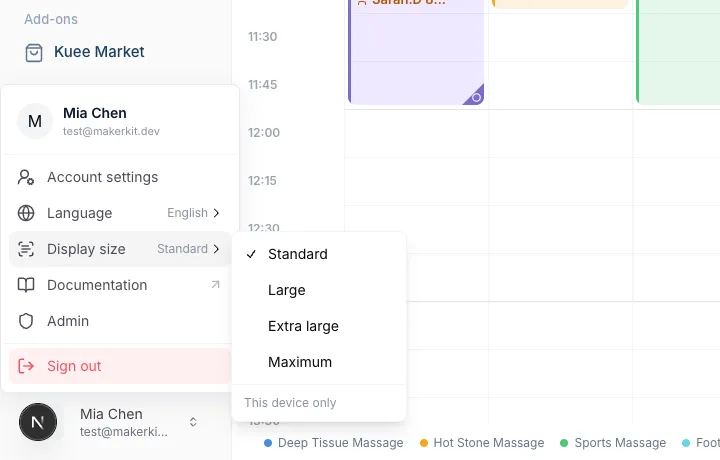
Owners and admins can also change it under System Settings → Store & Operations → System Configuration, in the Display group. Everyone else uses the menu under their name.
Good to know
The setting is This device only. It does not change the screen of your teammates or your other devices. On a smaller screen at a large size, the side menu folds away to leave room for the calendar.
A cleaner look across the back office
The whole back office now uses one consistent design: the same buttons, cards, colors and spacing on every page. You will notice it most on the pages you use all day:
- The side menu is larger, with bigger text, icons and rows, so it is easier to read and tap.
- The appointment, check-in and edit windows are larger, so names, times and buttons are easier to read.
- Check-in has a new layout. Services and therapists use the same picker as new bookings. The window is split into numbered steps, a returning client shows a card at the top, and the bottom bar shows how many services are assigned and the total.
- Calendar cards are clearer. The service name comes first, then the therapist and the client, and each card's status is easier to tell at a glance. The legend at the bottom uses service colors.
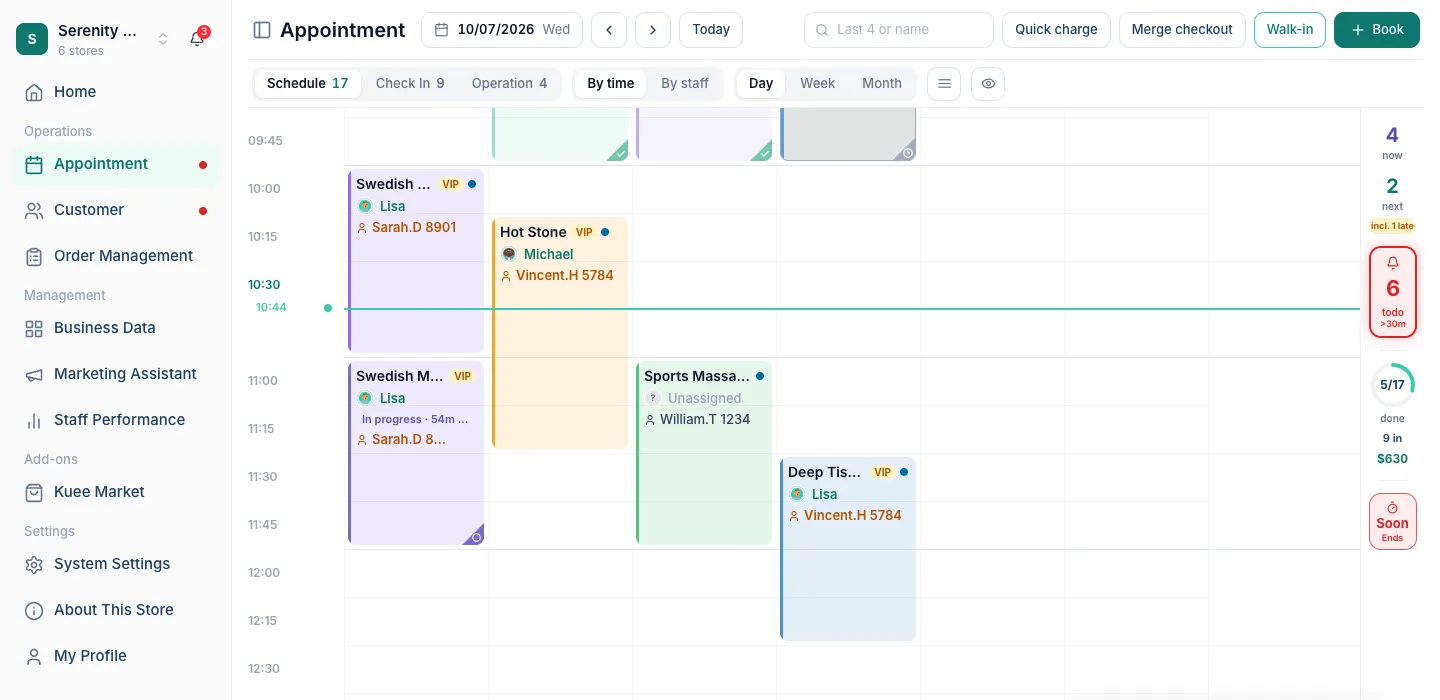
Nothing about how bookings, check-in or checkout work has changed; only the look.
Smaller improvements
- Appointment texts end with your store name and address. Every appointment text to a client now ends with your store's name and address, so they know where to go. Your own text templates get it too.
- Clients can stop promotions and keep reminders. Marketing texts now say "Reply NO PROMO to stop promos, STOP to stop all." A client who replies NO PROMO stops getting marketing texts but still gets appointment confirmations and reminders. STOP still stops every text. The client's profile shows when they replied NO PROMO.
- Front Desk can use Kuee Brain. If your store has the AI assistant turned on, your Front Desk team can now open it on the web too and ask about bookings and clients. Revenue and the weekly report stay for Owner and Admin.
- Store pages show your policies. Your public store page now has a Policies page with refund, cancellation and no-show terms. The footer always links to Privacy, Terms and Policies, and shows your legal business name and full address.
Fixes you may notice
- Open-slot offers to clients are in English. A text offering a client an open slot could go out in the language of the staff screen; it now always goes out in English, with one unsubscribe line instead of two.
- Store Settings keeps its values after a refresh. Reloading the page no longer shows empty name and address fields, and saving with an empty address no longer erases the address you had.
Questions about this update
Tell us what works for your store and what does not: contact us and we will walk you through any of these changes on your own store.