At closing time, the question is usually simple: how much came in as cash, how much on cards, and how much of it was tips? Until now you had to add that up from the order list. Kuee 4.50 puts it on one page, split by payment method, and it ties back to the revenue you already see on Order Management.
This release also puts a client's recent purchases and body diagram on the first screen of their profile, lets you move bookings on the staff timeline in 5-minute steps, and gives your online booking page a light look and an optional email field.
Revenue summary on Order Management
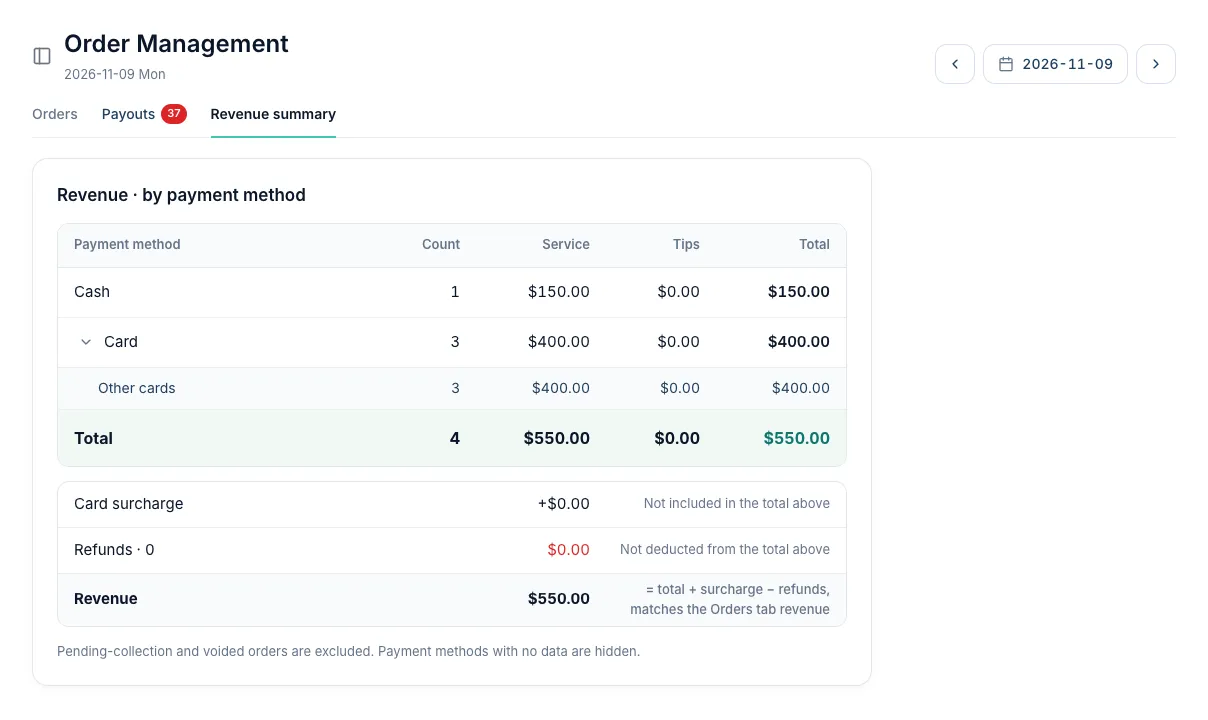
Order Management has a third tab next to Orders and Payouts: Revenue summary. For the day you pick, it lists every payment method that had money that day: cash, card, gift card payments, Groupon, external POS and so on. Each row shows how many payments there were, the service amount, the tips and the total.
How to open it
- Open Order Management.
- Click Revenue summary. The date is the same one you use on the Orders tab.
- Click Show card brands on the card row to split it into Visa, Mastercard, American Express and the other brands.
Owners and admins see the tab. Front desk and therapist accounts do not.
Reading the page
- Under the table, the card surcharge and the refunds of the day are listed on their own lines, and Revenue is calculated from them. It matches the revenue number on the Orders tab, and the page tells you if it ever does not.
- Not counted as revenue lists money that moved but is not income of the day: gift card sales and reloads, member balance payments, package redemptions and on-account bills.
- Stores that book revenue by service date see the summary by payment date, and the page says so instead of showing the revenue check.
- Stores that take payments through Fiserv do not show the Payouts tab, because they have no Stripe payouts to reconcile.
Getting the most out of it
- Check it at close: the cash row shows the cash collected that day, and the tips column shows how much of each total was tipped.
- A card brand you do not recognize usually sits under Other cards. A split payment's card share is also listed there.
Client details: recent purchases and the body diagram first
The front desk opens a client mostly to answer two questions: what did they buy last time, and which areas should the therapist avoid? Both are now on the first screen.
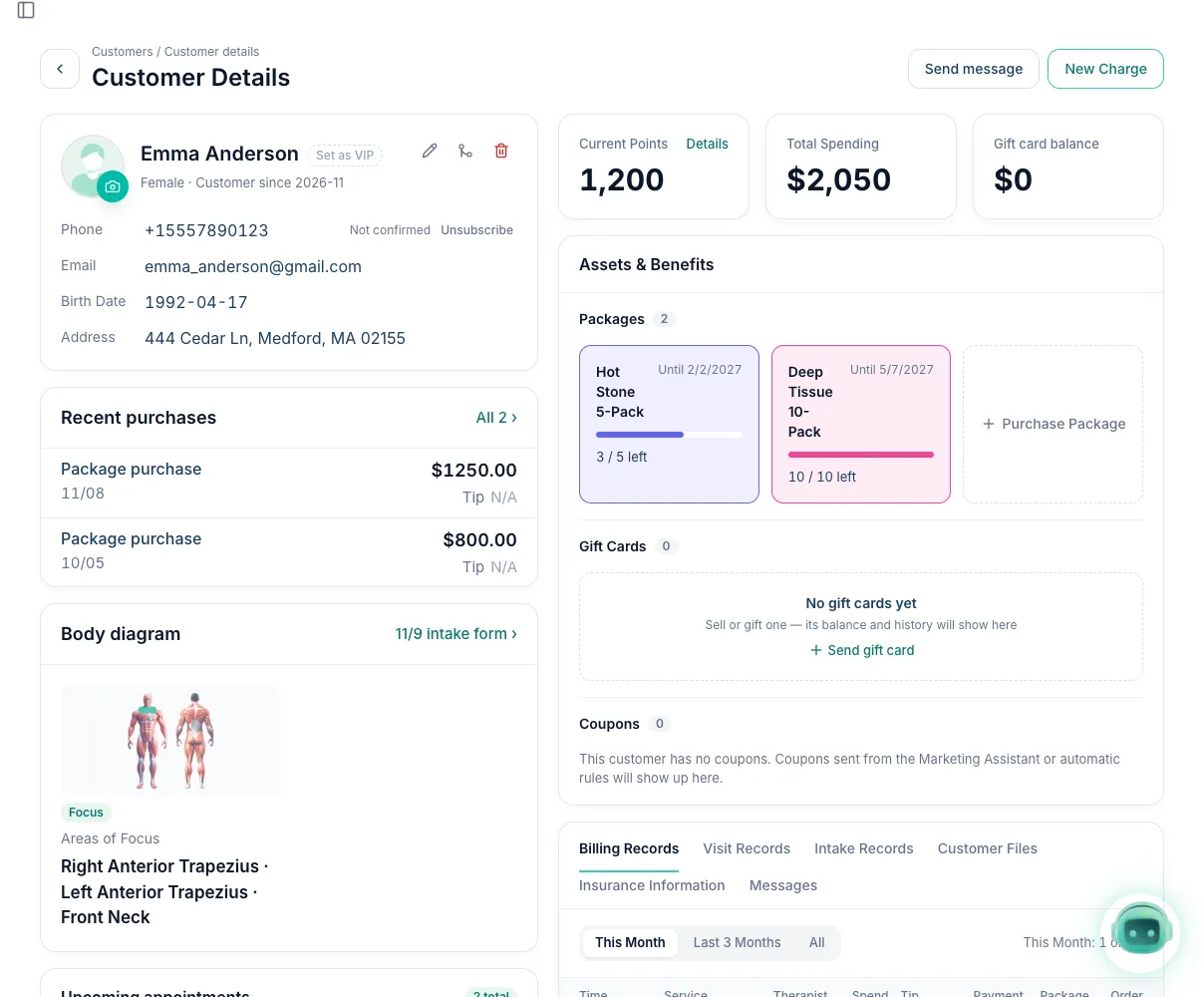
- Recent purchases shows the last three completed purchases with date, service, therapist, amount and tip. All 5 (the number is the client's total) opens the full list with every filter set to all.
- Body diagram shows the areas marked on the client's latest submitted intake form: Avoid in red and Focus in teal. Click it to open the full form. A client with no form yet sees "No intake form yet".
- Phone, birthday, member level and notes stay visible; the other personal details move under More info.
The web page gives the left column more room for this. Nothing needs to be turned on.
Drag bookings in 5-minute steps
On the By staff view of Appointment, a card you drag now snaps to 5 minutes instead of 15. You can drop a booking at 10:05 or 10:20 and the time you see while dragging is the time that is saved. Clicking an empty cell to create a booking still uses 15-minute cells, and the By time view works as before.
Use it for the small adjustments: a client running ten minutes late, or a short gap between two long services that you want to fill exactly.
A light booking page, and email at booking
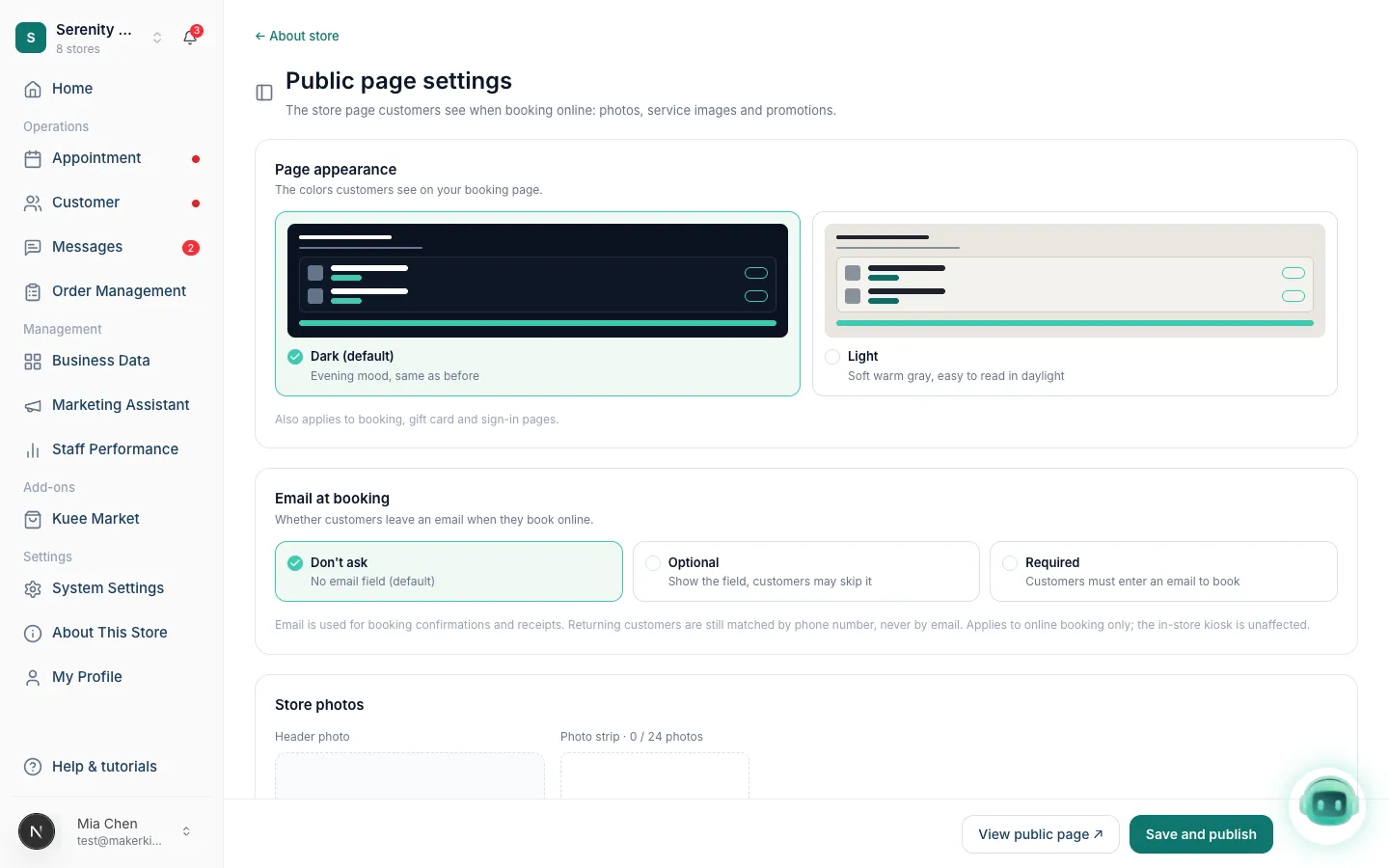
Both settings are in About This Store → Public page settings.
Page appearance
Choose Dark (default) or Light. Light is a soft warm gray that is easier to read in daylight. It also applies to the booking steps, the gift card pages and sign-in. If your store shows a custom-designed site, the setting has no effect until you turn off Show custom-designed site. Stores that change nothing keep today's dark look.
Email at booking
Email at booking has three choices: Don't ask (the default), Optional and Required. With Required, a client cannot confirm an online booking without an email, and the page highlights the missing field. Clients who are signed in and already have an email on file with your store are not asked again. Returning clients are still matched by phone number, never by email, and the in-store kiosk is not affected.
Payment Settings now leads with Fiserv
Under System Settings → Payment Settings, Kuee now recommends Fiserv (CardPointe) for taking cards, with Stripe as the alternative. Nothing is turned on or off by this change, and a store that already takes payments keeps taking them the way it does today.
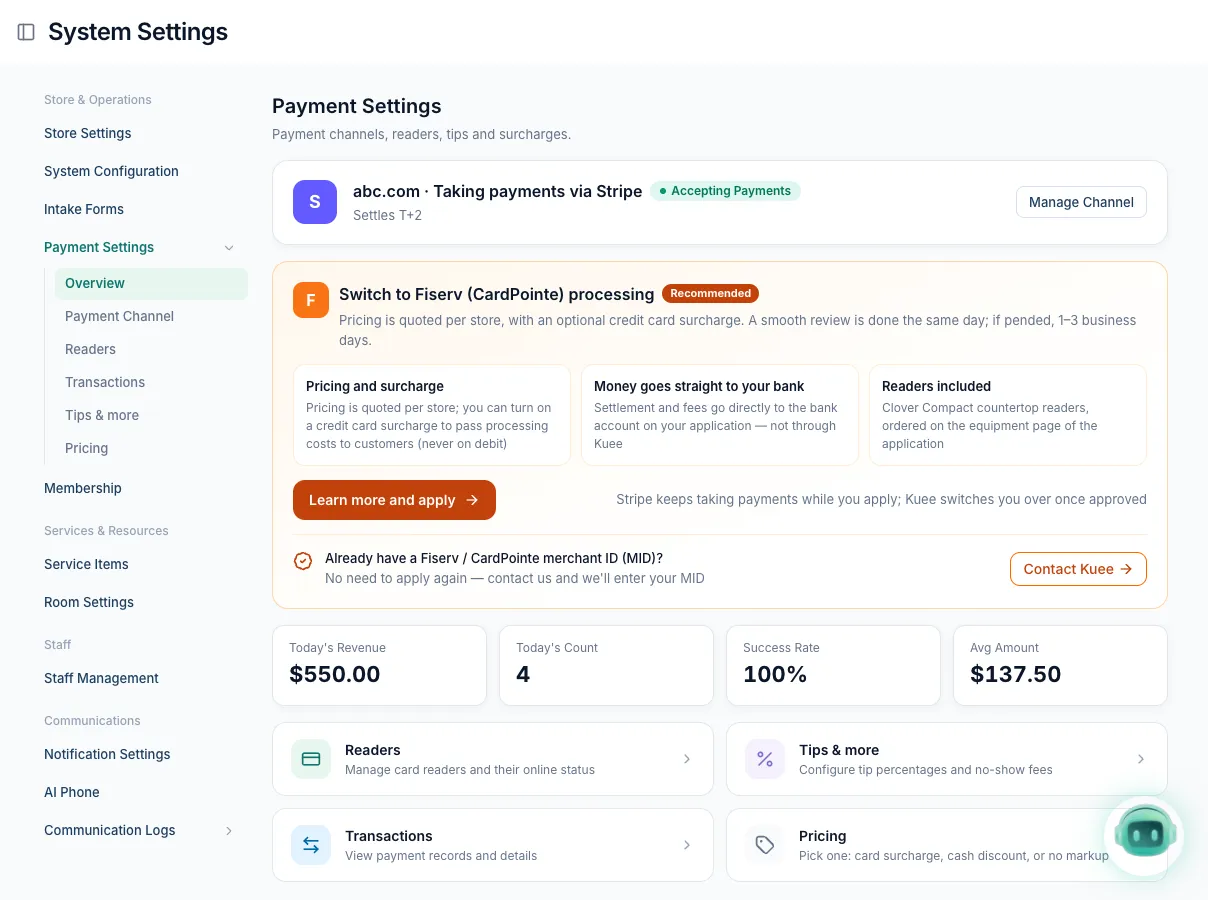
- Stores on Stripe see a Switch to Fiserv (CardPointe) processing card marked Recommended, now right under the status bar instead of at the bottom of Overview. The card says that Stripe keeps taking payments while you apply and that Kuee switches you over once approved.
- Stores with no card processing yet see the Fiserv card first on Payment Channel, titled Process cards with Fiserv (CardPointe). Below it, after "or", a smaller row reads Start with Stripe, with Connect Stripe account, for stores that want to begin the same day.
- Stores already on Fiserv see no change.
The Fiserv card states what to expect: pricing is quoted per store, you can add a credit card surcharge (never on debit), and a smooth review is done the same day or takes 1–3 business days if it is pended. Already have a Fiserv merchant ID? Use Contact Kuee on the same card and we will enter it for you.
Smaller improvements
- One row for a merged payment. When one payment covers several bookings, Order Management shows a single row (with the number of bookings, the clients and the therapists), and clicking it opens a page that lists each booking, where you can still refund one of them. Tips are still split between therapists as before.
- Therapist names on client details and orders. If a therapist has no store nickname, the client's visit history and the therapist filter on orders now show the therapist's account name instead of a blank.
- Public intake forms are checked more carefully. A form filled in from a public link that uses a phone number your store already knows now links to that client only when the first name matches. Otherwise it waits for your staff to review it. An email typed into a public form is no longer used to find a client.
- Coming to the iPad in the next app update: on the Transactions screen the cards are labeled by what they count (money collected, tips collected, refunds by the day they happened) and Today's revenue uses the same calculation as Order Management; and the therapist picker no longer shows a therapist as busy because of an old, never closed booking from an earlier day.
Fixes you may notice
- "Every therapist is already taken" when therapists were free. At some busy stores with many bookings that have no therapist chosen yet, walk-ins, online booking and the AI phone were told the store was full for the whole day. They now get a correct answer.
- Rooms free up when the service ends. When the last therapist on a booking ends the service on the self check-in screen, the room is available right away, not when the booked time would have ended.
Questions about this update
Tell us what works for your store and what does not: contact us and we will walk you through any of these changes on your own store.