A family of five or a bachelorette party of six used to hit a wall on your booking page: one online booking could include at most four guests, so the rest had to call. In Kuee 4.51 you decide the limit yourself, anywhere from 2 to 8, and the booking page follows it right away.
This release also lets you keep a therapist off your online booking page without pausing them everywhere, makes Quick charge start with the person taking the money, and fixes a few cases where the booking page said you were full when you were not.
Choose how many guests one online booking can include
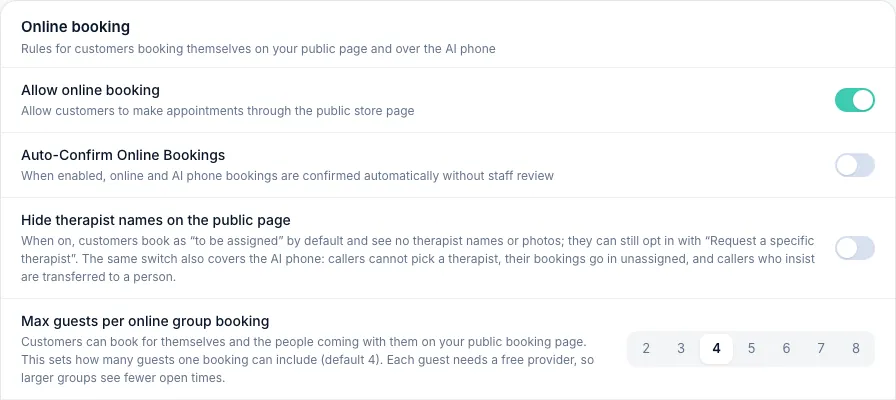
Clients can book for themselves and the people coming with them on your public booking page. Each guest picks a service and a length, and each guest gets their own therapist. Until now the limit was four. You can now set it to any number from 2 to 8.
How to set it up
- Open System Settings → System Configuration.
- Find the Online booking group.
- Under Max guests per online group booking, click a number from 2 to 8. The change saves right away; there is no Save button.
The default is 4, so a store that changes nothing books exactly as before. The row shows for massage, beauty and nail stores. Hair stores do not take online group bookings, so they do not see it.
What clients see
In Who’s coming? above the date picker, the plus button adds guests up to your limit and then turns gray. If someone tries to book more guests than your store allows, the booking is refused and nothing is saved.
Getting the most out of it
- Every guest needs a free provider at the same start time, so a group of eight only sees times when eight of your team are free together. A bigger limit is useful only if you often have that many people working at once.
- If you would rather talk to large groups first, set the limit to 2 or 3. The bigger parties will call you, and you can book them at the front desk.
- The limit is for the online booking page only. Front-desk booking and the AI phone are not changed.
Hide a therapist from your online booking page
Sometimes a therapist should take bookings at the desk but not online: someone new who is still learning, a senior therapist kept for regulars, or a part-timer who only fills gaps. Paused under Booking Status was not the right tool, because it takes them off every channel. The new setting hides them from the online booking page only.
How to set it up
- Open System Settings → Staff Management and click the therapist.
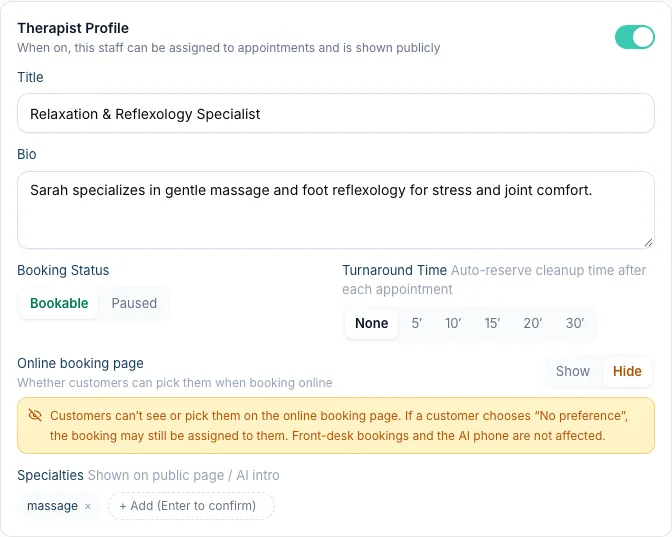
- On the Profile tab, find Online booking page under Booking Status.
- Choose Hide, then click Save.
The default is Show. Only people who can manage staff (the owner and admins) can change it.
What changes
- Clients cannot see or pick that therapist on your online booking page, and the AI chat on the page does not offer them.
- If a client chooses No preference, the booking may still be assigned to the hidden therapist.
- Front-desk bookings and the AI phone are not affected.
- While a therapist is Paused, they cannot be booked anywhere, so the setting has no effect until you set them back to Bookable.
Quick charge starts with who is collecting
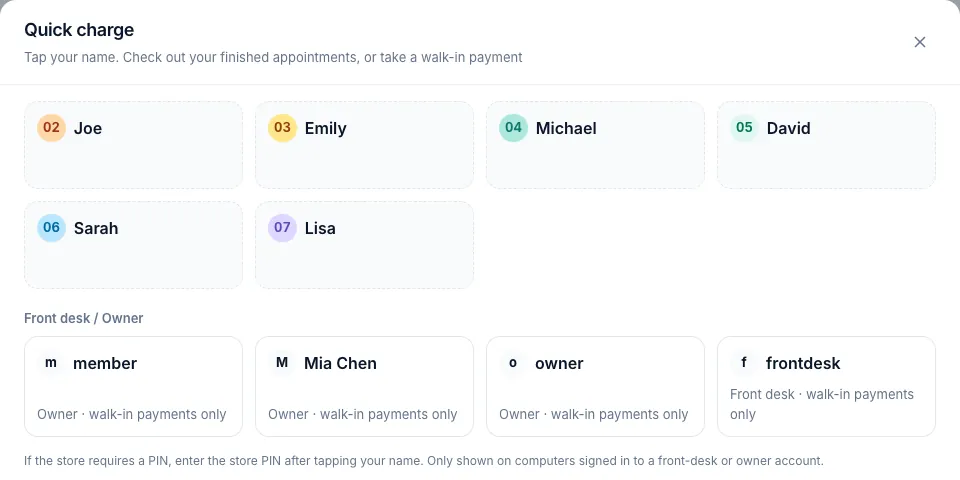
The Quick charge button on Appointment now opens with your team on one screen: therapists at the top, and front desk and owner accounts under Front desk / Owner. Tap the person who is taking the money, and the Walk-in payment screen opens with Collected by and their name at the top. Kuee records that person on the payment.
Day to day
- Click Quick charge on Appointment.
- Tap your name. If your store requires a PIN, enter the store PIN.
- Pick what the money is for, enter the amount, and choose Cash / Other or Card.
Picked the wrong person? Click the name next to Collected by to go back and switch. Quick charge shows only on computers signed in with a front desk or owner account, as before.
Smaller improvements
- Clearer refund messages for Fiserv stores. If a card payment has not settled yet, Order Management now says so and tells you it can usually be refunded the next day. If the payment was already voided, it says there is nothing left to refund.
- Coming to the iPad in the next app update: card payments at checkout let the client pick the tip and sign on the card reader, like the web app already does; and the iPad gets the same Quick charge that starts with who is collecting.
Fixes you may notice
- "No times available" when your store had room. On busy days, the booking page and the AI phone sometimes said the store was full, and the answer could depend on the order the therapists were listed in. They now find the open times.
- Overlapping new bookings for one therapist, and bookings that start before midnight. When one request held several new bookings, a therapist could be counted as free for two of them at overlapping times. A booking that started the evening before and ran past midnight was also missed. Both are counted correctly now.
- Reminders for appointments booked more than a month ahead. Their reminders were never scheduled. They are now held and sent at the right time.
- Discounts larger than the bill. If a service was removed after a dollar discount or a coupon was added, the discount could end up bigger than the bill and the checkout failed. The discount is now limited to the current bill, and for Fiserv and Elavon stores Kuee checks the total before the card reader charges the card.
Questions about this update
Tell us what works for your store and what does not: contact us and we will walk you through any of these changes on your own store.