A client stays 15 minutes over, and the front desk types the same "Extended time +$3" adjustment by hand for the fifth time this week. In Kuee 4.54 that adjustment is a button. You set up to three quick adjustments once, in dollars or as a percent, and checkout shows them as one-tap buttons.
This release also lets the front desk add services at check-in, hold a card after a guest checked in on their own, send one receipt for a pre-authorized visit, and start a membership with auto-renew from the card reader.
Quick price adjustments at checkout
A quick adjustment is a saved line like "Extended time +$3", "Loyalty −10%" or "Late fee +$10". At checkout it appears as a button in the bill, next to the manual adjustment, so the front desk adds it with one tap instead of typing a name and an amount.
Set it up
- Go to System Settings → Store & Operations → Payment Settings → Tips & more.
- In Quick price adjustment, click Add quick adjustment (up to 3).
- Type the Purpose (printed on the customer's receipt), choose Add or Discount, choose $ Amount or % Percent, and enter the value.
- Click Save. Use Clear all to start over.
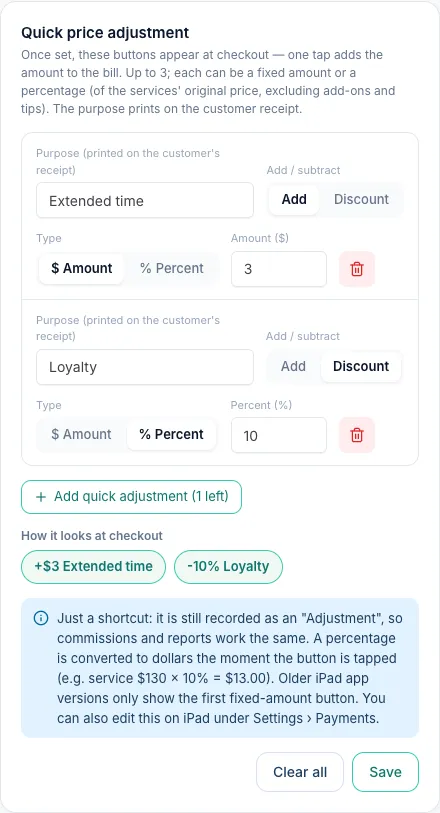
Only the owner or an admin can change these. Nothing is set by default, so checkout looks the same until you add one.
How a percent is worked out
A percent is taken from the list price of the services on the order. Add-ons, tips, other adjustments and member prices are not part of the base, and a service paid with a package is skipped. The checkout line shows the math, for example "Service list price $130 × 10%", and the result is rounded to the cent and added as a normal dollar adjustment. Commissions and reports treat it like any other adjustment.
Use it at checkout
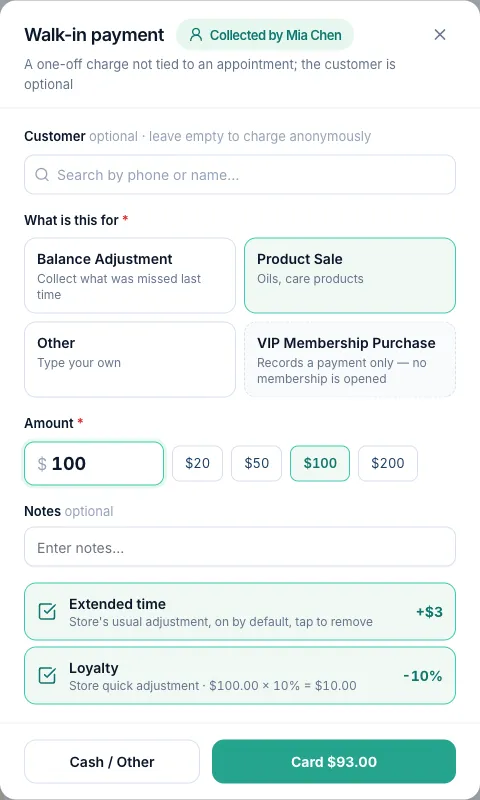
- Tap a button to add the line. Tap it again to take off only the line it added.
- Buttons that would not make sense, for example a discount larger than what is left to pay, are grayed out.
- Quick charge shows the same adjustments as tick boxes. Only the first one is ticked by default.
- A member balance can now be used together with an adjustment. The balance row shows the most the order allows, and follows the amount when you add or remove an adjustment.
Getting the most out of it
- Keep the purpose short and clear. It prints on the receipt, so the client sees why the amount changed.
- Use a percent for things that scale with the service, like a loyalty discount, and a dollar amount for a fixed fee like extended time.
- For card fees, use the card surcharge setting in the same Payment Settings instead; it follows card-network rules for you.
Check-in pre-authorization: add-ons and late holds
These two changes are for stores that hold the service fee on the client's card at check-in (Pre-authorize at check-in).
Add services at check-in
A client arrives and says "add the hot stone". On the check-in board, each service row now has + Add-on. It opens the same picker as Add item at checkout (custom items are not included). Added add-ons are listed under the service and each can be removed.
The amount held on the card includes the add-ons, and checkout takes them from the hold. Add-ons already on the appointment are no longer cleared when you check in. Add-ons show on appointments that already exist, not on a walk-in guest who has no appointment yet. If a member has free add-ons, those are applied at checkout, so the hold may be slightly higher than the final bill, never lower.
Hold the card after self check-in
When a guest checks in on the door iPad, there is no card hold yet. Open the appointment and the details show No card hold yet with a button, Hold $X on card. Pick the card reader, ask the guest to tap or insert their card, and the service amount is held (no charge). Tip is collected at checkout as before. If the guest does not want to, skip it: checkout then works as an ordinary card payment. A Stripe or Fiserv store with check-in pre-authorization turned on sees this.
One receipt for pre-authorized visits
Pre-authorized visits used to produce several small receipts: a printout for the hold, one for the second charge, and sometimes an email that missed the tip. Now it is one receipt per visit.
- No paper for the hold. The reader no longer prints the hold, and the success screen has no Print receipt button. The one printout left is for the second charge made on the reader.
- One text or email with everything: services, add-ons, tip, card fee, and which card paid each part. Text goes first. If the client has no phone number or opted out of texts, it goes by email. The text is sent in English, Chinese, Korean or Vietnamese.
- Sent when the visit is paid in full. If the front desk charges again, takes cash or skips the tip, the receipt goes out right after. It is sent once per visit.
- The checkout success screen says where it went. If the client has no phone or email, type one in and click Send receipt; tick the box to also save it to the client's profile.
Start a membership with auto-renew from the card reader
For stores that take cards with Stripe, starting a membership that auto-renews no longer needs a card typed in by hand. Before, the first payment on the reader did not save the card, so auto-renew could not turn on.
- On the client's details, open the membership window and choose the plan.
- Turn on Auto-renew and tick the card-on-file consent box.
- Choose card as the payment method and ask the client to tap the reader once.
One tap pays the first period, starts the membership, saves the card, and turns on auto-renew. The window confirms with Card saved. Auto-renew is on. If the card could not be saved, it says so and the membership still starts, so you can save a card by hand later. Cash and other methods cannot save a card, so those still need the card number typed in.
Requested therapist marker
When a client asks for a specific therapist, the appointment now shows a red marker after that therapist's name (REQ in English). It appears on the calendar cards and on the staff timeline.
- Online booking: marked when the client picked a therapist and was booked with that person. If that therapist was not free and someone else was assigned, or the client chose No preference, there is no marker.
- AI phone: marked when the caller asked for a therapist by name and got that therapist.
- Front desk: in the appointment details, use Requested on the therapist's row to turn the marker on or off. Two people editing at once cannot overwrite each other.
It is only a label. It does not change commissions, scheduling or who gets assigned. Appointments made before this update have no marker.
Smaller improvements
- Undo after editing a bill. Saving a change to a service or therapist on the one-screen checkout editor shows Bill updated · Undo. Undo puts the line back exactly as it was, including its recorded price.
- Service colors in the service grid. Each service card shows its color as a bar on the left, and category buttons get a color dot. It works in new appointments, the check-in board, edit appointment and checkout. Services without a color look as before.
- Drag paid appointments on the staff board. A checked-out appointment can be moved to another time or therapist on By staff. Its reminders are not rescheduled, and a paid service cannot be dropped on Unassigned.
- Check in on the iPad without choosing a room. It now works like the web app: the room is optional. Stores with no rooms are no longer stuck.
- Turn a Stripe reader on or off. In Payment Settings → Readers, the Activate reader switch and Last seen time are on each reader. An inactive reader cannot be used at checkout or picked on the iPad.
- Easier to find. On the Tips & more tab the cards no longer leave a gap, and the sidebar group is now Store Growth, with Google Reviews and Google Ads. Language pickers show each language in its own name.
- Google Ads results. New clients now include website bookings from your ads, the new-client card shows first order and total so far, and the budget cap reads "average per day".
- Birthday coupons now last 30 days, and checkout enforces the end date too.
- Old settings pages. Store settings, Stripe readers and AI phone old pages now go to their current pages.
Fixes you may notice
- Canceling a card payment on the reader. The screen no longer waits 90 seconds after the reader cancels or fails.
- Tip typos. If a guest types a tip more than three times the service amount, such as an extra zero, it is discarded and the front desk is asked to confirm with the guest.
- Days with no card sales. The revenue summary for a Fiserv store shows No card sales on a batch day with no card payments, instead of a deposit that stays pending.
- Receipt sent by hand. For pre-authorized visits it now includes the second charge, such as tip or extras.
- Dragging a paid appointment no longer shows "could not reschedule".
Questions about this update
Want to set up quick adjustments for your store? Contact us and we will walk you through it.