A caller asks whether you take insurance, and the AI phone has no answer, so it offers to transfer the call. The fix is a short FAQ that tells it what to say. Until now only Kuee staff could write that list. In Kuee 4.55 you write and edit it yourself, on the AI Phone settings page.
This release also lets CardPointe stores choose where the day ends in the revenue summary, and adds merged checkout to the staff board.
Edit your AI phone FAQ yourself
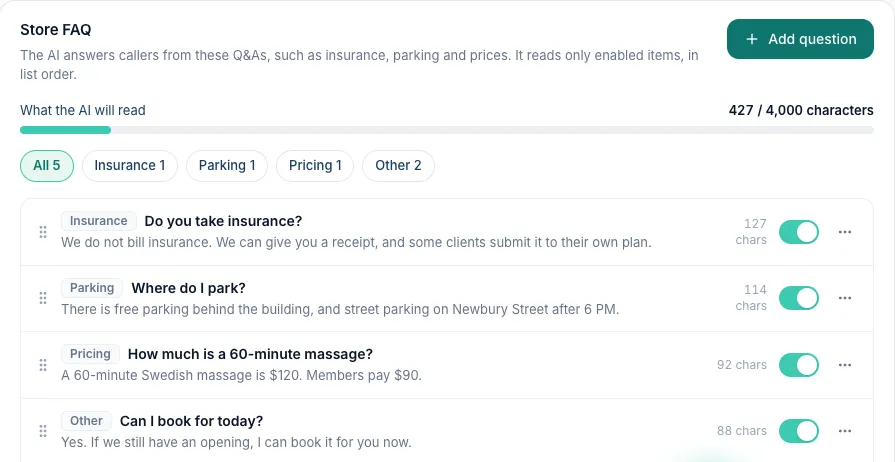
The AI phone answers callers from a list of questions and answers about your store: do you take insurance, where to park, how gift cards work. The new Store FAQ card puts that list in your hands.
Set it up
- Open System Settings → Communications → AI Phone.
- Find the Store FAQ card, below your number settings.
- Click Add question. Write How callers ask it and How the AI answers, pick a Category, and click Save.
With no questions yet, the card suggests four common ones, such as Do you take insurance? and Where do I park?. Click one and the question is filled in for you; you write the answer. The AI answers in the caller's language, so you can write the answer in just English or just Chinese.
How it works
- The AI reads only questions that are enabled, in list order. Drag ⋮⋮ to move an important one to the top. Turn a question off to stop the AI using it without deleting it.
- The AI reads at most 4,000 characters. The card shows What the AI will read as a count, warns you when you are close, and marks any question that is only half read or not read at all. The count includes the "Q: / A:" format, so it matches what the AI really reads.
- Use the category chips to filter a long list. The category is only for your own list; the AI never reads it.
Only the owner and admins can edit the FAQ. Phone and SMS usage may be billed separately.
Getting the most out of it
- Start with what callers ask most. Anything you have not written down gets the answer "let me transfer you to the front desk".
- Keep answers short, so more questions fit in the 4,000 characters.
- Put the questions with the most calls at the top. If you go over the limit, the last ones are the ones the AI does not read.
Choose where the revenue summary day ends
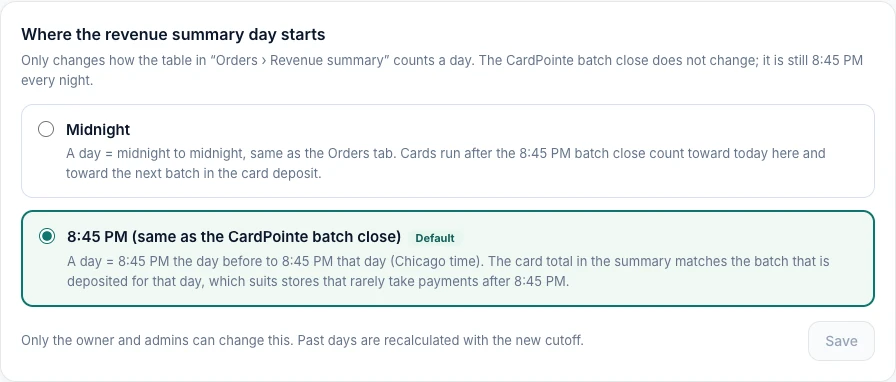
This one is for stores that take cards with Fiserv CardPointe. The revenue summary in Order Management shows a table for each day, and under it the card deposit for the CardPointe batch. CardPointe closes its batch at 8:45 PM every night, so a card run at 9 PM counts in today's table but in tomorrow's batch. The two blocks then differ by a few payments. From Kuee 4.55, the revenue summary also ends the day at 8:45 PM by default, so it matches the batch.
Set it up
- Open System Settings → Store & Operations → Payment Settings → Overview.
- Find Where the revenue summary day starts.
- The default is 8:45 PM (same as the CardPointe batch close). To count a day from midnight to midnight, choose Midnight and click Save.
With the default 8:45 PM, a day runs from 8:45 PM the day before to 8:45 PM that day, in Chicago time. The card total in the table equals the batch that is deposited for that day. Past days use this cutoff too. If you change the cutoff, past days are recalculated with the new one.
Good to know
- It only changes how the table in Orders › Revenue summary counts a day. The CardPointe batch close stays at 8:45 PM.
- Cards run after 8:45 PM land in the next day's table. If your store often takes payments after that time and you want the table to match the Orders tab, choose Midnight.
- The owner and admins can change it. It is on the web app only; the iPad summary does not change.
Merge checkout from the staff board
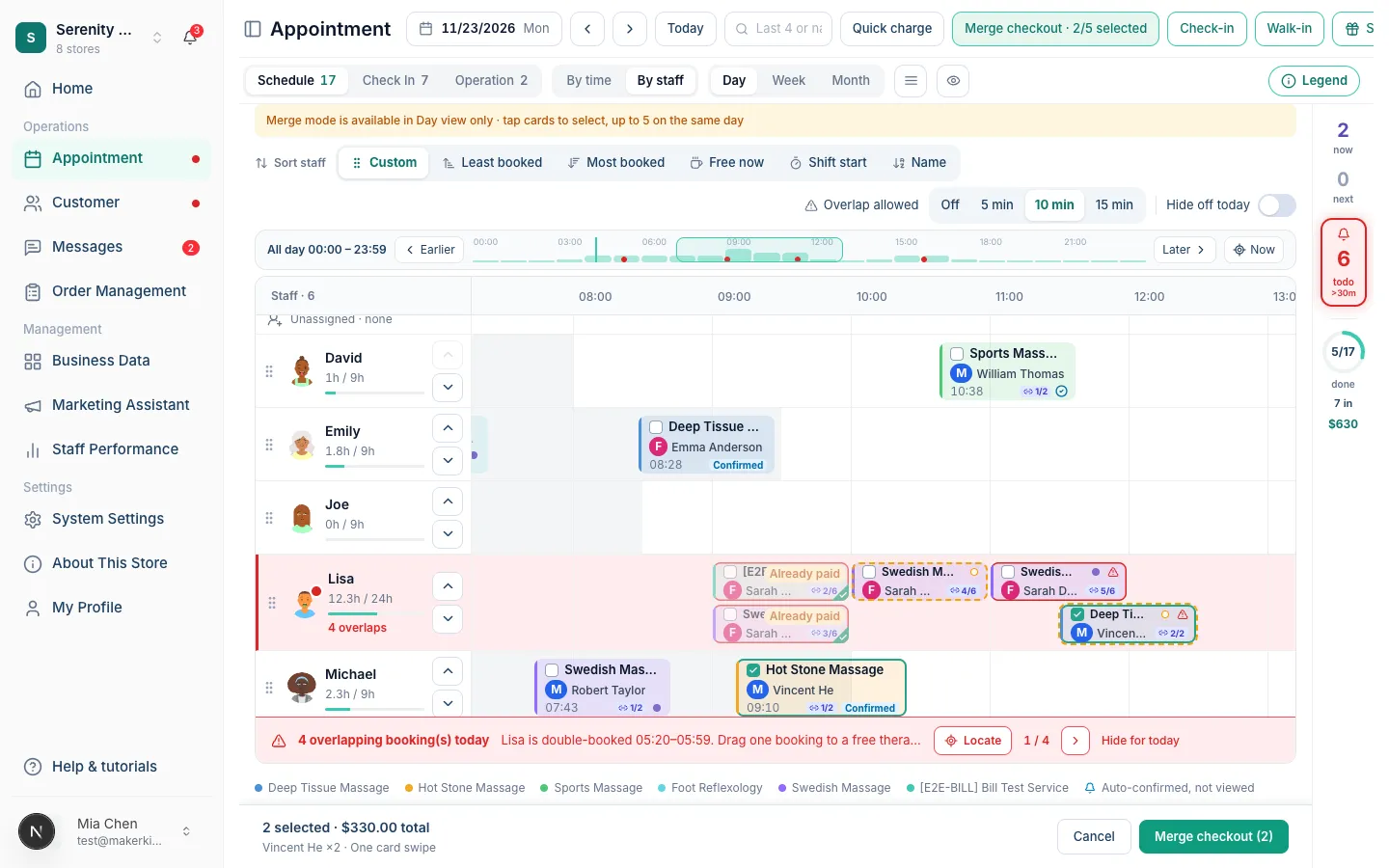
Merged checkout lets one client pay for several appointments in one go. It was available on the By time calendar. It now works on By staff too, so you can pick the cards where you see them: one client with two therapists, side by side.
- Open Appointment, stay in Day view and switch to By staff.
- Click Merge checkout.
- Click the appointment cards you want. Each click selects or clears a card, and up to five from the same day can be merged.
- Click Merge checkout in the bar at the bottom. It shows how many are selected, the total, and whose appointments they are.
While you are selecting, a click on a card does not open its details and a card cannot be dragged, so a stray drag will not change an appointment. Cards that cannot be merged, for example ones already paid, are marked and cannot be selected.
Smaller improvements
- Adjustments before the card hold. For stores that hold a card at check-in, the front desk can now add price adjustments (including your quick adjustments) before the hold, and see member benefits first. The hold is worked out after member discounts and adjustments, and the adjustments are filled in when checkout opens. The iPad front desk gets this in the next app update. Card hold at check-in is being turned on store by store.
- Faster order list. The order list loads faster for stores with a long history.
Fixes you may notice
- Points limit at checkout. The points a client can use now follow your store's maximum percent, so the amount due on screen matches what is charged.
- Discounts in merged checkout. A discount that is bigger than the first appointment can take is now shared across the appointments instead of being refused.
- Card payments that would go below zero. A Stripe card payment whose total ended below zero is now stopped before the card is charged, and the card hold is released.
Questions about this update
Want help filling in your AI phone FAQ? Contact us and we will walk you through it.