A regular calls to book "the usual", and the front desk has to open the client's profile in another tab to find out what that is. In Kuee 4.56 the booking window shows it for you: the last visit, how many visits, how much they have spent, and the therapist they usually book.
This release also moves the AI chat's bulk texts onto your store number, so they appear in Messages and replies come back to the same conversation, and it makes client preferences fit nail and hair stores.
See a returning client's history while you book
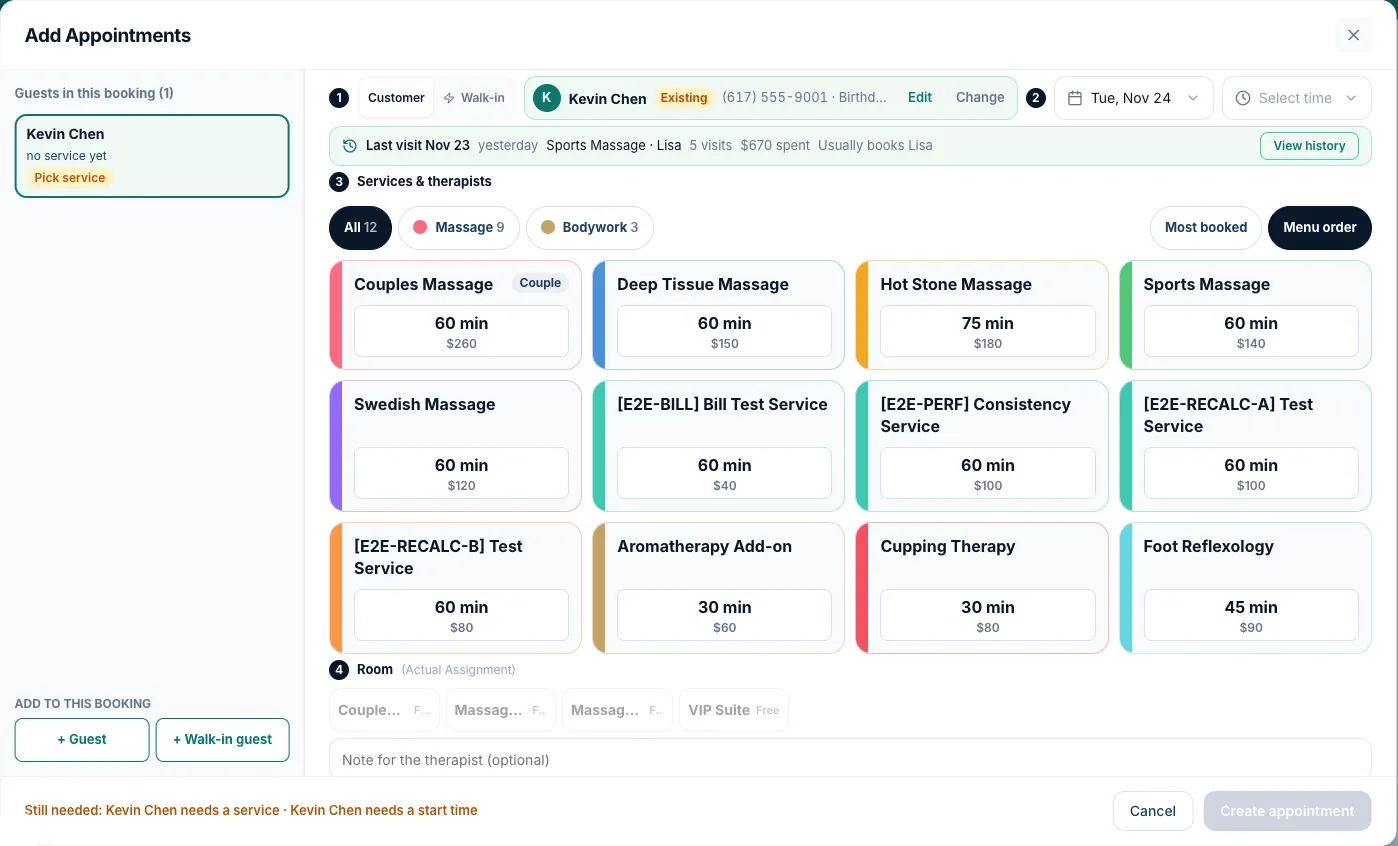
When you pick an existing client in the booking window, a one-line summary appears under their name. It shows the last visit with its service and therapist, how many visits they have had, how much they have spent in total, and the therapist they usually book. Click View history to open the full history without leaving the window.
How to use it
- Open Appointment and click Book.
- In step 1 search for the client and pick them. Walk-ins have no history, and a client with no completed visit shows "First visit — no history yet".
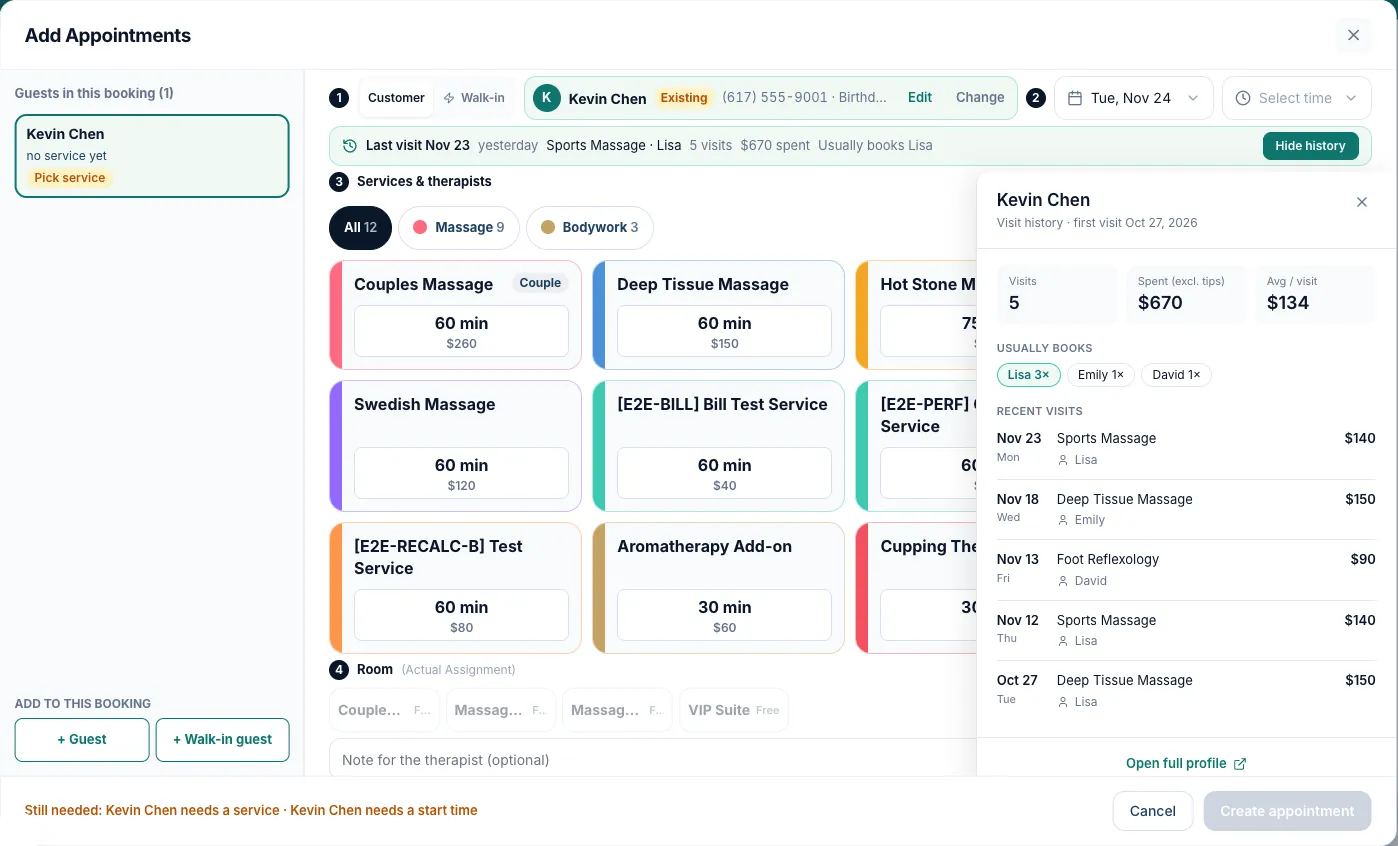
- Read the summary under their name. If you need more, click View history. A panel opens beside the services, and Hide history closes it again.
The panel shows Visits, Spent (excl. tips) and Avg / visit, then Usually books with the therapists they book most and how many times, and Recent visits with the date, the service, the amount and any tip. Package visits are marked Package. Click Show earlier visits for older ones, or Open full profile to go to the client's page. Anyone who can book appointments for the store can see it, and nobody needs to change a setting.
What counts
- A visit is a completed appointment. This is the same count as the "visits" on the check-in client card.
- Spent is what the client paid for services, tips left out. Package purchases, gift card sales, other charges and unpaid orders are not included.
- Cancelled and no-show bookings are listed in the history but not counted in any number.
- Visits imported from another system count once, and therapists are shown by the name that was imported.
Getting the most out of it
- When a regular asks for "the usual", the Usually books line tells you whose calendar to check first.
- Use the recent services to suggest the same treatment, or a natural next step.
- If history does not load, the panel says so and offers Retry. Booking itself is not affected.
The iPad front desk gets the same summary and panel in the new appointment window in the next app update.
Preferences that fit your kind of store
The Preferences & Notes window on a client page used to show massage questions to every store: pressure, aromatherapy, music, room temperature and areas of focus. A nail or hair salon had to scroll past fields it never uses. Now Kuee shows the fields that match your store.
What changes
- Allergies now show for every kind of store, so a nail or hair salon can record latex or product allergies in the same place as everyone else.
- Stores whose business type is only nail, only hair, or nail and hair no longer see the massage fields, and the Body diagram card on the client page is hidden too.
- Everyone else sees what they saw before: massage, beauty, and mixed stores such as nail plus massage.
- Therapist gender, language, allergies and long-term notes show for every store.
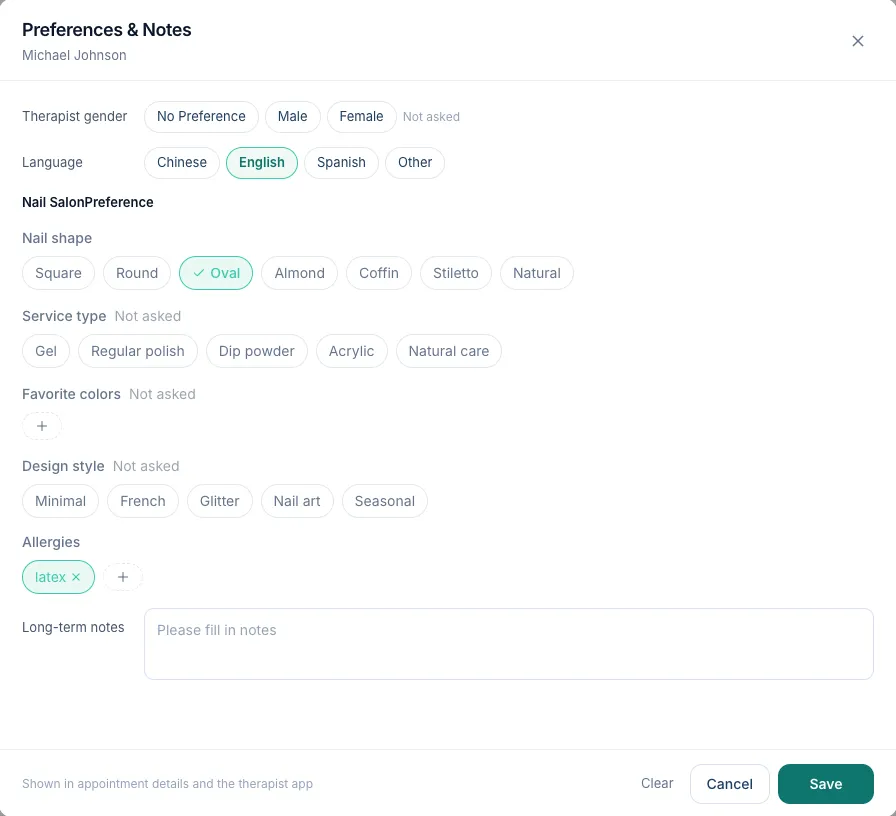
Nothing is deleted. Answers a client already has for the hidden fields stay on their record and come back if your store adds a massage service. Clear only clears the fields you can see.
To open it, go to Customer, open a client, and click Preferences & Notes. On the iPad, the same rule applies on the front desk client page and on the therapist's task page in the next app update. The therapist always sees the allergies line there, because it is safety information.
Bulk texts from the AI chat now use your store number
When you ask the AI chat to send a bulk text, for example to clients who have not been in for 60 days, those texts used to go out from a shared platform number. They did not appear in Messages, and a client's reply did not reach your conversation. For stores with an approved Kuee store number, they now go out from your store number, one text per client.
What you see
- Each text is saved in that client's conversation in Messages, labelled AI bulk send · Marketing or AI bulk send · Care.
- Replies land in the same conversation, so the front desk can answer in the usual place.
- A new Bulk sends button at the top of Messages opens the list of bulk sends from the last 90 days.
How to read Bulk sends
- Open Messages and click Bulk sends.
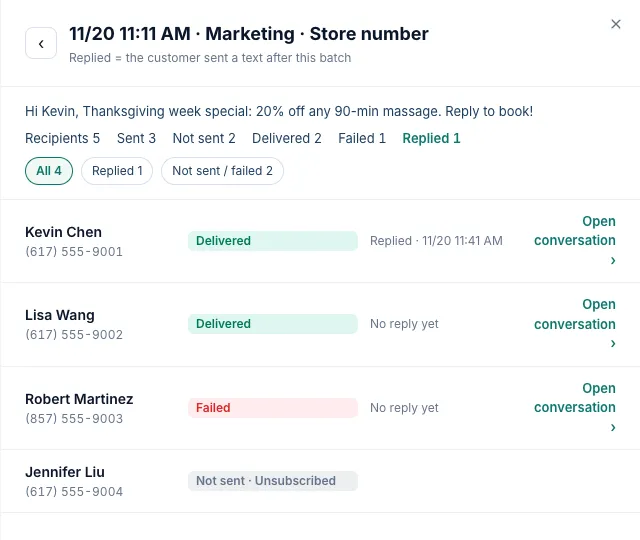
- Each batch shows its type (Marketing or Care), whether it went out from the Store number or the Platform number, and the counts Recipients, Sent, Not sent, Delivered, Failed and Replied. Replied means the client sent a text after that batch.
- Click the View link on a batch (for example View 5 ›) to see every recipient with the status, the reason when a text was not sent (for example Unsubscribed or Invalid number), and when they replied. Open conversation takes you to the chat. You can filter by Replied or Not sent / failed.
Good to know
- One failed text does not stop the batch. Clients who unsubscribed, and clients who already got a promotion that day, are still skipped, as before.
- Texts count as text segments like other texts from your store number.
- Email and push messages in the same send still go the way they did.
- Stores without an approved store number send as before from the platform number. Those batches appear in the list too, but delivery and replies show N/A, because those texts do not appear in conversations.
- Bulk sends from before this release are listed as well. Their Not sent count shows 0, because it was not recorded then.
Smaller improvements
- Subscription page for stores without a number. A store with no AI phone number used to see Add SMS pack and Add call pack buttons that could not be completed. The page now shows an SMS allowance line instead. It says every text is billed at $0.025 a segment until you have a number, that the base comms plan ($10 a month) includes 100 segments, and which text packs you can add. Set up a number takes you to the AI Phone settings. Usage this period shows the segments and an estimated cost. Stores that already have a number see no change.
- Revenue summary on the iPad, matched to the web (iPad). For CardPointe stores, Transactions → Revenue now ends the day at the same time as the web, 8:45 PM by default, and has a Card deposit (CardPointe) block under the table. It shows the batch window and whether the card total matches the CardPointe batch, as the web already does. It arrives with the next app update.
- Book several guests at once on the iPad (iPad). New appointment is now a full screen. Open it from an empty slot on the timeline or the schedule page, or from New appointment in the sidebar. The left column lists the guests; add as many as you need and pick each guest's service, therapist and room. Kuee checks every guest first, then creates them as one booking group, like the web app. If one guest cannot be created, only that guest is retried. It arrives with the next app update.
- Two-factor sign-in on your personal settings. Your personal account settings page, which you open from the account menu in the sidebar, now has Multi-Factor Authentication, where you can add or remove a method. The older personal settings address now sends you to this page.
Fixes you may notice
- Check-in adjustments that cover the whole hold. If the front desk added adjustments at check-in that brought the card hold to zero, for example a Comp, those adjustments were lost and checkout opened at full price. They are now saved: the check-in button reads Save adjustments, and checkout opens with them filled in. The iPad does the same in the next app update.
- Receipts for the second charge on a saved card. For stores that hold a card at check-in: when the extra services and tip are charged to the saved card, the card reader used to print nothing, and a reprint could fail. The reader you checked out on now prints that charge, and reprinting works. Card hold at check-in is being turned on store by store. The iPad gets this in the next app update.
- Save card for new walk-in clients. For stores that hold a card at check-in: when you check in a new walk-in client and have typed their name, the web check-in window now shows Save card, so extras and tip can be charged to that card later without another tap. Card hold at check-in is being turned on store by store.
- Room checks when rooms cannot be read. If Check room capacity when booking is on and Kuee cannot read your room data for a moment, online booking and the AI phone used to book anyway, which could overbook a room. Online booking now asks the client to try again or pick another time, and the AI phone says it cannot confirm a room right now. The website chat does the same. The front desk is not affected.
Questions about this update
Want help setting up bulk texts or reading the new Bulk sends list? Contact us and we will walk you through it.