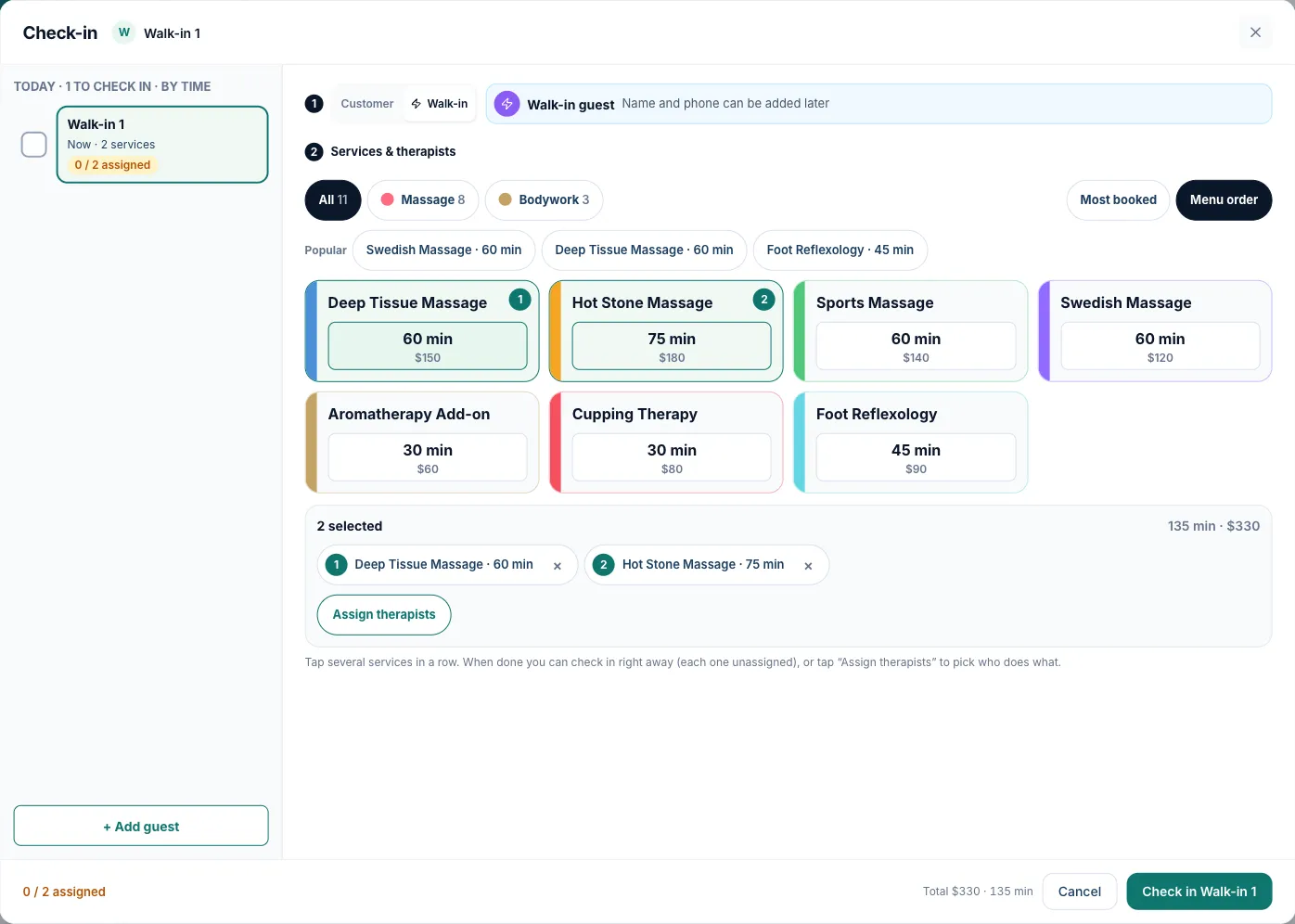
A walk-in asks for a deep tissue massage and a hot stone add-on, and the front desk used to book one service, then go back for the second. In Kuee 4.57 you tap both services in a row and check the guest in once. Each service starts unassigned, so nobody has to pick a therapist before the guest sits down.
This release also turns on extras for online booking, so clients can add a hot towel or a scalp massage while they book, and it makes the tip screen on Fiserv card readers quicker in fixed-amount mode.
Walk-ins: pick several services and check in at once
Before, a walk-in got one service, and Kuee picked the therapist who looked most available. Now the walk-in opens in the Check-in window, where you can tap as many services as the guest wants and check them in with one button. Kuee does not pick a therapist for you any more. Each service stays Unassigned until you choose someone, at check-in or later.
How to use it
- Open Appointment and click Walk-in at the top. The Check-in window opens with a new guest, Walk-in 1, and Walk-in is selected. Name and phone can be added later.
- Under Services & therapists, tap the length of each service the guest wants, in the order they will happen. Each picked card gets a number, and the 2 selected bar below shows every service with its length, plus the total time and price. Tap × on a service to take it off.
- To check in now, click Check in Walk-in 1. Every service goes on the calendar as Unassigned, and you can give each one a therapist later from the appointment.
- To choose therapists first, click Assign therapists. Each service gets its own Pick therapist button, and you can also Change service, Remove, or + Add another service for this guest. The therapist list shows who is busy, off shift, or does not do that service, and Unassigned (Decide later) is always there.
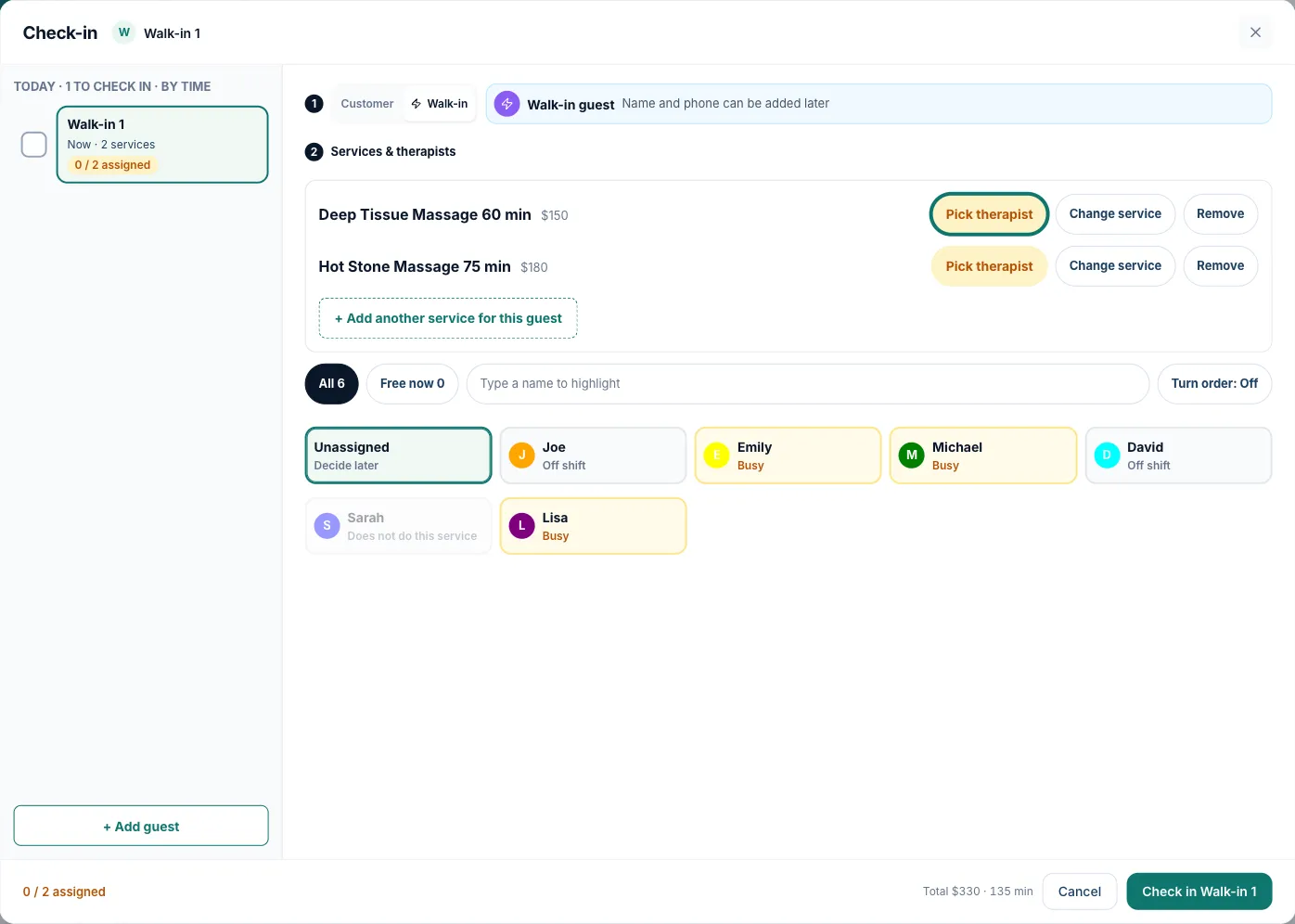
The same works for an existing client: switch from Walk-in to Customer, pick the client, and tap several services. To check in a second guest at the same time, click + Add guest on the left.
Getting the most out of it
- On a busy Saturday, check walk-ins in first and assign therapists as rooms free up. The guest is on the calendar and counted from the moment they arrive.
- Use Assign therapists when the guest asks for someone by name, or when one service needs a specific therapist, for example a therapist who does hot stone.
- Couples and four-hand services are not in the walk-in list. Book those with Book, which gives each guest a therapist spot.
Good to know
- Stores that use Per-service rooms on multi-service bookings can pick at most 2 services per guest. Once two are picked, the other cards turn grey.
- Kuee no longer suggests the therapist an existing client usually books when you check them in this way.
- For stores that hold a card at check-in, a walk-in now works like a booked appointment: if the card hold is declined, the guest is not checked in. If the walk-in is created but the check-in then fails and you close the window, the walk-in stays on the calendar as a confirmed appointment, and you can check it in or cancel it there.
- Save card no longer shows for walk-ins without a client profile, because every walk-in shares the same placeholder record.
- iPad: in the next app update, Walk-in in the iPad sidebar opens the same check-in board with a new walk-in guest, with the same multi-service grid.
Let online clients add extras when they book
Many stores sell small extras with a massage: a hot towel, a scalp massage, CBD balm. With one setting, clients can now add them on your online booking page, right after they pick a service. The setting has been in System Settings for a while, but the booking page did not show the step. Now it does.
How to turn it on
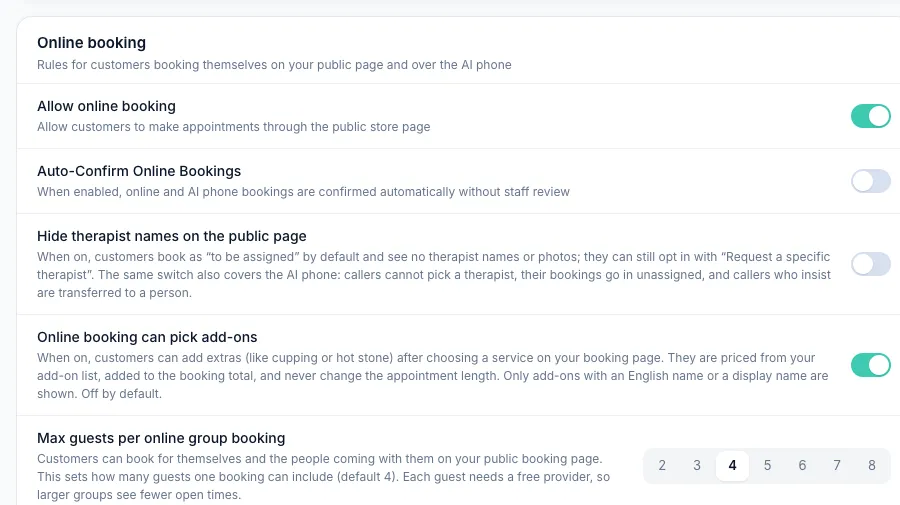
- Go to System Settings → System Configuration and find the Online booking group.
- Turn on Online booking can pick add-ons. It is off by default. Owners and admins can change it.
- Check your add-on list. Clients see add-ons from the list you already use at checkout, with your prices.
What clients see
After they pick a service and length, the booking page shows an Add-ons step called Add extras. They tick what they want, or click Skip. The summary on the right lists each add-on and its price, and the total shows the service and the add-ons separately.
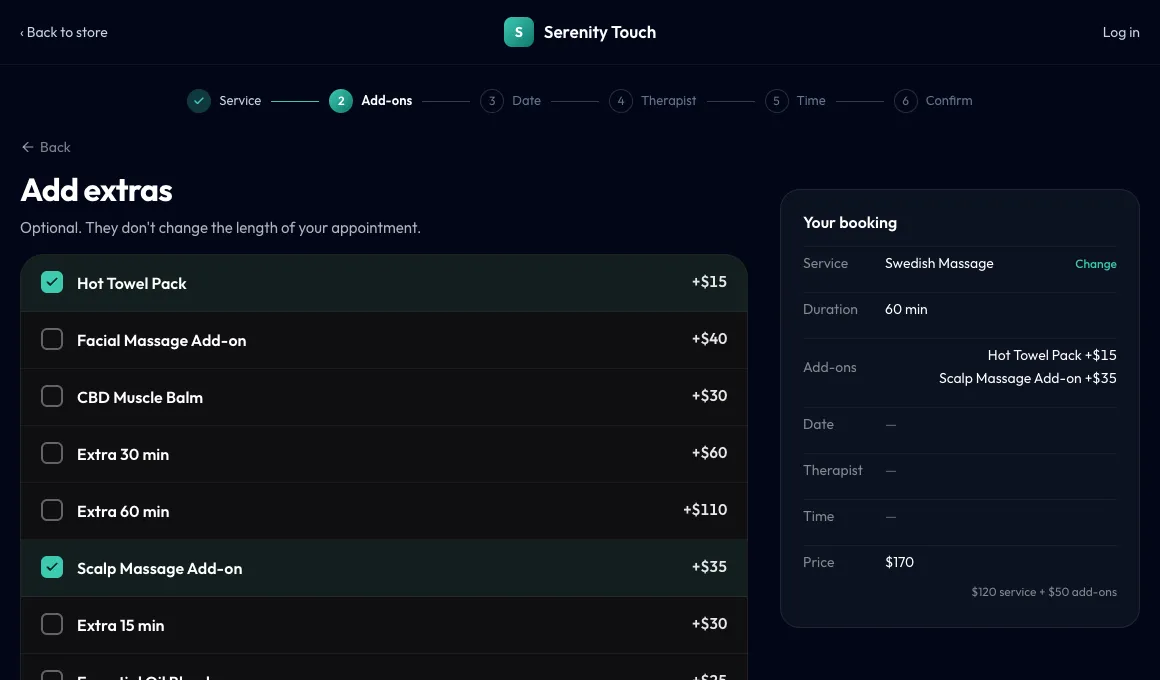
The add-ons are saved on the appointment, the same way the front desk adds them, so they are already on the bill at checkout.
Good to know
- Add-ons never change the length of the appointment. If an extra needs more time, sell a longer service length instead.
- Only add-ons with an English name or a display name are shown, because the client booking page is in English. An add-on named only in Chinese stays hidden.
- Add-ons are not offered for couples or four-hand services, or when a client books for several guests at once.
- For cash discount stores, clients see the card price, like the rest of your booking page.
A tip keypad on Fiserv card readers
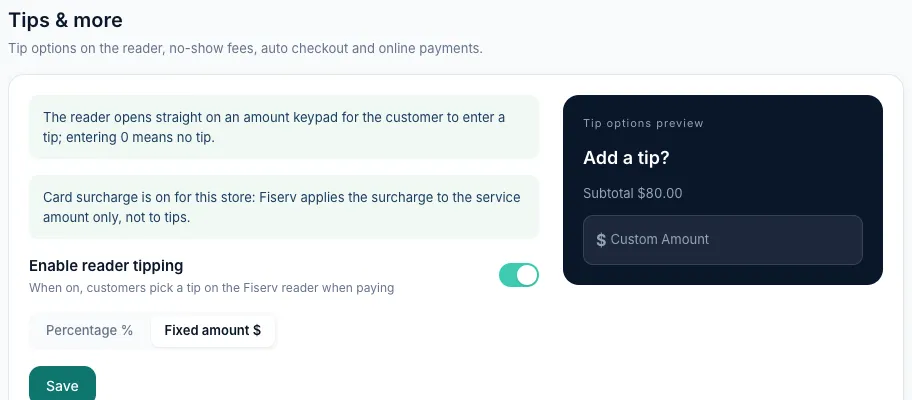
On Fiserv CardPointe readers, the tip screen in Fixed amount $ mode used to show only a Custom amount button, and the client had to tap it before typing a tip. Now the reader opens straight on an amount keypad. The client types the tip, or enters 0 for no tip.
How to set it up
- Go to System Settings → Payment Settings → Tips & more.
- Turn on Enable reader tipping if it is not on yet.
- Choose Fixed amount $ for the keypad, or Percentage % to show percentage buttons, and click Save.
The preview on the right shows what the client sees. Owners and admins can change it.
Good to know
- A tip can be at most the amount of the bill, so a slip on the keypad, such as $500 on a $5 bill, does not reach the card. When only a tip is charged, the limit is $500.
- In Percentage % mode nothing changes: the reader shows your percentages, plus Custom and No tip.
- iPad: in the next app update, the iPad settings for Fiserv stores drop the separate fixed-amount button, so the iPad matches the web.
Smaller improvements
- Numbers instead of red dots in the sidebar. Appointment now shows how many bookings wait for confirmation plus callbacks still owed, and Customer shows how many intake forms wait for review. Every count in the sidebar and on the bell uses the same red badge, and large numbers show as 99+.
- Quick charge keeps to one-off charges. VIP Membership Purchase and Product Sale are no longer charge types in Quick charge, because they only recorded a payment and did not open a membership or sell a product. To sign up a VIP or sell a package, go to the customer's detail page. A walk-in payment now starts with the type Other and the name Walk-in payment filled in, so you only enter the amount. The iPad gets this in the next app update.
- Tips split by the work done. When one payment covers several appointments, the tip is now divided by each appointment's service price plus its add-ons. Services paid with a package still count, and discounts, points and gift cards do not lower a therapist's share. The iPad uses the same rule in the next app update.
- AI phone FAQs. If your FAQs are longer than the AI phone can read, a question that does not fit is now left out whole and marked Not read by AI, instead of being cut off in the middle of an answer.
- The AI assistant button shows up sooner after a page loads on the web app.
- iPad: the appointment toolbar fits on one row. In the staff view, Sort and Overlap are now drop-down menus, and Legend is a small button on the right. Your settings stay the same. It arrives with the next app update.
Fixes you may notice
- Refunds of cash orders. After refunding an order paid in cash, the message no longer says "$0.00 returned to the card". It says the order is marked refunded and that you should give the money back the way the client paid.
- Points at a merged checkout. Points that are entered but not redeemed yet now say Not redeemed yet instead of Applied.
- Online booking language. The booking page no longer mixes in Chinese words, such as the "no preference" text, when a client's browser is set to Chinese. The page is English only.
- New Today on the Customer page now counts clients added today in your store's time zone, not the time zone of the computer you use.
- AI assistant follow-ups. When you open Follow up on a to-do in the AI assistant, it no longer shows internal instructions or failed lines, and the confirm buttons are back. English client names now show with a space between first and last name.
- Reader tips with nothing to charge. On a Stripe reader, if a discount or points bring the amount due to $0 or less before the tip, Kuee now explains this and charges nothing, instead of starting the reader.
- iPad: reprint the second charge. For stores that hold a card at check-in, when extras and tip are charged to the saved card, the order details now have a separate print button for that second charge. Card hold at check-in is being turned on store by store. It arrives with the next app update.
- Security improvements.
Questions about this update
Want help setting up add-ons for online booking, or showing the front desk the new walk-in flow? Contact us and we will walk you through it.